
Disabling Apps on Your Smartphone: A Comprehensive Guide
Introduction
If you’ve just bought a new smartphone and are thrilled with its performance but notice that the operating system is cluttered with unnecessary apps, you might be tempted to disable them. But how? In this article, I’ll explain how to disable apps on Android and iOS devices, as well as suspend their payment registration.
How to Disable Apps on Android
Disabling Preinstalled Apps
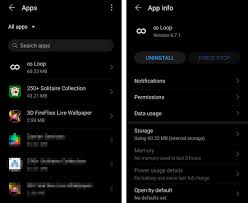
On Android devices, there are some pre-installed apps that can be difficult to remove. However, you can disable them, making them disappear from the list of installed apps.
To do this, follow these instructions:
1. Open the Android Settings app.
2. Tap on the gear icon located in the home screen or device menu.
3. Select “Apps and Notifications” > “#All Apps”.
4. Find the app you want to disable and select it.
5. Press the “Disable” button and confirm your choice.
Disabling Apps Running in The Background
To disable an app running in the background, follow these steps:
1. Open the Android Settings app.
2. Select “Settings” > “Device Information”.
3. Hold down the “Build Number” button for 7 consecutive presses.
4. Notify the activation of Developer Options.
Then, select the sections “System” > “Advanced” > “Developer Options”.
5. Find the app you want to disable and select it.
6. Press the “Disconnect” and “OK” buttons to stop the app from running.
Suspending Payment Registration For an App
To suspend payment registration for an app on Android, follow these steps:
1. Open the Google Play Store.
2. Tap on your profile or device image.
3. Select “Payments and Subscriptions”.
4. Find the app you want to suspend payment registration for and select it.
5. Press the “Suspend” button and confirm your choice.
How to Disable Apps on Ios
Disabling Running Apps
On iOS devices, running apps in the background are limited, and don’t consume much battery or RAM. However, in some cases, you might want to disable an app for compatibility or security issues.
To do this, follow these steps:
1. Open Settings.
2. Select “General” and then “Background App Updates”.
3. Find the app you want to disable and select it.
4. Swipe the notification icon from ON to OFF on the right side.
Suspending Payment Registration For an App
To suspend payment registration for an app on iOS, follow these steps:
1. Open the App Store.
2. Tap on your profile or device image.
3. Select “Subscriptions”.
4. Find the app you want to suspend payment registration for and select it.
5. Press the “Cancel Subscription” button and confirm your choice.
Conclusion
In this article, I’ve explained how to disable apps on Android and iOS devices, as well as suspend their payment registration. Hopefully, these instructions have helped you manage your apps more effectively.
Frequently Asked Questions (FAQs)
1. Why do I Need to Disable Apps?
Answer: Disabling apps can help you save storage space and battery life, and improve your device’s performance.
2. How do I Disable an App on Android?
Answer: To disable an app on Android, follow the instructions provided in the “Disabling Preinstalled Apps” section.
3. How do I Suspend Payment Registration For an App on Android?
Answer: To suspend payment registration for an app on Android, follow the instructions provided in the “Suspending Payment Registration for an App” section.
4. Why Can’t I Disable Netflix’s Subscription Directly From The App?
Answer: Netflix subscriptions must be canceled through the official website of Netflix.
5. How do I Find The Subscriptions Settings on my Ios Device?
Answer: The Subscriptions settings can be found in the “Subscriptions” menu within the App Store.


