
How to Configure Your New Samsung Smartphone: A Step-by-step Guide
Are you one of the many people who have recently purchased a new Samsung smartphone? If so, you’re probably eager to get started with configuring it to your liking. In this article, we’ll take you through a step-by-step guide on how to configure your new Samsung smartphone, from setting up the basics to personalizing your home screen and installing your favorite apps.
Configuring Your New Samsung Smartphone: A Step-by-step Guide
Before we dive in, it’s essential to note that the configuration process may vary slightly depending on the specific model of your Samsung smartphone. However, the general steps outlined below should be applicable to most Samsung smartphones.
Pre-configuration Steps
- Unboxing And Initial Inspection: First things first, make sure you’ve unboxed your new Samsung smartphone and inspected it for any damage or aesthetic issues.
- Charging Your Phone: Next, charge your phone to at least 50% to ensure a smooth configuration process.
Initial Configuration
- Welcome Screen: Once your phone is charged, turn it on, and you’ll be greeted by the welcome screen. Tap on the center button to proceed with the configuration.
- Language And Keyboard Selection: Choose your preferred language and keyboard layout from the options provided.
- Terms of Service And Privacy Policy: Read through the terms of service and privacy policy, and tap on “Accept” to confirm your agreement.
Transferring Data From an Old Device
- Smart Switch Option: If you’re transferring data from an old Samsung or Android device, you can use the Smart Switch option.
- QR Code Scanning: Scan the QR code using the camera on your new phone to connect it to the old device.
- Data Transfer: Choose the type of data you want to transfer (e.G., Contacts, messages, apps), and follow the on-screen instructions.
Manual Configuration
- Wi-fi Connection: If you prefer to configure your phone manually, set up a Wi-Fi connection by tapping on “Wi-Fi” in the settings menu.
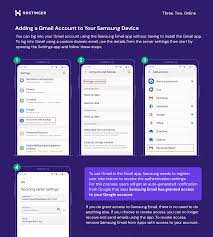
- Google Account Setup: Sign in with your Google account credentials to access various Google services and synchronize your data.
Personalizing Your Home Screen
- Widget Personalization: Personalize your home screen by adding widgets, such as a clock, calendar, or weather forecast.
- Wallpaper Selection: Choose a wallpaper that suits your taste from the options provided.
Installing Apps And Updates
- Google Play Store Access: Sign in with your Google account to access the Google Play Store and download apps.
- System Update Check: Regularly check for system updates to ensure you have the latest security patches and features.
Advanced Settings
- Bluetooth Connection Setup: Set up Bluetooth connections for accessories like earphones or a smartwatch.
- Google Pay or Samsung Pay Configuration: Configure Google Pay or Samsung Pay for contactless payments.
Personalizing Your Samsung Smartphone: Tips And Tricks
Now that you’ve configured your new Samsung smartphone, it’s time to personalize it to your liking! Here are some tips and tricks to get you started:
- Customize Your Home Screen: Add widgets, change the wallpaper, or use a third-party launcher to give your phone a personalized touch.
- Install Your Favorite Apps: Download and install apps from the Google Play Store or other app stores.
- Set up Automatic Software Updates: Ensure you receive the latest security patches and features by enabling automatic system updates.
Conclusion
Configuring your new Samsung smartphone may seem daunting, but with this step-by-step guide, you’ll be up and running in no time! Remember to personalize your home screen, install your favorite apps, and set up advanced settings for a seamless user experience. Happy configuring!
Frequently Asked Questions (FAQs)
- Q: How do I Configure my Samsung Smartphone?
A: Follow the step-by-step guide outlined above. - Q: Can I Transfer Data From an Old Device to my New Samsung Smartphone?
A: Yes, you can use the Smart Switch option or manually configure your phone. - Q: How do I Personalize my Home Screen on a Samsung Smartphone?
A: Add widgets, change the wallpaper, or use a third-party launcher to give your phone a personalized touch. - Q: What is Google Pay, And How do I Configure It?
A: Google Pay is a contactless payment service that allows you to make payments using your phone. Configure it by following the on-screen instructions. - Q: How Often Should I Check For System Updates on my Samsung Smartphone?
A: Regularly check for system updates to ensure you have the latest security patches and features.
**By following this step-by-step guide, you’ll be able to configure your new Samsung smartphone with ease! Remember to personalize your home screen, install your favorite apps, and set up advanced settings for a seamless user experience. Happy configuring!


