
How to Remove The Effect Mirror on Iphone: A Step-by-step Guide
Are you tired of seeing a mirrored effect on your iPhone’s front camera photos? You’re not alone! Many iPhone users have reported experiencing this issue, but don’t worry, we’ve got you covered. In this article, we’ll show you how to remove the effect mirror on iPhone before and after taking a photo.
What is The Effect Mirror on Iphone?
The effect mirror on iPhone refers to the phenomenon where photos taken with the front camera appear to be mirrored or reversed. This can be frustrating, especially when trying to capture a perfect selfie. But fear not, we’ve got some solutions for you!
Remove Effect Mirror on Iphone Before Taking a Photo
While it’s not possible to disable the mirror effect in real-time while taking a photo, there are some workarounds that can help.
Using Ios Settings
To remove the effect mirror on iPhone before taking a photo, follow these steps:
- Go to your iPhone’s Settings app.
- Tap on Camera.
- Scroll down and find the option labeled Composition.
- Toggle off the switch next to Reflect Camera Frame.
By following these steps, you’ll see no mirrored effect while taking a photo, but the photo itself will still be mirrored. To fix this, simply rotate your iPhone horizontally in the Photos app and adjust the photo accordingly.
Using Post-production Techniques
If removing the mirror effect before taking a photo isn’t ideal for you, don’t worry! You can also remove it using post-production techniques.
Method 1: Using The Iphone’s Built-in Editor
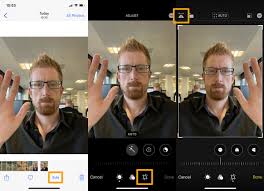
You can use the built-in editor in the Photos app to remove the mirror effect. Here’s how:
- Open the Photos app.
- Select the photo you want to edit.
- Tap on the Edit button.
- Swipe left to access the editing tools.
- Tap on the Retouch tool.
- Adjust the photo accordingly.
Method 2: Using a Third-party App
If you’re not satisfied with the built-in editor, you can use third-party apps like Adobe Lightroom or VSCO to remove the mirror effect.
How to Remove Effect Mirror on Iphone in Post-production (Continued)
To continue from where we left off earlier, here are some additional steps you can follow:
- Open your chosen app.
- Select the photo you want to edit.
- Adjust the photo accordingly using the app’s editing tools.
Remember, these methods may require some practice to get the hang of it, so don’t be discouraged if it takes a few tries to achieve the desired result.
Conclusion
Removing the effect mirror on iPhone can be a bit tricky, but with the right techniques and tools, you can achieve perfect photos every time. Whether you choose to remove it before taking a photo or use post-production techniques, we hope this guide has been helpful in resolving your issue.


