
How to Delete Rescue Password on Different Browsers And Social Media Platforms
Are you tired of constantly being asked to save passwords by your browser or social media platforms? Do you want to keep your login credentials private? In this article, we will guide you through the process of deleting rescue password on different browsers and social media platforms.
Why Delete Rescue Password?
Deleting rescue password is essential for maintaining online privacy. By saving passwords, browsers and social media platforms can access your account information without requiring a username and password each time you log in. This can compromise your personal data and put you at risk of identity theft.
How to Delete Rescue Password on Google Chrome
If you use Google Chrome as your browser, deleting rescue password is relatively straightforward:
- Initiate Google Chrome: Open Google Chrome on your computer or mobile device.
- Click on The Three Dots: In the top right corner of the browser window, click on the three dots (⋮).
- Select Settings: From the drop-down menu, select “Settings.”
- Go to Passwords: In the settings menu, go to the section labeled “Passwords.”
- Turn Off Password Saving: Toggle the switch next to “Ask before saving login” to turn it off.
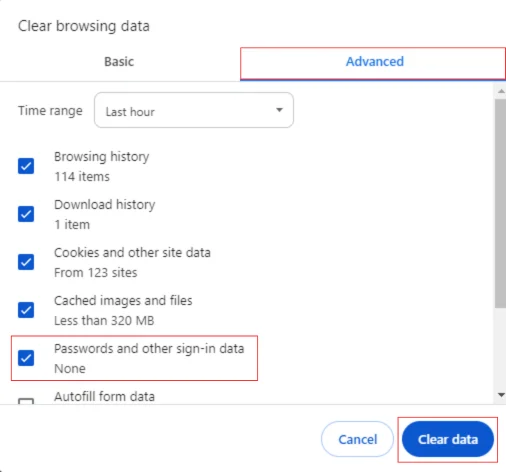
- Erase Saved Passwords: Click on the three dots (⋮) again and select “Settings.” Then, click on the gear icon in the top right corner of the settings menu and select “Passwords.” Scroll down to the section labeled “Saved Passwords” and click on the three dots (⋮) next to each password you want to erase. Select “Delete” from the drop-down menu.
How to Delete Rescue Password on Microsoft Edge
If you use Microsoft Edge as your browser, deleting rescue password is also relatively straightforward:
- Initiate Microsoft Edge: Open Microsoft Edge on your computer or mobile device.
- Click on The Three Dots: In the top right corner of the browser window, click on the three dots (⋮).
- Select Settings: From the drop-down menu, select “Settings.”
- Go to Profiles And Passwords: In the settings menu, go to the section labeled “Profiles” and then click on “Passwords.”
- Turn Off Password Saving: Toggle the switch next to “Ask before saving login” to turn it off.
- Erase Saved Passwords: Click on the three dots (⋮) again and select “Settings.” Then, go to the section labeled “Privacy, search, and services” and click on the gear icon in the top right corner of the settings menu. Select “Passwords” from the drop-down menu and scroll down to the section labeled “Saved Passwords.” Click on the three dots (⋮) next to each password you want to erase and select “Delete.”
How to Delete Rescue Password on Mozilla Firefox
If you use Mozilla Firefox as your browser, deleting rescue password is slightly more involved:
- Initiate Mozilla Firefox: Open Mozilla Firefox on your computer or mobile device.
- Click on The Three Lines: In the top right corner of the browser window, click on the three lines (☰).
- Select Settings: From the drop-down menu, select “Settings.”
- Go to Privacy And Security: In the settings menu, go to the section labeled “Privacy and Security.”
- Turn Off Password Saving: Toggle the switch next to “Ask before saving login” to turn it off.
- Erase Saved Passwords: Click on the three lines (☰) again and select “Settings.” Then, click on the gear icon in the top right corner of the settings menu and select “Passwords.” Scroll down to the section labeled “Saved Passwords” and click on the three dots (⋮) next to each password you want to erase. Select “Delete” from the drop-down menu.
How to Delete Rescue Password on Safari
If you use Safari as your browser, deleting rescue password is relatively straightforward:
- Initiate Safari: Open Safari on your Mac.
- Click on The Three Dots: In the top left corner of the browser window, click on the three dots (⋮).
- Select Preferences: From the drop-down menu, select “Preferences.”
- Go to Autofill: In the preferences menu, go to the section labeled “Autofill.”
- Turn Off Password Saving: Toggle the switch next to “Name and Password” to turn it off.
- Erase Saved Passwords: Click on the three dots (⋮) again and select “Preferences.” Then, click on the gear icon in the top right corner of the preferences menu and select “Passwords.” Scroll down to the section labeled “Saved Passwords” and click on the minus sign (-) next to each password you want to erase.
How to Delete Rescue Password on Google
If you use Google services like Gmail or Google Drive, deleting rescue password is relatively straightforward:
- Initiate Google Account Settings: Open your Google account settings by going to myaccount.Google.Com.
- Click on Security: In the top left corner of the settings menu, click on “Security.”
- Turn Off Password Saving: Toggle the switch next to “Ask before saving login” to turn it off.
- Erase Saved Passwords: Click on the three dots (⋮) again and select “Settings.” Then, go to the section labeled “Password manager” and scroll down to the section labeled “Saved Passwords.” Click on the three dots (⋮) next to each password you want to erase and select “Delete.”
How to Delete Rescue Password on Instagram
If you use Instagram as your social media platform, deleting rescue password is relatively straightforward:
- Initiate Instagram App: Open the Instagram app on your mobile device.
- Click on Profile: In the top left corner of the app window, click on your profile picture.
- Select Settings: From the drop-down menu, select “Settings.”
- Go to Security: In the settings menu, go to the section labeled “Security.”
- Turn Off Password Saving: Toggle the switch next to “Ask before saving login” to turn it off.
- Erase Saved Passwords: Click on the three dots (⋮) again and select “Settings.” Then, go to the section labeled “Password manager” and scroll down to the section labeled “Saved Passwords.” Click on the three dots (⋮) next to each password you want to erase and select “Delete.”
How to Delete Rescue Password on Facebook
If you use Facebook as your social media platform, deleting rescue password is relatively straightforward:
- Initiate Facebook App: Open the Facebook app on your mobile device.
- Click on Menu: In the top right corner of the app window, click on the three dots (⋮).
- Select Settings: From the drop-down menu, select “Settings.”
- Go to Account: In the settings menu, go to the section labeled “Account.”
- Turn Off Password Saving: Toggle the switch next to “Ask before saving login” to turn it off.
- Erase Saved Passwords: Click on the three dots (⋮) again and select “Settings.” Then, go to the section labeled “Password manager” and scroll down to the section labeled “Saved Passwords.” Click on the three dots (⋮) next to each password you want to erase and select “Delete.”
By following these steps, you can delete rescue password on different browsers and social media platforms, maintaining your online privacy and security.


