
Finding Your Lost Iphone: A Step-by-step Guide
Are you worried sick because your iPhone is missing? Don’t panic! With the help of Apple’s built-in features, you can locate your device even if it’s lost or stolen. In this article, we’ll walk you through the steps to find your iPhone using another iPhone, iCloud, Mac, PC, and more.
The Benefits of Using Find My Iphone
Find My iPhone is a powerful feature that allows you to track down your device’s location on a map, lock it remotely, or even erase its data if it falls into the wrong hands. This feature is especially useful if your phone has been lost or stolen, but also when you need to locate it within your own home.
Using Another Iphone to Find Your Lost Device
If you have another iPhone associated with the same Apple ID, you can use it to find your missing device. Here’s how:
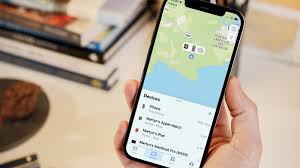
- Open the “Find My” app on the second iPhone
- Tap on the “Devices” tab at the bottom of the screen
- Select the name of the iPhone that you want to locate from the list of devices associated with your Apple ID
- If your iPhone is online, you’ll see its current location on a map. You can also tap on the icon of the device to sound an alarm and make it easier to find.
- If your iPhone is offline or turned off, you’ll see the last known location where it was connected to Wi-Fi.
Using Icloud to Find Your Lost Iphone
If you don’t have another iPhone handy, you can still use iCloud to locate your missing device. Here’s how:
- Open a web browser on any computer or mobile device
- Go to the official iCloud website and sign in with your Apple ID
- Click on the “Find My” tab at the top of the screen
- Select the name of the iPhone that you want to locate from the list of devices associated with your Apple ID
Using a Mac or PC to Find Your Lost Iphone
If you have a Mac or PC, you can also use it to find your missing iPhone. Here’s how:
- On a Mac:
- Open the “Find My” app on your Mac
- Select the name of the iPhone that you want to locate from the list of devices associated with your Apple ID
- You’ll see the current location of your iPhone on a map. You can also tap on the icon of the device to sound an alarm and make it easier to find.
- On a PC:
- Open a web browser and go to the official iCloud website
- Sign in with your Apple ID
- Click on the “Find My” tab at the top of the screen
- Select the name of the iPhone that you want to locate from the list of devices associated with your Apple ID
Using a PC to Find Your Lost Iphone
If you don’t have another iPhone or Mac handy, but do have a PC, you can still use it to find your missing device. Here’s how:
- Open a web browser and go to the official iCloud website
- Sign in with your Apple ID
- Click on the “Find My” tab at the top of the screen
- Select the name of the iPhone that you want to locate from the list of devices associated with your Apple ID
Tips For Finding Your Lost Iphone
Here are some additional tips that might help you find your lost iPhone:
- Make sure your iPhone is turned on and connected to Wi-Fi.
- If your iPhone is offline, try restarting it or reconnecting it to Wi-Fi.
- Use the “Find My” app or iCloud website to locate your iPhone as soon as possible.
Conclusion
Finding your lost iPhone doesn’t have to be a stressful experience. With the help of Apple’s built-in features and some simple steps, you can locate your device even if it’s missing or stolen. Just remember to act quickly and use all available resources to find your iPhone. If you’re still having trouble finding your phone, consider visiting an authorized Apple store or contacting their customer support for further assistance.
Frequently Asked Questions
Q: What happens if my iPhone is turned off?
A: If your iPhone is turned off, you won’t be able to track its location using the “Find My” app or iCloud website. However, if you have enabled the “Net Where” feature on a recent iOS version, it might still work even when offline.
Q: Can I lock my iPhone remotely?
A: Yes, with the “Find My” app and iCloud website, you can remotely lock your iPhone to prevent others from accessing its contents.
Q: How do I erase all data from my iPhone if it’s lost or stolen?
A: You can erase all data from your iPhone using the “Find My” app and iCloud website. This feature is also available on recent iOS versions for devices turned off.
Additional Resources
For more information on finding your lost iPhone, check out these resources:
- Apple Support: Learn how to use Find My iPhone to locate, lock, or erase data from your device.
- ICloud Website: Access the “Find My” tab on the iCloud website and sign in with your Apple ID to start searching for your lost device.
- Apple Store: Visit an authorized Apple store near you and speak with a representative about finding your lost iPhone.


