
How to Connect Your Portable to Tv: A Step-by-step Guide
Are you tired of dealing with messy cables and complicated setups? Do you want to connect your portable device to your TV without any hassle? Look no further! In this article, we’ll show you how to easily connect your portable to TV using various methods, including HDMI, Miracast, Google Cast, AirPlay, Chromecast, and Apple TV.
Why Connect Your Portable to Tv?
Connecting your portable device to your TV can enhance your entertainment experience. You can watch movies, play games, browse the internet, or use other applications on a larger screen. With the rise of portable devices, it’s becoming increasingly common to connect them to TVs for a more immersive experience.
Method 1: Using Hdmi
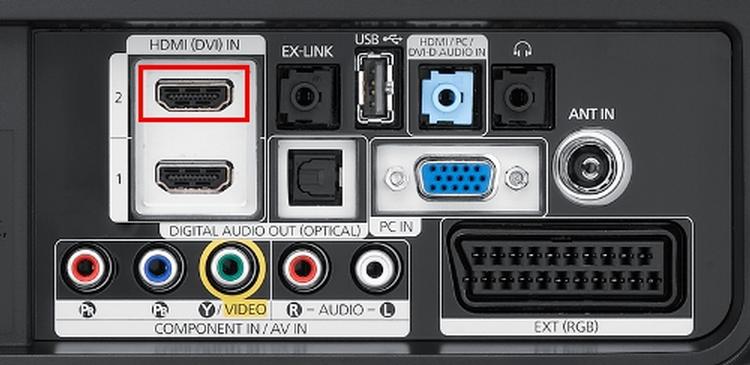
Connecting your portable device to your TV using HDMI is one of the most straightforward methods. Here’s how:
- Identify the type of HDMI port on your portable device (e.G., Micro HDMI or Mini HDMI).
- Purchase an HDMI cable that matches the type of port on your device.
- Connect the other end of the HDMI cable to a free HDMI port on your TV.
- Turn on both devices and select the correct HDMI source on your TV.
Method 2: Using Miracast
Miracast is a wireless technology that allows you to connect your portable device to your TV without any cables. Here’s how:
- Ensure your TV has built-in Miracast capabilities (check the user manual or manufacturer’s website).
- Enable Miracast on your portable device by going to Settings > Display > Wireless Display.
- Select your TV from the list of available devices.
Method 3: Using Google Cast
Google Cast is another wireless technology that allows you to connect your portable device to your TV. Here’s how:
- Ensure your TV has Google Cast capabilities (check the user manual or manufacturer’s website).
- Open the Google Chrome browser on your portable device.
- Click on the three dots in the top right corner and select “Cast…”
- Select your TV from the list of available devices.
Method 4: Using Airplay
AirPlay is a proprietary technology developed by Apple that allows you to connect your portable device (e.G., MacBook) to your TV. Here’s how:
- Ensure your TV has AirPlay capabilities (check the user manual or manufacturer’s website).
- Open the Apple TV app on your MacBook.
- Select your TV from the list of available devices.
Method 5: Using Chromecast
Chromecast is a small device that allows you to connect your portable device to your TV using Google Cast technology. Here’s how:
- Purchase a Chromecast device and plug it into an HDMI port on your TV.
- Open the Google Home app on your portable device.
- Select your Chromecast device from the list of available devices.
Method 6: Using Apple TV
Apple TV is a set-top box that allows you to connect your portable device (e.G., MacBook) to your TV using AirPlay technology. Here’s how:
- Purchase an Apple TV and plug it into an HDMI port on your TV.
- Open the Apple TV app on your MacBook.
- Select your Apple TV from the list of available devices.
Conclusion
Connecting your portable device to your TV has never been easier! With these six methods, you can enjoy a seamless entertainment experience without dealing with messy cables. Whether you choose HDMI, Miracast, Google Cast, AirPlay, Chromecast, or Apple TV, we hope this guide has helped you find the perfect solution for your needs.
Frequently Asked Questions (FAQs)
- Q: What is The Difference Between Miracast And Google Cast?
A: Both technologies allow wireless connectivity between devices, but Miracast is a proprietary technology developed by Microsoft, while Google Cast is a proprietary technology developed by Google. - Q: Can I Use Multiple Methods to Connect my Portable Device to my Tv?
A: Yes, you can use multiple methods to connect your portable device to your TV, depending on the capabilities of your devices and TV. - Q: Do I Need to Purchase Any Additional Hardware or Software to Connect my Portable Device to my Tv?
A: Depending on the method you choose, you may need to purchase additional hardware (e.G., HDMI cable) or software (e.G., Chromecast app). - Q: How do I Troubleshoot Connectivity Issues Between my Portable Device And Tv?
A: Check the user manual or manufacturer’s website for troubleshooting guides specific to your devices and TV. - Q: Can I Connect Multiple Portable Devices to my TV at The Same Time?
A: Yes, some methods (e.G., Miracast) allow you to connect multiple devices to your TV simultaneously.
Additional Resources
- Our comprehensive guide on how to connect a computer to a TV using an HDMI cable
- A list of compatible TVs and devices for each method
- Troubleshooting guides for common connectivity issues
We hope this article has provided you with the information you need to successfully connect your portable device to your TV. Happy streaming!


