
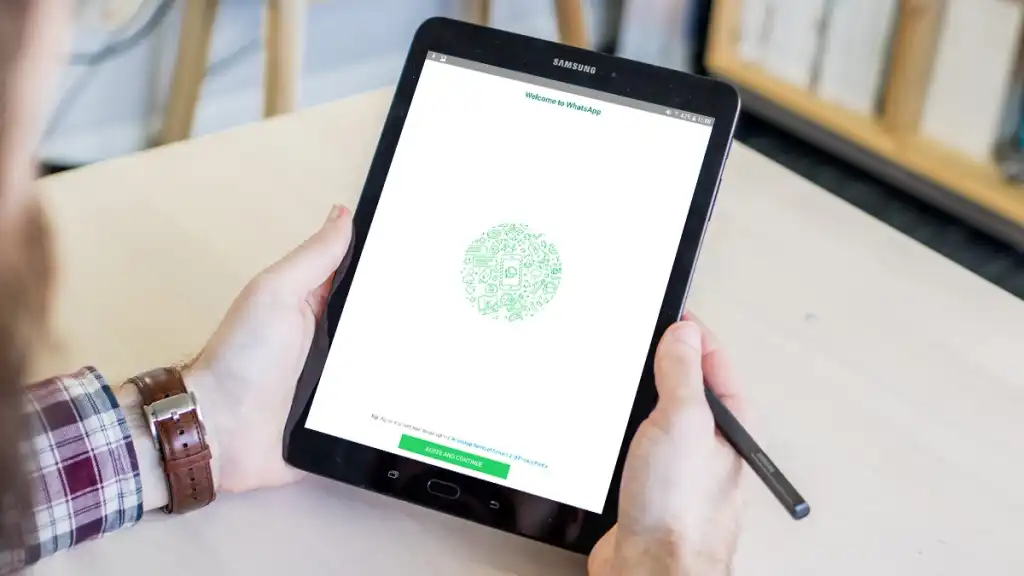
Installing Whatsapp on Samsung: A Step-by-step Guide
Are you a proud owner of a Samsung smartphone? Do you want to stay connected with your friends and family through the most popular messaging app, WhatsApp? Look no further! In this article, we will guide you through the process of installing WhatsApp on your Samsung device.
Before You Begin
Before we dive into the installation process, it’s essential to note that WhatsApp is available for download from the Google Play Store. However, if you’re facing any issues with the Play Store or don’t have a Google account, we’ll provide an alternative method to install WhatsApp on your Samsung device.
Step 1: Associate Your Google Account
To use the Google Play Store and download WhatsApp, you need to associate your Google account with your Samsung device. Here’s how:
- Go to the drawer (the screen where all your apps are listed)
- Tap on the Settings icon
- Select Cloud and accounts
- Add account
- Choose Google
- Enter your Google credentials to login
Step 2: Download Whatsapp
Now that you have a Google account associated with your device, it’s time to download WhatsApp. Follow these steps:
- Open the Play Store app
- Tap on the search bar
- Type “WhatsApp” and select the correct result
- Tap on the Install button
Step 3: Configure Your Account
After installing WhatsApp, you’ll need to configure your account. Here’s what to do:
- Launch WhatsApp
- Accept the terms of service
- Select Continue
- Consent to access your contacts, photos, and media files
- Enter your phone number and validate it through an SMS code
Alternative Method: Installing Whatsapp From Apk File
If you’re unable to download WhatsApp from the Play Store or prefer to install it manually, follow these steps:
- Go to Settings > Safety and security
- Select Unknown sources (if not already enabled)
- Download the WhatsApp APK file from a trusted source (e.G., WhatsApp’s official website or other reputable websites)
- Open the File manager app
- Locate the downloaded APK file and tap on it
- Tap on the Install button
Installing Whatsapp on Tablet
Yes, you can install WhatsApp on your tablet! If your device supports cellular networks and has a SIM card inserted, follow the same steps as above. However, if your tablet doesn’t support cellular networks, you can create a WhatsApp account using a phone number associated with a mobile device.
Conclusion
Installing WhatsApp on your Samsung device is a straightforward process. Whether you prefer to download it from the Play Store or use an alternative method, we’ve got you covered. Remember to associate your Google account and configure your WhatsApp account according to our step-by-step guide.
Faqs
- Q: Why Can’t I Find The Icon of The Play Store on my Samsung Device?
A: If the Play Store icon is missing from your drawer, it might be due to a license issue or a cheap terminal. Try installing the Play Store manually using our tutorial. - Q: How do I Create a Whatsapp Account Without a Phone Number?
A: You can’t create a WhatsApp account without a phone number. However, you can use an alternative messaging app like Telegram. - Q: Can I Install Whatsapp on my Tablet?
A: Yes, you can install WhatsApp on your tablet, but it requires a SIM card and cellular network support. - Q: Why is Whatsapp Not Working on my Device?
A: Try restarting your device or reinstalling the app to resolve any issues. - Q: Can I Use Whatsapp Web on my Tablet?
A: Yes, you can use WhatsApp Web on your tablet by scanning a QR code using the WhatsApp app on your mobile device.
Bonus Tips
- Always download apps from trusted sources to avoid security risks.
- Keep your Google account and device software up-to-date to ensure smooth performance.
- Explore other messaging apps like Telegram for alternative features and functionality.


