
How to Search Photos on Google: A Step-by-step Guide
Are you looking for a way to find high-quality photos on Google to enhance your document or video? Look no further! In this article, we will guide you through the process of searching photos on Google, using various methods and tools.
Why Search Photos on Google?
Google Images is an excellent resource for finding photos that are licensed under Creative Commons or public domain. These images can be used in personal or commercial projects without worrying about copyright issues.
Method 1: Searching Images on Google
To search images on Google, follow these steps:
- Connect to The Google Website: Open your web browser and connect to the Google website.
- Type Your Search Query: In the search bar, type the keywords related to the image you are looking for. For example, “cats,” “computers,” “cakes,” or “roads.”
- Click The Search Button: Click on the magnifying glass icon or press the Enter key to initiate the search.
- View Image Results: The search results will display a list of websites containing images related to your query. To view only the images, click on the “Images” tab at the top.
Method 2: Searching Images For Specific Dimensions
Want to find images with specific dimensions? Follow these steps:
- Connect to Google Images: Go to the Google Images website.
- Type Your Search Query And Dimension: In the search bar, type your keywords followed by the dimension you are looking for (e.G., “Dog imagesize:1920X1080”).
- Click The Search Button: Click on the magnifying glass icon or press the Enter key to initiate the search.
Method 3: Searching Photos Using Google Lens
Google Lens is a powerful tool that allows you to search photos using your smartphone camera. Here’s how:
- Download Google Lens App: Download the Google Lens app from the Play Store (for Android) or the App Store (for iOS).
- Open The App And Select Image Search: Open the app and select the image search option.
- Point Your Camera at an Image: Point your camera at an image you want to search for.
- Google Lens Will Display Related Images: Google Lens will display a list of related images.
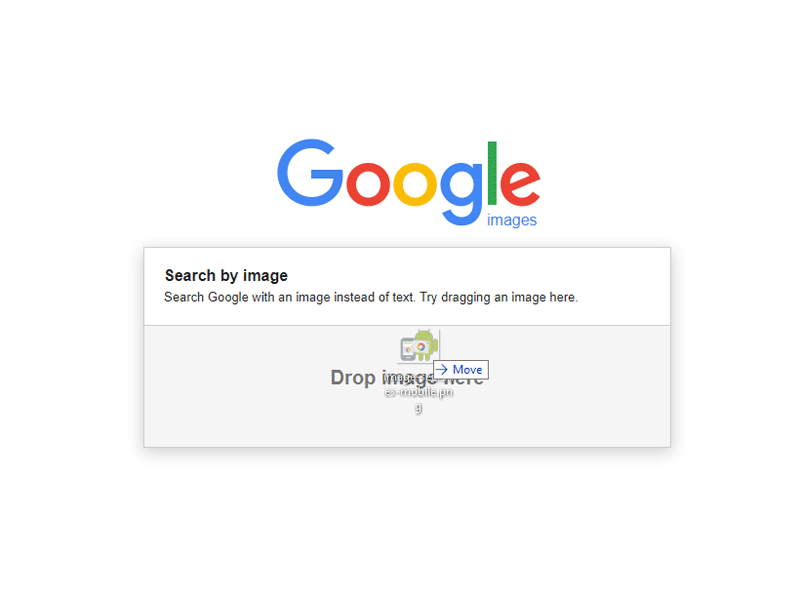
Method 4: Searching Photos Using Reverse Image Search
Want to find similar photos? Use the reverse image search feature on Google:
- Go to Google Images: Go to the Google Images website.
- Click on The Camera Icon: Click on the camera icon in the search bar.
- Upload or Enter The Url of an Image: Upload an image or enter its URL.
- View Similar Photos: View a list of similar photos.
Conclusion
Searching for photos on Google can be a daunting task, but with these methods and tools, you’ll be able to find high-quality images in no time. Whether you’re looking for specific dimensions, using Google Lens, or searching using reverse image search, this guide has got you covered.
Frequently Asked Questions (FAQs)
- What is The Best Way to Search For Photos on Google?
The best way to search for photos on Google is to use a combination of keywords and filters in the Google Images website. - How do I Find Images With Specific Dimensions?
To find images with specific dimensions, type your search query followed by “imagesize” and the dimension you are looking for (e.G., “Dog imagesize:1920X1080”). - What is Google Lens?
Google Lens is a tool that allows you to search photos using your smartphone camera. - How do I Use Google Lens?
To use Google Lens, download the app, open it, and select the image search option. Point your camera at an image, and Google Lens will display related images. - What is Reverse Image Search?
Reverse image search allows you to find similar photos by uploading or entering the URL of an image. - Can I Use Images From Google For Commercial Purposes?
Yes, but make sure the images are licensed under Creative Commons or public domain. - How do I Filter Images on Google Images?
To filter images on Google Images, select the “Tools” menu and choose filters such as type, color, or size. - Can I Search For Videos on Google Images?
Yes, you can search for videos on Google Images by selecting the “Video” tab in the search results.


