
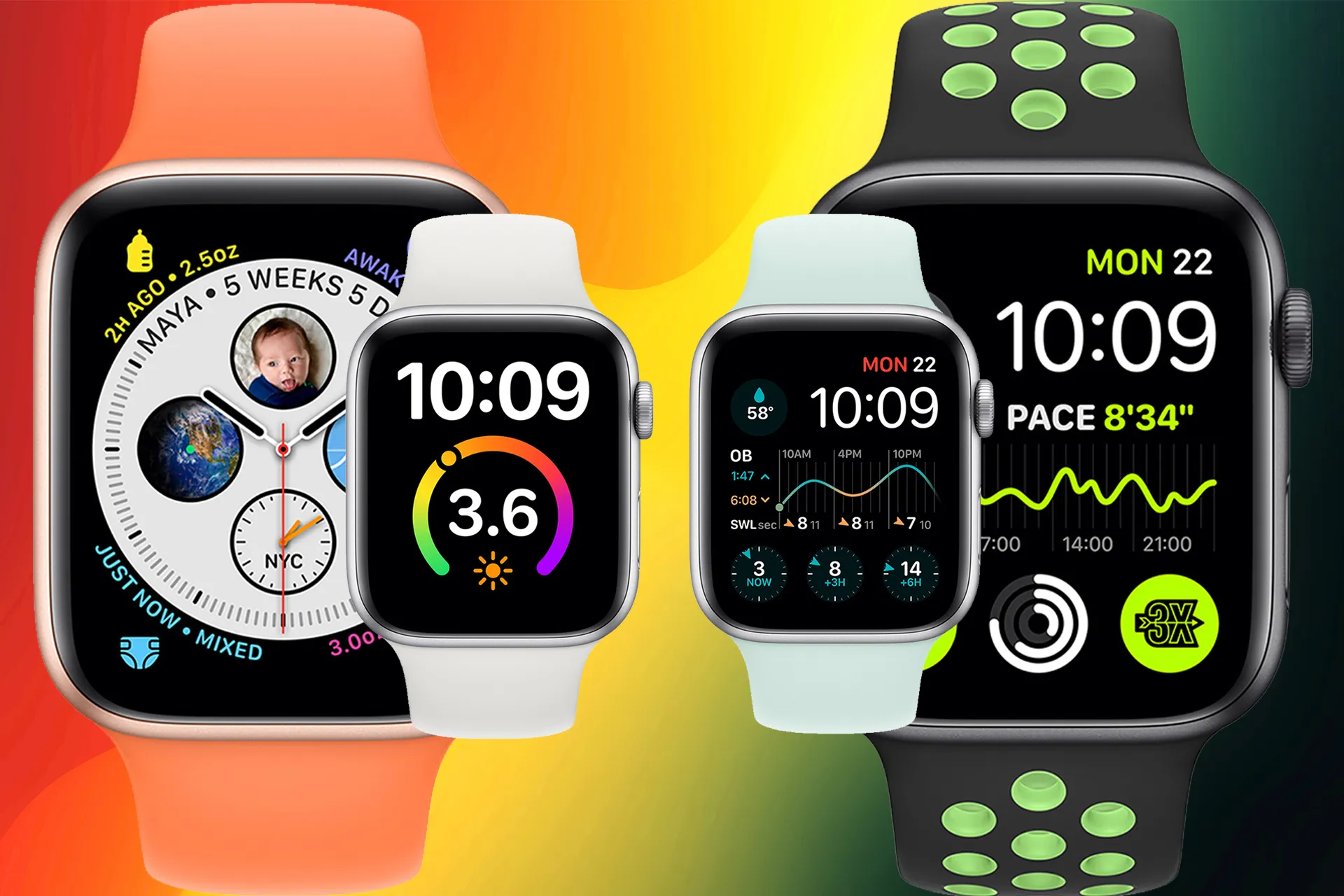
Unlocking Your Apple Watch: A Comprehensive Guide to Downloading New Quadrants
Are you tired of having the same old watch face on your Apple Watch? Do you want to add some personality to your device without spending a fortune on customizations? Look no further! In this article, we’ll take you through the step-by-step process of downloading new quadrants for your Apple Watch.
What Are Quadrants, Anyway?
Quadrants are basically watch faces that you can download and install on your Apple Watch. They come in various designs, styles, and complications (more on those later), allowing you to personalize your device to suit your taste.
Why Should You Care About Downloading New Quadrants?
Downloading new quadrants is a great way to breathe some life into your Apple Watch. With thousands of options available, you’re bound to find something that suits your style. Plus, it’s free and easy!
Method 1: Downloading New Quadrants Directly From Your Apple Watch
To download new quadrants directly from your Apple Watch:
- Unlock Your Watch: Make sure it’s unlocked and ready for action.
- Access The Gallery: Swipe down on your watch face to access the Gallery of available quadrants.
- Search For New Quadrants: Scroll through the list to find a quadrant that catches your eye.
- Tap to Download: Tap on the quadrant you want to download, and it’ll be added to your collection.
Method 2: Downloading New Quadrants From Your Iphone
If you prefer to manage your quadrants from your iPhone:
- Open The Apple Watch App: Open the Apple Watch app on your iPhone.
- Access The Gallery: Tap on the “Gallery” tab to view available quadrants.
- Search For New Quadrants: Browse through the list to find a quadrant that suits your taste.
- Tap to Download: Tap on the quadrant you want to download, and it’ll be synced to your Apple Watch.
Tips And Tricks
- If you’ve already downloaded a quadrant and want to change it, simply go back to the Gallery and select a new one.
- You can also customize the appearance and characteristics of your quadrants by tapping on the “Modification” button.
- Don’t worry if you get lost – the process is straightforward, and we’re here to guide you!
Other Apps For Downloading Quadrants
Want more options? Check out these other apps that allow you to download new quadrants:
- Clockology: A free app that offers a vast selection of quadrants with customizable complications.
- Watchmaker: An app that provides over 10,000 alternative quadrants and allows customization.
- Watchfacely: A user-friendly app that enables users to create and share their own quadrants.
Conclusion
Downloading new quadrants for your Apple Watch is a simple yet effective way to personalize your device. With these easy-to-follow steps and some handy tips, you’ll be well on your way to unlocking your Apple Watch’s full potential. So go ahead, experiment with different quadrants, and make your watch truly unique!
Frequently Asked Questions (FAQs)
- Q: What Are Complications?
A: Complications refer to additional features or information that can be displayed on your quadrant. - Q: Can I Customize my Quadrants?
A: Yes! Many quadrants allow customization, and you can also create your own using apps like Watchfacely. - Q: Are New Quadrants Free?
A: Most of the time, yes! However, some apps might offer premium features or subscriptions for additional content. - Q: Can I Delete a Quadrant if I Don’t Like It?
A: Absolutely! Simply go back to the Gallery and select a new quadrant or tap on the “Stir up” button to remove an unwanted one. - Q: Will Downloading New Quadrants Affect my Watch’s Performance?
A: No, downloading new quadrants won’t impact your watch’s performance or battery life. - Q: Can I Share my Custom Quadrant With Others?
A: Yes! Some apps allow you to share your custom quadrant with friends and family. - Q: How do I Update my Apple Watch Software to Use The Latest Quadrants?
A: To ensure you have the latest software, go to Settings > General > Software Update on your iPhone.
Hope this comprehensive guide has helped you unlock your Apple Watch’s full potential!


