
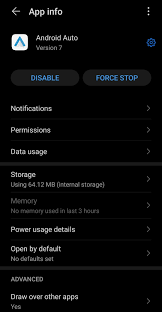
The Ultimate Guide to Disabling Android Auto on Your Smartphone
Are you tired of having Android Auto taking up space on your smartphone? Do you want to free up some storage space or simply disable the feature without uninstalling it? Look no further! In this article, we will guide you through the process of disabling Android Auto on your device.
What is Android Auto?
Android Auto is a popular app that allows users to connect their smartphones to their cars’ infotainment systems. It provides a seamless driving experience by integrating various features such as navigation, music control, and hands-free calling. However, some users may find it unnecessary or want to disable the feature for various reasons.
Why Disable Android Auto?
There are several reasons why you might want to disable Android Auto on your smartphone. Here are a few:
- Storage Space: If you have limited storage space on your device, disabling Android Auto can free up some space.
- Cluttered Interface: Some users may find the Android Auto app cluttering their home screen or notification panel.
- Unnecessary Feature: If you don’t use the features offered by Android Auto regularly, it might be unnecessary to have the app installed on your device.
How to Disable Android Auto
Disabling Android Auto is a relatively straightforward process. Here are the steps:
On Android 10 And Later
- Go to Settings > Apps & notifications.
- Find the “Android Auto” app in the list of installed apps.
- Tap on the three dots next to the app icon.
- Select “Disable” or “Force stop”.
- Confirm that you want to disable the app.
On Android 9 And Earlier
- Go to Settings > Apps.
- Find the “Android Auto” app in the list of installed apps.
- Tap on the “Uninstall updates” option.
- Select “OK” to confirm.
- Restart your device to complete the process.
How to Deactivate Android Auto
If you don’t want to uninstall the app but still want to disable it, follow these steps:
- Go to Settings > Apps & notifications.
- Find the “Android Auto” app in the list of installed apps.
- Tap on the three dots next to the app icon.
- Select “Disable” or “Force stop”.
- Confirm that you want to deactivate the app.
How to Re-enable Android Auto
If you change your mind and want to re-enable Android Auto, follow these steps:
- Go to Settings > Apps & notifications.
- Find the “Android Auto” app in the list of installed apps.
- Tap on the three dots next to the app icon.
- Select “Enable” or “Re-activate”.
- Confirm that you want to re-enable the app.
How to Remove Android Car From Your Device
If you want to completely remove Android Car from your device, follow these steps:
- Go to Settings > Apps & notifications.
- Find the “Android Auto” app in the list of installed apps.
- Tap on the three dots next to the app icon.
- Select “Uninstall”.
- Confirm that you want to uninstall the app.
Tips And Tricks
- If you’re using a device with Android 10 or later, you might need to go through additional steps to disable Android Auto.
- Disabling Android Auto won’t affect any other features on your device.
- If you’re having trouble disabling Android Auto, try restarting your device or checking for updates.
Conclusion
Disabling Android Auto is a simple process that can help free up storage space or declutter your interface. By following the steps outlined in this article, you should be able to disable the feature without uninstalling it. Remember to re-enable the app if you change your mind, and don’t hesitate to reach out if you have any questions or concerns.


