
Disattivare Google Maps Timeline: A Step-by-step Guide
Are you concerned about your online privacy? Do you want to disable the Google Maps Timeline feature on your smartphone, tablet, or computer? Look no further! In this article, we will guide you through the process of disactivating the Google Maps Timeline on various devices.
Understanding Google Maps Timeline
Before we dive into the steps, let’s understand what Google Maps Timeline is. The Timeline feature is a part of Google Maps that allows you to view your past locations and movements on a map. This feature uses GPS data from your device to record your whereabouts, creating a chronology of your positions.
Why Disable Google Maps Timeline?
While the Timeline feature can be useful for certain purposes, many users prefer to disable it due to privacy concerns. By disabling the Timeline, you will prevent Google from storing and displaying your past locations on a map. This is especially important if you value your online anonymity or want to keep your whereabouts private.
Disabling Google Maps Timeline on Smartphone And Tablet
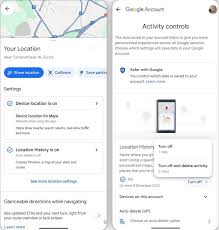
To disable Google Maps Timeline on your smartphone or tablet, follow these steps:
- Open Google Maps: Launch the Google Maps app on your device.
- Tap on Your Profile Picture: Tap on your profile picture in the top left corner of the screen.
- Select “Your Data in Maps”: Choose “Your data in Maps” from the menu.
- Activate/deactivate Timeline: Activate or deactivate the Timeline feature by sliding the toggle switch to the right (ON) or left (OFF).
- Confirm Deactivation: If you choose to deactivate, tap on the “Suspend” button.
Reactivating Google Maps Timeline
If you want to re-enable the Timeline feature at a later time, follow these steps:
- Open Google Maps: Launch the Google Maps app.
- Tap on Your Profile Picture: Tap on your profile picture in the top left corner of the screen.
- Select “Your Data in Maps”: Choose “Your data in Maps” from the menu.
- Activate Timeline: Activate the Timeline feature by sliding the toggle switch to the right (ON).
Disabling Google Maps Timeline on Computer
To disable Google Maps Timeline on your computer, follow these steps:
- Sign in to Your Google Account: Sign in to your Google account and navigate to the “My Account” page.
- Select “Personalization And Ads”: Select “Personalization and ads” from the menu.
- Manage Activity: Click on “Manage activity”.
- Activate/deactivate Timeline: Activate or deactivate the Timeline feature by sliding the toggle switch to the right (ON) or left (OFF).
- Confirm Deactivation: If you choose to deactivate, click on the “Suspend” button.
Deleting Google Maps Timeline History
To delete your Google Maps Timeline history, follow these steps:
- Sign in to Your Google Account: Sign in to your Google account and navigate to the “My Account” page.
- Select “Personalization And Ads”: Select “Personalization and ads” from the menu.
- Manage Activity: Click on “Manage activity”.
- Delete Timeline: Delete your Timeline history by clicking on the “Delete all data” button.
Conclusion
Disabling Google Maps Timeline is a straightforward process that can be completed in just a few steps. By following this guide, you can ensure that your online activities remain private and anonymous. Remember to re-enable the Timeline feature if you need it for any purposes.
Frequently Asked Questions
- Q: Why Should I Disable Google Maps Timeline?
A: You may want to disable Google Maps Timeline due to privacy concerns or to keep your whereabouts private. - Q: How do I Reactivate Google Maps Timeline?
A: To re-enable the Timeline feature, follow the steps outlined in this guide under “Reactivating Google Maps Timeline”. - Q: Can I Delete my Google Maps Timeline History?
A: Yes, you can delete your Google Maps Timeline history by following the steps outlined in this guide under “Deleting Google Maps Timeline History”.
Sources


