
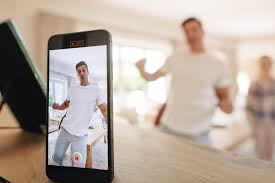
How to Record Video on Smartphone And Tablet
Are you tired of being a traditionalist when it comes to technology? Do you finally want to take the leap and acquire your prime smartphone? Congratulations, you’ve made an excellent decision! However, now that you have this new device in your hands, you might feel a bit lost. You’re accustomed to using mobiles as instruments for making calls, but you’re not sure how to unlock its full functionality.
Understanding Your New Smartphone
Don’t worry; it’s completely normal to feel like a fish out of water when facing modern technology. The smartphone is the true jewel of technological innovation, and all the more so compared to old mobiles. If you’ve been behind on the technological curve and are just starting to get familiar with the mobile device sector, you might find difficulty navigating the user interface of an Android or iOS smartphone.
Resolving Your Doubts
Fear not! I’m here to help you resolve any doubts you may have. How can I assist you? Would you like to understand how to record video and explore the technology of your new smartphone’s videocamera? Some people might find this task daunting, but don’t worry; it’s easier than you think.
Recording Video on Android
If you’re using an Android device, follow these simple steps:
- Open the Camera app, which is usually located in the apps tray.
- Tap on the “Video” mode icon, which looks like a small camera with a red dot.
- Choose your preferred video quality by tapping on one of the resolution options (0.6X, 1x, 2x, etc.).
- If you want to use the ultra-wide-angle sensor, tap on the icon with two arrows pointing outward.
- Tap on the record button to start capturing video.
Recording Video on Iphone And Ipad
If you’re using an iPhone or iPad, follow these steps:
- Open the Camera app, which is usually located in the dock.
- Swipe left from the home screen to access the camera settings.
- Tap on the “Video” mode icon, which looks like a small camera with a red dot.
- Choose your preferred video quality by tapping on one of the resolution options (0.5X, 1x, 2x, etc.).
- If you want to use the ultra-wide-angle sensor, tap on the icon with two arrows pointing outward.
- Tap on the record button to start capturing video.
Recording Video on PC
If you’re using a Windows computer, follow these steps:
- Open the Camera app, which is usually located in the Start menu.
- Click on the “Video” mode icon, which looks like a small camera with a red dot.
- Choose your preferred video quality by clicking on one of the resolution options (0.6X, 1x, 2x, etc.).
- If you want to use the ultra-wide-angle sensor, click on the icon with two arrows pointing outward.
- Click on the record button to start capturing video.
Recording Video on Mac
If you’re using a Mac computer, follow these steps:
- Open the QuickTime Player app, which is usually located in the Applications folder.
- Click on the “New Screen Recording” icon, which looks like a small camera with a red dot.
- Choose your preferred video quality by clicking on one of the resolution options (0.6X, 1x, 2x, etc.).
- If you want to use the ultra-wide-angle sensor, click on the icon with two arrows pointing outward.
- Click on the record button to start capturing video.
Recording Video on Smartphone And Tablet
If you’re using a smartphone or tablet, follow these steps:
- Open the Camera app, which is usually located in the apps tray.
- Tap on the “Video” mode icon, which looks like a small camera with a red dot.
- Choose your preferred video quality by tapping on one of the resolution options (0.6X, 1x, 2x, etc.).
- If you want to use the ultra-wide-angle sensor, tap on the icon with two arrows pointing outward.
- Tap on the record button to start capturing video.
Recording Video Monitor on Android
If you’re using an Android device, follow these steps:
- Swipe down from the top of the screen to access the notifications shade.
- Tap on the “Screen Recording” icon, which looks like a small camera with a red dot.
- Choose your preferred video quality by tapping on one of the resolution options (0.6X, 1x, 2x, etc.).
- If you want to use the ultra-wide-angle sensor, tap on the icon with two arrows pointing outward.
- Tap on the record button to start capturing video.
Recording Video Monitor on Iphone And Ipad
If you’re using an iPhone or iPad, follow these steps:
- Swipe down from the top of the screen to access the control center.
- Tap on the “Screen Recording” icon, which looks like a small camera with a red dot.
- Choose your preferred video quality by tapping on one of the resolution options (0.5X, 1x, 2x, etc.).
- If you want to use the ultra-wide-angle sensor, tap on the icon with two arrows pointing outward.
- Tap on the record button to start capturing video.
Recording Video Monitor on PC
If you’re using a Windows computer, follow these steps:
- Open the Camera app, which is usually located in the Start menu.
- Click on the “Video” mode icon, which looks like a small camera with a red dot.
- Choose your preferred video quality by clicking on one of the resolution options (0.6X, 1x, 2x, etc.).
- If you want to use the ultra-wide-angle sensor, click on the icon with two arrows pointing outward.
- Click on the record button to start capturing video.
Recording Video Monitor on Mac
If you’re using a Mac computer, follow these steps:
- Open the QuickTime Player app, which is usually located in the Applications folder.
- Click on the “New Screen Recording” icon, which looks like a small camera with a red dot.
- Choose your preferred video quality by clicking on one of the resolution options (0.6X, 1x, 2x, etc.).
- If you want to use the ultra-wide-angle sensor, click on the icon with two arrows pointing outward.
- Click on the record button to start capturing video.
Recording Video on Youtube
If you’re using a YouTube account, follow these steps:
- Open the YouTube app, which is usually located in the apps tray.
- Tap on the “+” icon to create a new video.
- Choose your preferred video quality by tapping on one of the resolution options (0.6X, 1x, 2x, etc.).
- If you want to use the ultra-wide-angle sensor, tap on the icon with two arrows pointing outward.
- Tap on the record button to start capturing video.
Recording Video on Google Earth
If you’re using a Google Earth account, follow these steps:
- Open the Google Earth app, which is usually located in the apps tray.
- Click on the “Movie Maker” icon, which looks like a small camera with a red dot.
- Choose your preferred video quality by clicking on one of the resolution options (0.6X, 1x, 2x, etc.).
- If you want to use the ultra-wide-angle sensor, click on the icon with two arrows pointing outward.
- Click on the record button to start capturing video.
Conclusion
Recording video on your smartphone, tablet, PC, or Mac is a straightforward process that requires minimal effort. By following these simple steps, you’ll be able to capture high-quality videos and share them with others.
Frequently Asked Questions
- Q: What is The Best Way to Record Video on my Smartphone?
A: The best way to record video on your smartphone depends on the device you’re using. For Android devices, open the Camera app and tap on the “Video” mode icon. For iPhone and iPad, swipe down from the top of the screen to access the control center and tap on the “Screen Recording” icon. - Q: How do I Record Video on my Pc?
A: To record video on your PC, open the Camera app and click on the “Video” mode icon. Choose your preferred video quality by clicking on one of the resolution options (0.6X, 1x, 2x, etc.). If you want to use the ultra-wide-angle sensor, click on the icon with two arrows pointing outward. - Q: Can I Record Video on my Mac?
A: Yes, you can record video on your Mac by using the QuickTime Player app. Click on the “New Screen Recording” icon and choose your preferred video quality by clicking on one of the resolution options (0.6X, 1x, 2x, etc.). If you want to use the ultra-wide-angle sensor, click on the icon with two arrows pointing outward. - Q: How do I Record Video Monitor on my Android Device?
A: To record video monitor on your Android device, swipe down from the top of the screen to access the notifications shade and tap on the “Screen Recording” icon. - Q: Can I Record Video Monitor on my Iphone or Ipad?
A: Yes, you can record video monitor on your iPhone or iPad by swiping down from the top of the screen to access the control center and tapping on the “Screen Recording” icon.
By following these simple steps, you’ll be able to capture high-quality videos and share them with others. Happy recording!


