
How to Use Google Family Link: A Comprehensive Guide
As a parent, it’s natural to want to ensure your child is safe and responsible when using their smartphone or tablet. With the increasing use of digital devices among children, it’s essential to have a tool that can help you monitor and control their online activity. Enter Google Family Link – a free service that allows you to manage your child’s device and set boundaries for their online behavior.
What is Google Family Link?
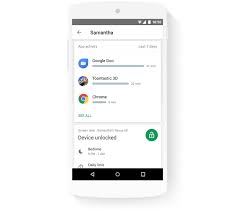
Google Family Link is a parental control app that allows parents to monitor and control their child’s Android device or iPhone. The app provides a range of features, including:
- Monitoring activity and setting time limits
- Blocking access to certain apps or websites
- Setting screen time goals
- Viewing device location
How to Set Up Google Family Link
Setting up Google Family Link is relatively straightforward. Here are the steps you need to follow:
- Create a Google Account: You’ll need to create a Google account to use Family Link.
- Download And Install The App: Download and install the Family Link app on your child’s device.
- Set up a Parent-child Pair: Follow the prompts to set up a parent-child pair, which will link your device to your child’s device.
- Configure Settings: Configure settings for monitoring activity, setting time limits, and blocking access to certain apps or websites.
How to Use Google Family Link on Android
Using Google Family Link on an Android device is relatively straightforward. Here are the steps you need to follow:
- Launch The App: Launch the Family Link app on your child’s device.
- Configure Settings: Configure settings for monitoring activity, setting time limits, and blocking access to certain apps or websites.
- Monitor Activity: Monitor your child’s activity in real-time using the Family Link dashboard.
How to Use Google Family Link on Iphone
Using Google Family Link on an iPhone is similar to using it on an Android device. Here are the steps you need to follow:
- Launch The App: Launch the Family Link app on your child’s device.
- Configure Settings: Configure settings for monitoring activity, setting time limits, and blocking access to certain apps or websites.
- Monitor Activity: Monitor your child’s activity in real-time using the Family Link dashboard.
How to Use Google Family Link on Computer
While Google Family Link is primarily designed for use on mobile devices, some features are also available on computer. Here are the steps you need to follow:
- Launch The App: Launch the Family Link app on your child’s device.
- Configure Settings: Configure settings for monitoring activity, setting time limits, and blocking access to certain apps or websites.
Faqs
Here are some frequently asked questions about Google Family Link:
- What Devices is Google Family Link Compatible With?
Google Family Link is compatible with Android devices, iPhones, iPads, and Windows computers. - How do I Set up Google Family Link?
To set up Google Family Link, create a Google account, download and install the app on your child’s device, and follow the prompts to set up a parent-child pair. - What Features Does Google Family Link Offer?
Google Family Link offers a range of features, including monitoring activity, setting time limits, blocking access to certain apps or websites, and viewing device location. - Can I Use Google Family Link on Multiple Devices?
Yes, you can use Google Family Link on multiple devices, but each device will require its own separate setup.
Conclusion
Google Family Link is a powerful tool that allows parents to monitor and control their child’s online activity. By following the steps outlined in this guide, you can set up Google Family Link on your child’s device and start monitoring their activity today. Remember to configure settings for monitoring activity, setting time limits, and blocking access to certain apps or websites to ensure your child’s safety and responsibility when using their smartphone or tablet.
Frequently Asked Questions (FAQs)
Here are some frequently asked questions about Google Family Link:
- What is Google Family Link?
Google Family Link is a parental control app that allows parents to monitor and control their child’s Android device or iPhone. - How do I Set up Google Family Link on my Child’s Device?
To set up Google Family Link on your child’s device, create a Google account, download and install the app, and follow the prompts to set up a parent-child pair. - What Features Does Google Family Link Offer?
Google Family Link offers a range of features, including monitoring activity, setting time limits, blocking access to certain apps or websites, and viewing device location. - Can I Use Google Family Link on Multiple Devices?
Yes, you can use Google Family Link on multiple devices, but each device will require its own separate setup.
Common Problems And Solutions
Here are some common problems you may encounter when using Google Family Link:
- Problem: My Child is Not Receiving Notifications For my Messages. Solution: Check that your child has allowed notifications from the Family Link app.
- Problem: I’m Unable to Monitor my Child’s Activity on Their Device. Solution: Ensure that you have configured settings correctly and that your child’s device is connected to the internet.
- Problem: I Want to Block Access to Certain Apps or Websites, But The Options Are Not Available in The Family Link App. Solution: Check that you have upgraded to the latest version of the Family Link app.
I hope this guide has been helpful!


