
The Ultimate Guide to Formatting a Usb Flash Drive: A Step-by-step Tutorial
Are you tired of dealing with a USB flash drive that won’t work properly? Do you want to format it, but don’t know where to start? Look no further! In this article, we will guide you through the process of formatting a USB flash drive, step by step.
Why Format a Usb Flash Drive?
Before we dive into the tutorial, let’s quickly discuss why you might need to format your USB flash drive. There are several reasons:
- Corrupted Files: If your USB flash drive has been used extensively and contains corrupted or damaged files, formatting it may be the best solution.
- Firmware Issues: In some cases, firmware problems can cause a USB flash drive to malfunction. Formatting it can help resolve these issues.
- Security Concerns: If you’ve received a USB flash drive from someone else and want to ensure that any sensitive information is deleted, formatting it is a good idea.
Which Operating System Are You Using?
Before we proceed, please note that the tutorial will cover formatting a USB flash drive on both Windows and Mac operating systems. The steps may vary slightly depending on your OS.
Windows: Formatting a Usb Flash Drive Using Management Disk (Diskpart)
If you’re using a Windows computer, here’s how to format a USB flash drive:
Step 1: Connect Your Usb Flash Drive
Connect the USB flash drive to your Windows computer. Make sure it is recognized by the system.
Step 2: Open Management Disk (Diskpart)
Open Management Disk (also known as Diskpart) on your Windows computer. You can do this by typing diskpart in the Run dialog box (Windows key + R) or searching for it in the Start menu.
Step 3: List Available Disks
Type list disk and press Enter to list all available disks, including your USB flash drive.
Step 4: Select Your Usb Flash Drive
Identify your USB flash drive by its size and label. Type select disk [number], where [number] is the number corresponding to your USB flash drive.
Step 5: Clean And Format Your Usb Flash Drive
Type clean to erase all data on the drive, followed by format fs=[file system] quick. Replace [file system] with the file system you want to use (e.G., FAT32 or NTFS).
Step 6: Exit Diskpart
Once formatting is complete, type exit and press Enter to exit Diskpart.
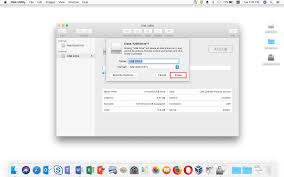
Mac: Formatting a Usb Flash Drive Using Utility Disc
If you’re using a Mac computer, here’s how to format a USB flash drive:
Step 1: Connect Your Usb Flash Drive
Connect the USB flash drive to your Mac computer. Make sure it is recognized by the system.
Step 2: Open Utility Disc (Diskutil)
Open Utility Disk (also known as Diskutil) on your Mac computer. You can do this by searching for it in Spotlight or using the Terminal app.
Step 3: List Available Disks
Type diskutil list and press Enter to list all available disks, including your USB flash drive.
Step 4: Select Your Usb Flash Drive
Identify your USB flash drive by its size and label. Type select disk [number], where [number] is the number corresponding to your USB flash drive.
Step 5: Erase And Format Your Usb Flash Drive
Type erase disk [file system] quick, replacing [file system] with the file system you want to use (e.G., APFS or HFS+).
Step 6: Exit Utility Disc
Once formatting is complete, type exit and press Enter to exit Utility Disk.
Programs For Formatting a Usb Flash Drive on Mac
If you prefer using third-party software on your Mac, here are some alternatives:
- Disk Utility: This is the built-in utility app that comes with macOS.
- Utilities by Elgato: This is a free utility app that allows you to format and erase external hard drives, flash drives, and other storage devices.
Programs For Formatting a Usb Flash Drive on Windows
If you prefer using third-party software on your Windows computer, here are some alternatives:
- Easeus Partition Master Free: This is a popular and free partition manager that allows you to format, resize, merge, or split partitions.
- Paragon Partition Manager: This is another powerful partition manager that offers advanced features such as disk wiping and secure deletion.
- Minitool Partition Wizard: This is a user-friendly partition manager that allows you to format, resize, move, merge, or split partitions.
Conclusion
Formatting a USB flash drive can be a simple process if done correctly. Remember to always back up any important data before formatting your USB flash drive. If you encounter any issues during the formatting process, don’t hesitate to reach out for help.


