
How to Insert Grades in Microsoft Word
As a content writer proficient in SEO writing, I’ll guide you through the process of inserting grades in Microsoft Word on your PC, online, smartphone, and tablet.
What Are Grades in Microsoft Word?
Grades, also known as references or citations, are used to credit sources and provide information about the author, title, publication date, and page numbers. They help maintain academic integrity and give credit where it’s due.
Inserting Grades in Microsoft Word on PC
To insert grades in Microsoft Word on your PC, follow these steps:
- Open Microsoft Word: Select the document you want to edit from the Start menu (Windows) or Launchpad (macOS).
- Position The Cursor: Place the cursor where you want to insert the grade.
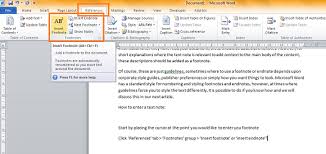
- Select The References Tab: Go to the top of the screen and click on the References tab.
- Click Insert Grade at Bottom: Click on the “Insert grade at bottom” button in the References tab.
- Enter The Grade Information: Type the grade details, such as author, title, publication date, and page numbers.
Personalizing Grades
You can also personalize grades by modifying their type, font, and position within the document. To do this:
- Select The References Tab: Go to the top of the screen and click on the References tab.
- Click Formatted Grades at Bottom: Click on the “Formatted grades at bottom” button in the References tab.
- Modify The Grade Settings: Adjust the font, size, and position of the grade within the document.
Inserting Comments
To insert comments in Microsoft Word:
- Select The Text: Choose the text you want to comment on.
- Go to The Review Tab: Click on the Review tab at the top of the screen.
- Click New Comment: Click on the “New comment” button.
- Enter Your Comment: Type your comment in the box that appears.
Visualizing Comments
To visualize comments, follow these steps:
- Go to The Review Tab: Click on the Review tab at the top of the screen.
- Click Display Comments: Click on the “Display comments” button.
- Select All Comments (Incorporated): Choose the option to display all comments.
Inserting Grades in Microsoft Word Online
To insert grades in Microsoft Word online:
- Sign in to Your Microsoft Account: Access your Microsoft account and open the document you want to edit.
- Position The Cursor: Place the cursor where you want to insert the grade.
- Select The References Tab: Go to the top of the screen and click on the References tab.
- Click Insert Grade at Bottom: Click on the “Insert grade at bottom” button in the References tab.
- Enter The Grade Information: Type the grade details, such as author, title, publication date, and page numbers.
Personalizing Grades Online
You can also personalize grades online by modifying their type, font, and position within the document. To do this:
- Select The References Tab: Go to the top of the screen and click on the References tab.
- Click Formatted Grades at Bottom: Click on the “Formatted grades at bottom” button in the References tab.
- Modify The Grade Settings: Adjust the font, size, and position of the grade within the document.
Inserting Grades in Microsoft Word on Smartphone And Tablet
To insert grades in Microsoft Word on your smartphone or tablet:
- Open Microsoft Word: Access the app from your device’s home screen.
- Position The Cursor: Place the cursor where you want to insert the grade.
- Select The Insert Tab: Go to the top of the screen and click on the Insert tab.
- Click Notice to And Page: Click on the “Notice to and page” button.
- Enter The Grade Information: Type the grade details, such as author, title, publication date, and page numbers.
Personalizing Grades on Smartphone And Tablet
You can also personalize grades on your smartphone or tablet by modifying their type, font, and position within the document. To do this:
- Select The Insert Tab: Go to the top of the screen and click on the Insert tab.
- Click Formatted Grade: Click on the “Formatted grade” button.
- Modify The Grade Settings: Adjust the font, size, and position of the grade within the document.
Inserting Bibliographic Grades
To insert bibliographic grades in Microsoft Word:
- Select The References Tab: Go to the top of the screen and click on the References tab.
- Click Citations at Bottom: Click on the “Citations at bottom” button in the References tab.
- Enter The Citation Information: Type the citation details, such as author, title, publication date, and page numbers.
Conclusion
Inserting grades in Microsoft Word is a straightforward process that can be completed on your PC, online, smartphone, or tablet. By following these steps, you can add citations and references to your documents with ease. Remember to personalize your grades by modifying their type, font, and position within the document.


