
How to Duplicate a Dvd With Mac: A Step-by-step Guide
Are you tired of losing your precious DVDs or wanting to make backup copies of them? Look no further! In this article, we’ll show you how to duplicate a DVD with Mac using various methods.
Preliminary Operations
Before we dive into the tutorial, there are some preliminary operations that need to be taken care of. First and foremost, make sure you have a DVD burner (also known as a masterizer) connected to your Mac. As of now, Macs no longer come with an integrated DVD burner.
Option 1: Using Utility Disc
The first solution we’ll explore is using the built-in Utility Disc utility in macOS. This tool allows you to create a file image of a disk and masterize it onto a blank DVD.
To use Utility Disc:
- Insert the original DVD into your Mac’s DVD drive.
- Click on the Launchpad icon on the Dock and select Utility Disc.
- Select the name of the original DVD in the left-hand menu.
- Choose “New” from the drop-down menu and select the ISO image option.
- Name the file image and choose where to save it on your Mac.
- Wait for the copy process to complete (approximately 10-15 minutes).
- Once finished, extract the blank DVD from the masterizer, insert a new empty disc, and use Utility Disc to burn the copied ISO image onto the new DVD.
Option 2: Using Burn
Another excellent option is using the Burn application. This free utility allows you to carry out various operations such as burning CDs and DVDs with different types of data (video, audio, etc.).
To download Burn:
- Visit the Burn website and click on the Download button.
- Extract the downloaded ZIP file into an Applications folder.
- Open the Burn application by right-clicking on it and selecting “Open”.
- Insert the original DVD into your Mac’s DVD drive.
- Select the “Copy” tab in Burn and choose the DVD drive as the source device.
- Click on the “Save” button to initiate the copy process.
Other Solutions
While Utility Disc and Burn are excellent options, there are other solutions that can help you duplicate a DVD with Mac:
- Express Burn: This software is compatible with macOS and allows you to burn CDs and DVDs with various types of data.
- Toast Titanium: A famous suite for burning discs specifically designed for Macs, which enables creating disks of any type and copying DVDs and CDs.
- Tripard Dvd Ripper: A program that lets you create copies of DVDs without losing quality.
Duplicating a Dvd on Mac
If you want to duplicate a DVD directly onto your Mac’s hard drive or external storage device, here are the steps:
- Insert the original DVD into your Mac’s DVD drive.
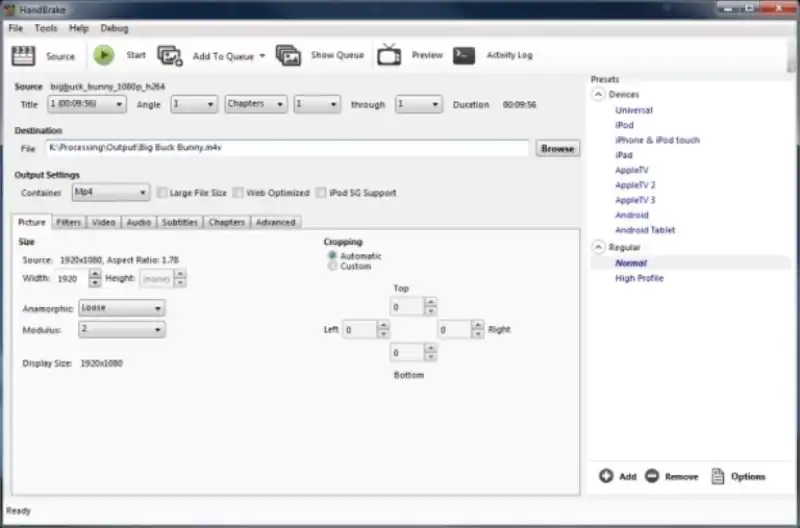
- Choose HandBrake as your ripper tool (if using Burn or other software).
- Select the desired profile of conversion or output device.
- Choose the chapters and intervals you want to copy from the original DVD.
- Wait for the copy process to complete.
Duplicating a Protected Dvd With Mac
If you’re dealing with a protected DVD, there are specific solutions that can help:
- Macx Dvd Ripper Pro: A program designed specifically for macOS, which allows you to rip DVDs and save them as video files or ISO images.
- Aimersoft Dvd Ripper: Software that enables ripping DVDs into various video formats and extracting audio from the original disk.
Conclusion
Duplicating a DVD with Mac is an essential task that can be accomplished using various methods. We’ve explored several options, including Utility Disc, Burn, Express Burn, Toast Titanium, Tripard DVD Ripper, HandBrake, VLC, MacX DVD Ripper Pro, and Aimersoft DVD Ripper.
Remember to always follow the steps carefully, especially when dealing with protected DVDs or sensitive data. Happy copying!
Faqs
-
Q: What is the best method for duplicating a DVD with Mac?
A: The best method depends on your specific needs. Utility Disc and Burn are excellent options for basic duplication tasks. -
Q: Can I duplicate a protected DVD using HandBrake or other software?
A: Yes, but you’ll need to use specialized software like MacX DVD Ripper Pro or Aimersoft DVD Ripper. -
Q: How long does the copy process take?
A: The duration of the procedure depends on the amount of data on the original DVD. Approximately 10-15 minutes for basic duplication tasks. -
Q: Can I use other software to duplicate a DVD with Mac?
A: Yes, there are various alternatives available, such as Express Burn, Toast Titanium, and Tripard DVD Ripper. -
Q: Are these methods safe and reliable?
A: Yes, the methods outlined in this article are generally safe and reliable, but please exercise caution when dealing with sensitive data or protected DVDs. -
Q: Can I use these methods for commercial purposes?
A: Consult the specific software’s licensing agreements to determine if you’re allowed to use them for commercial purposes. -
Q: Are there any limitations or restrictions on using these methods?
A: Yes, some software may have limitations or restrictions depending on your specific needs and usage scenarios. -
Q: Can I duplicate a DVD with Mac without using specialized software?
A: Unfortunately not, as macOS no longer comes with an integrated DVD burner.


