
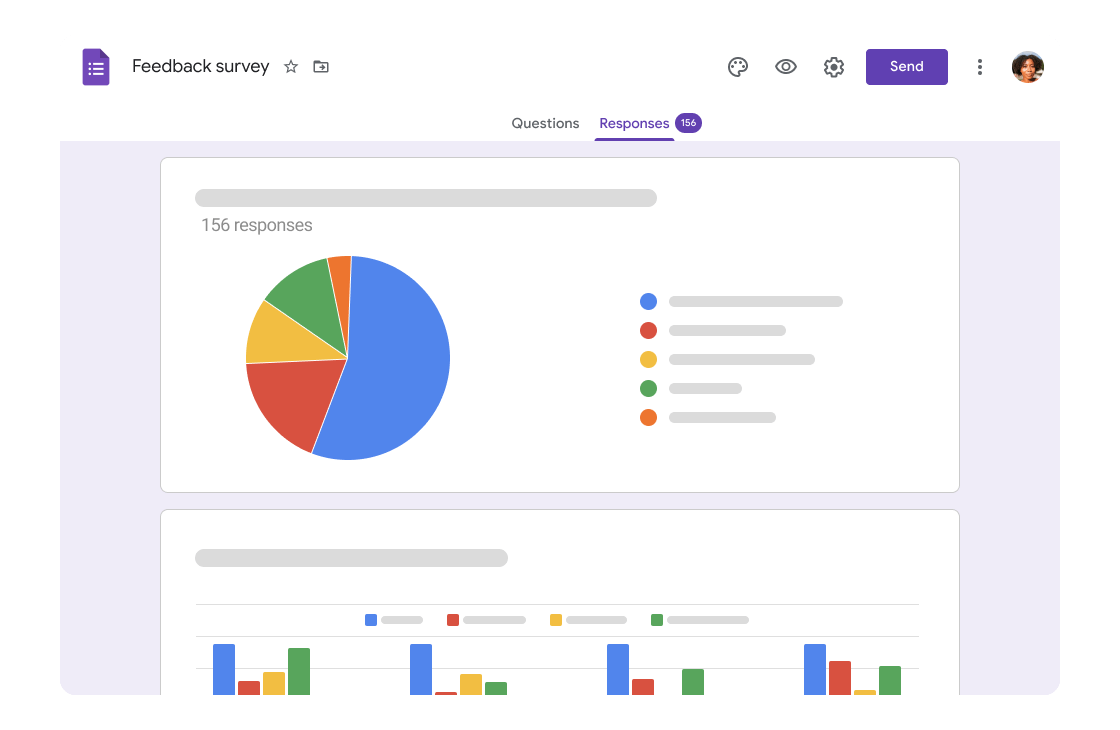
How to Create Forms on Google: A Step-by-step Guide
Are you looking for a way to collect feedback, suggestions, or data from others? Do you want to create a questionnaire for your students or employees? Look no further than Google Forms! In this article, we’ll show you how to create forms on Google, including the steps to take on both PC and mobile devices.
What is Google Forms?
Google Forms is a free service provided by Google that allows you to create online forms, surveys, and quizzes. You can use it to collect data from others, whether it’s for personal or professional reasons. The best part? It’s completely free!
Creating Forms on PC
To create a form on Google, follow these steps:
- Go to the Google Forms website (https://Forms.Google.Com) and sign in with your Google account.
- Click on the “+” button in the top right corner of the page.
- Choose a template from the gallery or start from scratch.
- Give your form a title and description.
- Add questions to your form by clicking on the “Add question” button.
- Customize your questions by selecting the type of answer you want (e.G., Multiple choice, short answer, etc.).
- Once you’ve added all your questions, click on the “Save” button.
Creating Forms on Mobile
If you prefer to create forms on your mobile device, follow these steps:
- Download the Google Forms app from the App Store or Google Play.
- Sign in with your Google account.
- Tap on the “+” icon to create a new form.
- Choose a template or start from scratch.
- Give your form a title and description.
- Add questions to your form by tapping on the “Add question” button.
- Customize your questions by selecting the type of answer you want.
- Once you’ve added all your questions, tap on the “Save” button.
Using Google Forms in Education
Google Forms is also a great tool for educators. You can create quizzes, surveys, and assignments that are automatically graded. Here’s how to use Google Forms in education:
- Sign in to Google Classroom.
- Click on the “+” icon to create a new form.
- Choose a template or start from scratch.
- Give your form a title and description.
- Add questions to your form by tapping on the “Add question” button.
- Customize your questions by selecting the type of answer you want.
- Once you’ve added all your questions, tap on the “Save” button.
Tips And Tricks
Here are some tips and tricks to keep in mind when using Google Forms:
- Make sure to set a deadline for respondents to complete the form.
- Use the “Collect email addresses” feature to collect emails from respondents.
- Use the “Anonymous” setting to allow respondents to complete the form without revealing their identity.
- Use the “Multiple choice” setting to create quizzes or surveys with multiple answer options.
Conclusion
Google Forms is a powerful tool that can help you collect data, feedback, and suggestions from others. Whether you’re an educator, business owner, or individual, Google Forms is a great way to create online forms, surveys, and quizzes. With its user-friendly interface and customizable features, it’s easy to get started and create the perfect form for your needs.
Faqs
Here are some frequently asked questions about Google Forms:
Q: What is Google Forms?
A: Google Forms is a free service provided by Google that allows you to create online forms, surveys, and quizzes.
Q: How do I create a form on Google Forms?
A: To create a form on Google Forms, follow the steps outlined in this article.
Q: Can I use Google Forms for education purposes?
A: Yes! Google Forms is a great tool for educators. You can create quizzes, surveys, and assignments that are automatically graded.
Q: How do I collect email addresses from respondents?
A: To collect email addresses from respondents, go to the “Settings” menu and select “Collect email addresses”.
Q: Can I make my form anonymous?
A: Yes! Go to the “Settings” menu and select “Anonymous” to allow respondents to complete the form without revealing their identity.
Q: How do I set a deadline for respondents to complete the form?
A: To set a deadline, go to the “Settings” menu and select “Delivery”.
Q: Can I use Google Forms on mobile devices?
A: Yes! You can create forms on both PC and mobile devices using the Google Forms app.
Q: How do I share my form with others?
A: To share your form with others, click on the “Share” button and enter their email addresses or share a link to the form.


