
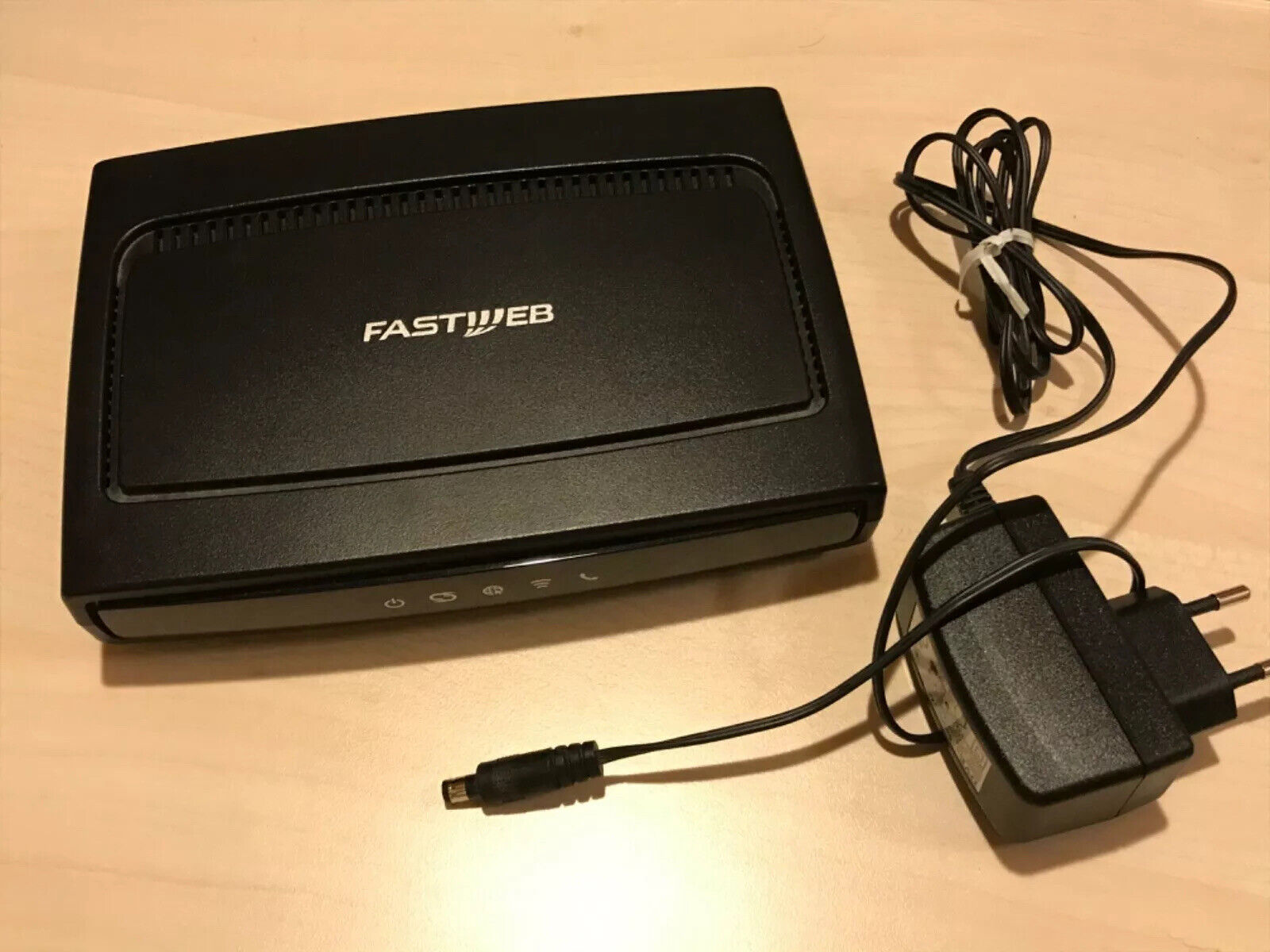
Unlocking The Full Potential of Your Fastweb Modem: A Step-by-step Guide
Are you a Fastweb customer looking to maximize your internet experience? Look no further! In this comprehensive guide, we’ll walk you through the process of accessing and configuring your Fastweb modem, ensuring you get the most out of your internet plan.
Understanding Your Fastweb Modem Options
Before diving in, it’s essential to understand the different types of modems provided by Fastweb. You have two primary options:
- Fastgate: This is the standard modem supplied by Fastweb, designed for general use.
- Internet Box Nexxt: This advanced modem offers additional features and settings for those seeking more control over their internet experience.
Accessing Your Modem: Fastgate
To access your FASTGate modem, follow these steps:
Step 1: Connect to The Wi-fi Network
Connect your computer, smartphone, or tablet to the Wi-Fi network provided by your FASTGate modem. The default network name and password are displayed on a sticker attached to the back of the modem.
Step 2: Open a Web Browser
Open a web browser on your device and type in the IP address 192.168.1.254 Or visit the website http://Myfastgate. You will be prompted to log in with your username and password.
Step 3: Log In to Your Modem
Enter your login credentials to access the modem’s settings page. If you’re unsure about your login information, refer to our guide on recovering your Fastweb account details.
Navigating The Fastgate Settings
Once logged in, you’ll have access to various settings categories:
- Home: View real-time information about your internet connection and device status.
- Wi-fi: Configure and manage your Wi-Fi network settings, including guest networks.
- Connection: Monitor your internet connection status, run speed tests, and adjust channel settings.
Accessing Your Modem: Internet Box Nexxt
To access your Internet Box NeXXt modem using the Fastweb app:
- Download and install the MyFastweb app on your smartphone or tablet from the Google Play Store (for Android devices) or the App Store (for iOS devices).
- Launch the app, sign in with your Fastweb account credentials, and navigate to the settings menu.
- Select the “NeXXt” option to access the modem’s advanced settings.
Recovering Your Fastweb Account Details
If you’ve forgotten your login information or need assistance recovering it, follow these steps:
- Visit the Fastweb website and click on the “Forgot Password” link.
- Enter your registered email address or phone number to receive a password reset code.
- Use this code to reset your password.
Additional Tips For Managing Your Modem
- Regularly check for firmware updates to ensure you have the latest features and security patches.
- Configure parental controls to restrict access to certain websites or set time limits on internet usage.
- Utilize the NeXXt modem’s advanced settings to customize your Wi-Fi network and enhance overall performance.
Conclusion
Maximizing your Fastweb internet experience is easier than ever with these step-by-step guides. Whether you’re using the FASTGate or Internet Box NeXXt modem, take control of your online activities and ensure a seamless connection. Don’t hesitate to reach out if you need further assistance or have questions about specific settings.
Frequently Asked Questions (FAQs)
- Q: How do I Reset my Fastweb Modem Password?
A: Visit the Fastweb website, click on “Forgot Password,” and follow the instructions. - Q: Can I Use Both The Myfastweb App And The Web Interface to Manage my Nexxt Modem?
A: Yes, you can access your NeXXt modem’s settings using either method. - Q: What Should I do if I Encounter Issues While Accessing my Modem?
A: Refer to our guide on troubleshooting common problems or contact Fastweb support for assistance. - Q: How Often Should I Update my Modem’s Firmware?
A: Regularly check for updates every 1-2 months to ensure you have the latest features and security patches. - Q: Can I Use my Nexxt Modem With Multiple Devices Connected at Once?
A: Yes, the NeXXt modem is designed to handle simultaneous connections from multiple devices. - Q: What Are Some Common Issues That May Arise When Using my Nexxt Modem?
A: Potential issues include slow internet speeds, dropped connections, or difficulty accessing certain websites. - Q: How Can I Customize my Wi-fi Network Settings on The Nexxt Modem?
A: Access the NeXXt modem’s advanced settings through the MyFastweb app or web interface to configure your Wi-Fi network as desired. - Q: What Are Some Benefits of Using The Nexxt Modem Over The Fastgate Model?
A: The NeXXt modem offers enhanced features, improved performance, and advanced customization options compared to the FASTGate model.
Please note that these FAQs are meant to provide a brief overview of common questions and answers related to your Fastweb modem. If you have specific concerns or need further clarification on any topic, feel free to ask!


