
Windows 10 Activation: A Step-by-step Guide
Are you wondering if your Windows 10 operating system is activated? Do you want to know how to activate it and what happens if you don’t? Look no further! In this article, we’ll guide you through the process of checking and activating your Windows 10 OS.
Understanding Windows 10 Activation
Before we dive into the steps, let’s understand why activation is important. When you install Windows 10, a digital license is created that links your copy of the operating system to your Microsoft account. This license allows you to use the software legally, and it also grants you access to updates and support from Microsoft.
Why Activate Windows 10?
Activating Windows 10 is essential for several reasons:
- Access to Updates: With an activated license, you’ll get regular security updates and bug fixes to keep your system secure.
- Full Functionality: Activation allows you to use all the features of Windows 10 without limitations.
- Support From Microsoft: You’ll be entitled to technical support and assistance from Microsoft in case you encounter any issues.
How to Check if Your Windows 10 is Activated
To check if your Windows 10 is activated, follow these steps:
- Click on the Start button and select the Settings app.
- In the Settings window, click on the “Update & Security” option.
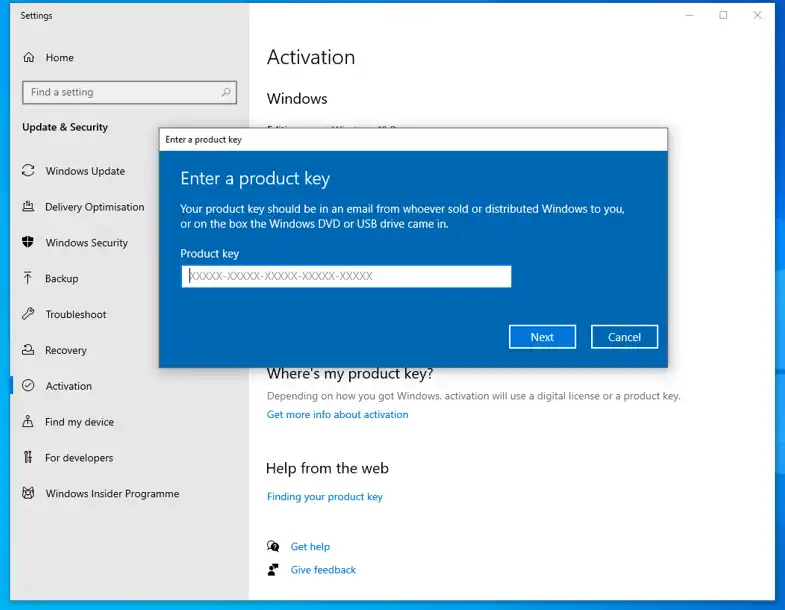
- On the next page, click on the “Activation” tab.
- Look for the message that says “Windows is activated” or “Windows is activated with a digital license.”
What If Your Windows 10 is Not Activated?
If you see a message indicating that your Windows 10 is not activated, don’t worry! It’s an easy fix:
- Click on the Start button and select the Settings app.
- In the Settings window, click on the “Update & Security” option.
- On the next page, click on the “Activation” tab.
- Click on the “Change product key” option and enter your valid Windows 10 product key.
Alternative Methods to Activate Windows 10
If you don’t have a valid product key or can’t access it, there are other ways to activate Windows 10:
- Connect to The Internet: Make sure your device is connected to the internet. Windows will automatically activate itself.
- Activate by Phone: If you’re unable to connect to the internet, you can activate Windows 10 by phone. Follow the on-screen instructions to complete the process.
Troubleshooting Activation Issues
If you encounter any issues during activation or experience problems accessing your Windows 10 features, try these troubleshooting steps:
- Check For Updates: Ensure that your operating system is up-to-date.
- Reinstall Windows 10: If none of the above solutions work, consider reinstalling Windows 10.
Conclusion
Activating Windows 10 is a straightforward process that ensures you have access to updates, full functionality, and support from Microsoft. By following these steps, you can check if your Windows 10 is activated and resolve any issues that may arise.
Faqs
- What Happens if I Don’t Activate my Windows 10?
If you don’t activate your Windows 10, you’ll miss out on updates, full functionality, and support from Microsoft. - How do I Activate Windows 10 Without a Product Key?
You can activate Windows 10 by connecting to the internet or using the activation process by phone. - Can I Still Use my Windows 10 if It’s Not Activated?
Yes, you can still use your Windows 10, but with limited functionality and no access to updates and support.
Additional Resources
For more information on Windows 10 activation, check out our other resources:
Disclaimer
This article is for informational purposes only. The information provided here is based on our knowledge and understanding of the subject matter at the time of writing. We are not responsible for any damages or losses resulting from the use of this information.


