
Updating Drivers: A Step-by-step Guide
As a computer user, you’ve probably encountered issues related to outdated drivers at some point. Drivers are essential software components that enable your computer’s hardware components to communicate with the operating system. In this article, we’ll explore the importance of updating drivers and provide a step-by-step guide on how to do it.
Why Update Drivers?
Updating drivers is crucial for ensuring optimal performance and security of your computer. Outdated drivers can lead to various issues such as:
- System crashes
- Freezing or hanging
- Slow performance
- Incompatibility with new hardware or software
Types of Driver Updates
There are two main types of driver updates: Online and offline.
Online updates involve downloading and installing the latest drivers from the manufacturer’s website. This method is usually faster and more convenient, but it requires an active internet connection.
Offline updates, on the other hand, involve manually updating drivers using a physical installation media or by installing them directly from the manufacturer’s website. This method can be slower and less convenient, but it’s often preferred when working with critical systems or in situations where online connectivity is limited.
Windows 10 Driver Update Options
For Windows 10 users, there are several built-in options for updating drivers:
- Windows Update: The first place to check for driver updates is the Windows Update feature. This tool automatically scans your system and installs any available updates, including driver updates.
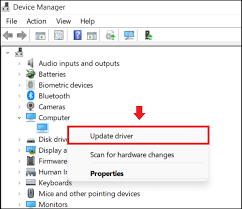
- Device Manager: The Device Manager provides a list of all installed devices on your system. You can right-click each device to view its properties and update drivers if necessary.
Third-party Driver Update Tools
There are several third-party tools available that can help with driver updates:
- Driver Booster: A free tool that scans your system for outdated drivers and provides a list of recommended updates.
- Snappy Driver Installer: A lightweight tool that allows you to download and install the latest drivers from various manufacturers.
How to Update Drivers on Windows 10
Updating drivers on Windows 10 is relatively straightforward:
- Open the Device Manager by pressing the Windows key + X and selecting Device Manager.
- In the Device Manager, find the device you want to update (e.G., Graphics card or sound card).
- Right-click the device and select “Update driver.”
- Choose to search for updated drivers automatically.
- If an update is found, follow the prompts to install it.
Updating Drivers on Other Operating Systems
The process of updating drivers varies depending on your operating system:
- Windows 7/8: The steps are similar to those for Windows 10.
- Macos: Use the built-in Software Update feature to check for driver updates.
- Linux: Use a terminal-based package manager like apt or yum to update drivers.
Troubleshooting Common Issues
When updating drivers, you might encounter some common issues:
- Driver Conflicts: If multiple drivers are outdated and need to be updated simultaneously, it can lead to driver conflicts. To resolve this issue, try uninstalling and reinstalling the most recent versions of each driver in isolation.
- Operating System Crashes: In rare cases, updating drivers might cause your operating system to crash. This could occur if there’s an existing conflict between a new driver update and the running software. Restart your system, then verify that you can boot up without any issues.
Conclusion
Updating drivers is crucial for maintaining optimal performance and security of your computer. Whether using Windows 10 or other operating systems, following these steps will help ensure you’re always running with the most recent versions of necessary software components.


