
Removing Whatsapp Channels: A Step-by-step Guide
Are you tired of seeing unwanted channels on your WhatsApp app? Do you want to remove them, but not sure how? You’re in luck! In this article, we’ll guide you through the process of removing channels from your WhatsApp account.
What Are Whatsapp Channels?
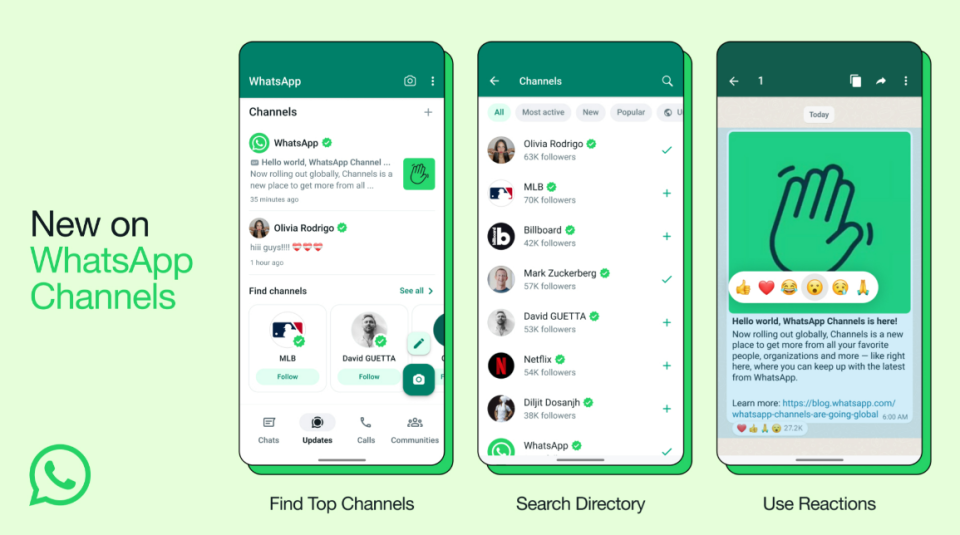
Before we dive into the removal process, let’s quickly explain what WhatsApp channels are. WhatsApp channels are public, one-way chat groups that can be created by any user on the platform. They allow users to share information and updates with a large audience. While they can be useful for sharing news or updates, they can also be annoying if you don’t want to see them.
Why Can’t I Just Disable Channels?
Unfortunately, WhatsApp doesn’t provide an option to disable channels outright. However, we’ll show you how to remove them from your account by deleting any channels you’ve created and canceling registrations to public channels.
Removing Channels on Android Devices
To remove channels on your Android device:
- Open WhatsApp and go to the Updates section.
- Tap on the Channels tab.
- If you’ve created a channel, tap on its name and select Delete Channel.
- Confirm deletion by selecting Delete and entering your phone number.
- To cancel registration to other channels, tap on each channel’s name, then tap on the three dots in the top-right corner and select Cancel Registration.
- Repeat step 5 for all channels you’re registered with.
Removing Channels on Iphone Devices
To remove channels on your iPhone device:
- Open WhatsApp and go to the Updates section.
- If you’ve created a channel, tap on its name and select Delete Channel.
- Confirm deletion by selecting Delete and entering your phone number.
- To cancel registration to other channels, tap on each channel’s name, then tap on the three dots in the top-right corner and select Cancel Registration.
- Repeat step 4 for all channels you’re registered with.
What Happens After Removing Channels?
After removing channels, your WhatsApp updates screen should look similar to how it did before channels were introduced. The section will focus on displaying state updates from your contacts rather than suggested channels.
Tips And Variations
- If you want to hide suggested channels on Android devices, tap on the arrow icon next to “Find Channels” to conceal them.
- Remember that while removing channels won’t disable them entirely, it’s still possible to create new ones or join public channels again if needed.
Conclusion
Removing WhatsApp channels might not be as straightforward as we’d like, but with this guide, you should be able to delete any channels you’ve created and cancel registrations to public channels. Remember that disabling channels outright isn’t currently possible on WhatsApp.
Frequently Asked Questions (FAQs)
- Can I Still Create New Channels?
Yes, you can still create new channels if needed.
- Will Removing Channels Affect my Whatsapp Functionality?
No, removing channels won’t impact your WhatsApp experience in any way.
- Can I Restore Deleted Channels?
Unfortunately, deleted channels cannot be restored.
- Why Can’t I Just Disable Channels?
WhatsApp doesn’t currently provide an option to disable channels outright, but you can remove them from your account by following the steps outlined above.
- Will I Miss Important Updates?
Removing channels won’t affect your ability to receive state updates from your contacts.
- How do I Cancel Registration to Other Channels?
To cancel registration to other channels, follow the same steps as deleting a channel you’ve created.
- Can I Hide Suggested Channels on my Android Device?
Yes, you can conceal suggested channels by tapping on the arrow icon next to “Find Channels”.
- Will Removing Channels Affect my Whatsapp Updates Screen?
After removing channels, your WhatsApp updates screen should return to its pre-channel state, focusing on displaying state updates from your contacts rather than suggested channels.
I hope this article has been helpful! Let me know if you have any further questions or need clarification on anything mentioned above.


