
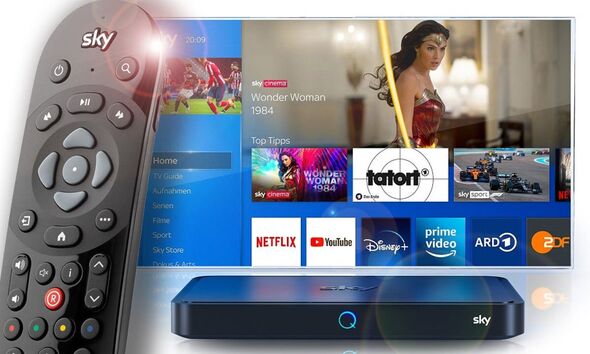
How to Modify Your Sky Subscription: A Step-by-step Guide
Are you tired of your current Sky subscription not meeting your needs? Do you want to add or remove packs and services, but don’t know how? Look no further! In this guide, we’ll walk you through the process of modifying your Sky subscription, including adding or removing packs and services.
What You Need to Know Before Modifying Your Subscription
Before we dive into the nitty-gritty details, it’s essential to understand that you can modify your Sky subscription in complete autonomy by accessing the “Do” section on the Sky website. This means you don’t need to contact an operator or visit a physical location.
Creating a Sky ID
If you haven’t already created a Sky ID, now is the perfect time! You can do this online or through the My Sky app on your smartphone or tablet. Simply follow these steps:
- Go to the Sky website and click on “Access” in the top right corner.
- If prompted, log in with your existing details or create a new account.
- Fill out the required information, including your name, address, email, and password.
Modifying Your Subscription on PC
To modify your subscription on your computer:
- Log in to the Sky website using your Sky ID credentials.
- Click on “Do” in the top right corner of the page.
- Scroll down to the “Subscription” section and click on “Modify.”
- Select the pack or service you want to add or remove from your subscription.
Modifying Your Subscription on Smartphone
To modify your subscription on your smartphone:
- Download and install the My Sky app from the App Store (iOS) or Google Play Store (Android).
- Open the app and log in with your Sky ID credentials.
- Tap on “Do” at the bottom of the screen.
- Scroll down to the “Subscription” section and tap on “Modify.”
- Select the pack or service you want to add or remove from your subscription.
Modifying Your Subscription by Phone
If you prefer to speak with an operator, you can call the Sky customer service number at 800.922.312. A consultant will guide you through the process of modifying your subscription.
Additional Tips And Reminders
- When modifying your subscription, you’ll see a summary of the changes on your next bill.
- If you want to add or remove packs, select the relevant option in the “Modify” section.
- If you’re unsure about any aspect of the process, don’t hesitate to reach out to Sky customer service.
What’s Next?
Now that you know how to modify your Sky subscription, take control of your viewing experience and tailor it to your needs! Whether you want to add or remove packs and services, modifying your subscription is easier than ever.
Frequently Asked Questions (FAQs)
Q: Can I Modify my Sky Subscription if I Haven’t Already Created a Sky Id?
A: Yes, you can create a Sky ID online or through the My Sky app on your smartphone or tablet.
Q: How do I Access The “Do” Section on The Sky Website?
A: Click on “Access” in the top right corner of the Sky website and log in with your existing details or create a new account.
Q: Can I Modify my Subscription by Phone?
A: Yes, you can call the Sky customer service number at 800.922.312 To speak with an operator and guide you through the process.
Q: Will I See a Summary of The Changes on my Next Bill?
A: Yes, when modifying your subscription, you’ll receive a summary of the changes on your next bill.
Q: Can I Add or Remove Packs Using The My Sky App?
A: Yes, you can modify your subscription by selecting the relevant option in the “Modify” section within the My Sky app.
Q: If I’m Unsure About Any Aspect of The Process, Who Should I Contact?
A: Reach out to Sky customer service for assistance and guidance.
Q: Can I Use a Postepay Digital Card to Make Online Payments With Sky?
A: Yes, you can use your Postepay Digital card to make online payments with Sky.


