
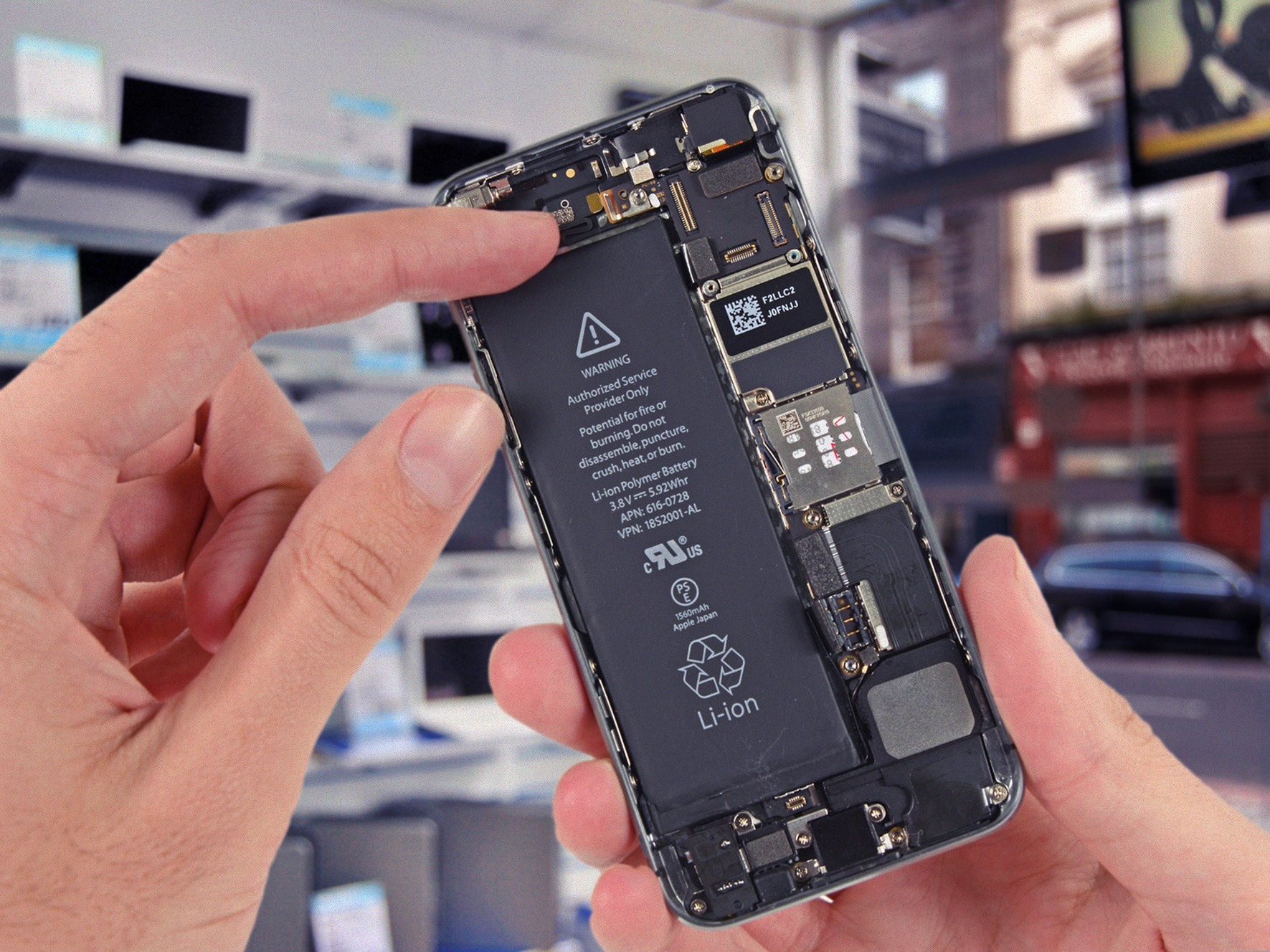
How to Replace a Non-removable Battery in Your Smartphone or Tablet
Are you tired of your smartphone or tablet’s battery dying too quickly? Do you want to use it for more than an hour before needing to recharge it? If your answers are yes, then it’s likely that your device’s battery has a problem that needs to be addressed. In this article, we’ll guide you through the process of replacing a non-removable battery in your smartphone or tablet.
Verifying Warranty Validity
Before attempting to replace the battery yourself, it’s essential to check if your device is still under warranty. If it is, contact an authorized repair center or the manufacturer directly to have them replace the battery for you. This will ensure that any future claims are not affected by your DIY replacement.
Sourcing a Reputable Replacement Battery
If you’re not covered by warranty or prefer to do it yourself, you’ll need to source a reputable replacement battery. Look for suppliers who specialize in repairing and replacing smartphone batteries, such as iFixit. Be sure to purchase a compatible battery that matches your device’s specifications.
Preparing Your Device
Before starting the replacement process, ensure your device is properly prepared:
- Turn off your device and press the power button until it shuts down.
- Remove any SIM cards or microSD cards from their slots.
- Take out the protective film or cover to avoid obstructing the repair process.
Choosing a Repair Method
You have two options: Visiting an authorized repair center or doing it yourself. If you choose the latter, make sure to follow proper safety precautions and take necessary steps to prevent damage to your device.
Substituting The Battery Yourself
To replace the battery yourself:
- Consult online guides from reputable sources like iFixit or YouTube tutorials specific to your device.
- Prepare the necessary tools and parts according to the guide you’re following.
- Carefully remove the non-removable battery and install a new one, ensuring proper connections.
Post-replacement Steps
After replacing the battery:
- Reinsert any SIM cards or microSD cards.
- Turn on your device using the power button.
- Verify that it’s functioning correctly by checking for any signs of malfunctioning.
Conclusion
Replacing a non-removable battery in your smartphone or tablet requires careful consideration and preparation. Ensure you’ve checked warranty validity, sourced a reputable replacement battery, prepared your device properly, and followed proper safety precautions if doing it yourself. By following these steps, you can breathe new life into your device’s battery and extend its lifespan.
Frequently Asked Questions
- Q: How Often Should I Replace my Smartphone or Tablet’s Battery?
A: The frequency of replacement depends on usage patterns and the type of device. - Q: Can I Use Any Battery For my Device, or do I Need a Specific One?
A: It’s essential to purchase a compatible battery that matches your device’s specifications. - Q: What if I’m Not Comfortable Doing it Myself? Should I Visit an Authorized Repair Center Instead?
A: Yes, especially if you’re unsure about the process or lack experience in DIY repairs. - Q: Will Replacing my Battery Void my Warranty?
A: If your device is still under warranty, contact the manufacturer or a repair center before attempting any DIY repairs. - Q: Can I Purchase a Replacement Battery Online, or Should I Visit an Authorized Store?
A: You can buy a replacement battery from reputable online suppliers, but make sure to check compatibility and reviews first.
Additional Tips
- Always consult official manufacturer documentation for specific guidance on battery replacement.
- Be mindful of your device’s warranty status and potential consequences if you attempt DIY repairs without proper authorization.
- Consider purchasing AppleCare+ or other extended warranties that may cover battery replacements.


