
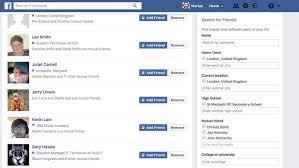
How to Search on Facebook: A Step-by-step Guide
Are you looking for a specific person, page, or post on Facebook? With over 2.7 Billion monthly active users, searching on the platform can be overwhelming. But don’t worry, we’ve got you covered! In this article, we’ll guide you through the simple process of searching on Facebook using various methods.
What You Can Search on Facebook
Before we dive into the search process, let’s take a look at what you can search for on Facebook:
- People
- Pages (including fan pages and business pages)
- Places
- Clusters
- Apps
- Events
Searching For People
If you’re looking to find someone on Facebook, follow these steps:
- Log in to Your Facebook Account: Make sure you have a Facebook account and are logged in.
- Click The Search Bar: Located at the top of the page, click the magnifying glass icon or type directly into the search bar.
- Type The Name of The Person You’re Looking For: Enter the full name, username, or email address associated with the person’s account.
- Select The Correct Profile: If multiple profiles match your search query, select the correct one from the list of suggested results.
- View Their Profile: Once you’ve selected the correct profile, click on it to view their Facebook profile.
Searching For Pages
Searching for pages on Facebook is similar to searching for people:
- Log in to Your Facebook Account: Make sure you have a Facebook account and are logged in.
- Click The Search Bar: Located at the top of the page, click the magnifying glass icon or type directly into the search bar.
- Type The Name of The Page You’re Looking For: Enter the full name, username, or keyword associated with the page.
- Select The Correct Page: If multiple pages match your search query, select the correct one from the list of suggested results.
- View Their Page: Once you’ve selected the correct page, click on it to view its Facebook page.
Searching For Places
Searching for places on Facebook is a great way to discover new locations and events:
- Log in to Your Facebook Account: Make sure you have a Facebook account and are logged in.
- Click The Search Bar: Located at the top of the page, click the magnifying glass icon or type directly into the search bar.
- Type The Name of The Place You’re Looking For: Enter the full name, address, or keyword associated with the place.
- Select The Correct Location: If multiple places match your search query, select the correct one from the list of suggested results.
- View Their Page: Once you’ve selected the correct location, click on it to view its Facebook page.
Searching For Clusters
Clusters are groups of people who share similar interests or locations:
- Log in to Your Facebook Account: Make sure you have a Facebook account and are logged in.
- Click The Search Bar: Located at the top of the page, click the magnifying glass icon or type directly into the search bar.
- Type The Name of The Cluster You’re Looking For: Enter the full name, keyword, or interest associated with the cluster.
- Select The Correct Cluster: If multiple clusters match your search query, select the correct one from the list of suggested results.
- View Their Page: Once you’ve selected the correct cluster, click on it to view its Facebook page.
Searching For Apps And Events
You can also search for apps and events on Facebook:
- Log in to Your Facebook Account: Make sure you have a Facebook account and are logged in.
- Click The Search Bar: Located at the top of the page, click the magnifying glass icon or type directly into the search bar.
- Type The Name of The App or Event You’re Looking For: Enter the full name, keyword, or interest associated with the app or event.
- Select The Correct App or Event: If multiple apps or events match your search query, select the correct one from the list of suggested results.
- View Their Page: Once you’ve selected the correct app or event, click on it to view its Facebook page.
Using Hashtags
You can also use hashtags to search for posts related to a specific topic:
- Log in to Your Facebook Account: Make sure you have a Facebook account and are logged in.
- Click The Search Bar: Located at the top of the page, click the magnifying glass icon or type directly into the search bar.
- Type The Hashtag: Enter the hashtag associated with the topic you’re interested in.
- View The Results: The search results will display a list of posts related to the hashtag.
Searching on Mobile
You can also search for people, pages, and places using the Facebook mobile app:
- Open The Facebook App: Make sure you have the latest version of the Facebook app installed on your device.
- Tap The Search Bar: Located at the top of the screen, tap the magnifying glass icon or type directly into the search bar.
- Type The Name or Keyword: Enter the full name, username, or keyword associated with the person, page, or place you’re looking for.
- Select The Correct Profile: If multiple profiles match your search query, select the correct one from the list of suggested results.
- View Their Profile: Once you’ve selected the correct profile, tap on it to view their Facebook profile.
Conclusion
Searching on Facebook can be a daunting task, but with these simple steps, you’ll be able to find what you’re looking for in no time! Remember, you can search for people, pages, places, clusters, apps, and events using the search bar at the top of the page. You can also use hashtags to discover new content related to your interests.
Frequently Asked Questions
Q: How do I search for a specific person on Facebook?
A: To search for a specific person, log in to your Facebook account and click the magnifying glass icon or type directly into the search bar. Enter the full name, username, or email address associated with the person’s account.
Q: Can I use hashtags to search for posts related to a specific topic?
A: Yes, you can use hashtags to search for posts related to a specific topic. Simply log in to your Facebook account and type the hashtag into the search bar.
Q: How do I search for pages on Facebook?
A: To search for pages, log in to your Facebook account and click the magnifying glass icon or type directly into the search bar. Enter the full name, username, or keyword associated with the page.
References
- Facebook Help Center
- Facebook Mobile App Guide


