
How to Make a Video Private on Youtube
Are you wondering how to make a video private on YouTube? Perhaps you’ve uploaded a personal or confidential video that you don’t want the public to see, but you’re not sure how to hide it from view. You’re in luck! In this article, we’ll guide you through the process of making a video private on YouTube, and also show you how to upload a private video in the first place.
Understanding Youtube’s Visibility Options
Before we dive into the nitty-gritty of making a video private, it’s essential to understand YouTube’s visibility options. When you upload a video to YouTube, it’s automatically set to public visibility, meaning anyone can see and share it. However, you have two other options: No in list and Private.
- No in List: This option means the video won’t show up in search results or on your channel page, but viewers can still find it if they know the URL.
- Private: This option makes the video invisible to everyone except the person who uploaded it (you) and YouTube’s moderation team.
Making an Existing Video Private
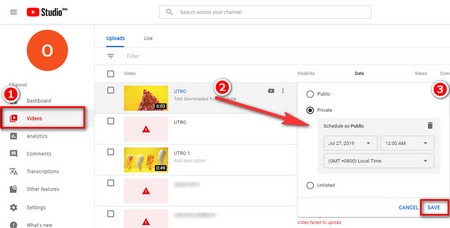
To make an existing video private, follow these steps:
- Log in to your YouTube account and go to your channel page.
- Click on the three dots next to the video you want to make private.
- Select “Edit” from the dropdown menu.
- In the video details section, click on the dropdown menu next to “Visibility” and select “Private”.
- Click “Save Changes” to apply the changes.
Uploading a Private Video
If you’re looking to upload a private video for the first time, follow these steps:
- Log in to your YouTube account.
- Click on the “Upload” button.
- Select the file you want to upload and add it to your channel.
- In the video details section, click on the dropdown menu next to “Visibility” and select “Private”.
- Add any additional details, such as title, description, and tags.
Using Youtube Studio
If you prefer using the YouTube Studio app, follow these steps:
- Open the YouTube Studio app.
- Select the video you want to make private from your channel page.
- Click on the three dots next to the video and select “Edit”.
- In the video details section, click on the dropdown menu next to “Visibility” and select “Private”.
- Click “Save Changes” to apply the changes.
Conclusion
Making a video private on YouTube is easier than you think! By following these simple steps, you can hide your video from public view and keep it safe from unwanted eyes.
Frequently Asked Questions
- Q: Can I Make a Video Private After It’s Been Uploaded?
A: Yes, you can make a video private at any time by following the steps outlined above. - Q: Will my Private Video Still Appear in Search Results if Someone Knows The Url?
A: No, your private video will not appear in search results or on your channel page, even if someone knows the URL. - Q: Can I Share a Private Video With Others?
A: Yes, you can share a private video with others by sending them the link. However, they won’t be able to see the video unless they have access to it. - Q: Will my Private Video Still Count Towards my Youtube Views And Earnings?
A: No, your private video will not count towards your YouTube views and earnings. - Q: Can I Make a Video Private if It’s Already Been Monetized?
A: Yes, you can make a video private even if it’s already been monetized. However, keep in mind that making a video private may affect its monetization.
By understanding YouTube’s visibility options and following the steps outlined above, you can rest assured that your videos are safe from unwanted eyes.


