
Actuating Tethering Usb: A Comprehensive Guide
As a mobile device user, you’ve probably encountered situations where your Wi-Fi connection is not available, and you need to share your phone’s internet with your computer or laptop. This is where tethering comes in – a feature that allows you to use your phone’s cellular data to connect your devices to the internet. In this article, we’ll guide you through the process of actuating tethering USB on various devices, including Android, iPhone, Windows 10, and Mac.
What is Tethering?
Tethering is a functionality that allows mobile devices to share their internet connection with other devices. It’s like turning your phone into a portable Wi-Fi hotspot, but instead of using wireless connectivity, you use a USB cable to connect your device to the internet. This feature is particularly useful when you’re in areas with no Wi-Fi coverage or when you need to conserve battery life.
Benefits of Tethering Usb
Using tethering USB has several benefits:
- No Additional Costs: Unlike wireless tethering, which may incur extra charges from your carrier, tethering USB uses the cellular data on your phone’s plan.
- Stable Connection: Tethering USB provides a more stable and reliable connection compared to wireless tethering.
- Conserve Battery Life: Using tethering USB can help extend your phone’s battery life since it doesn’t consume as much power as wireless connectivity.
Actuating Tethering Usb: Android
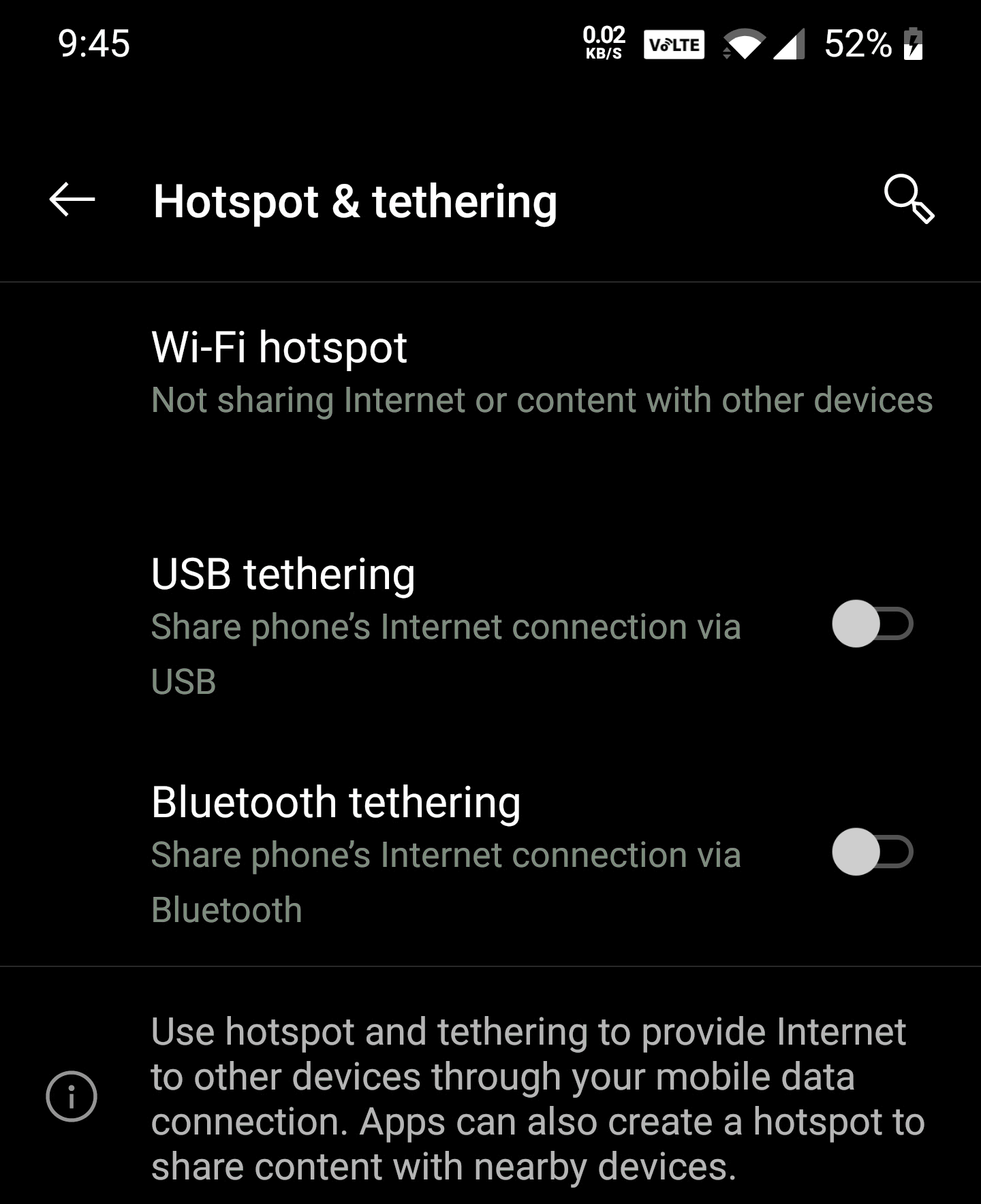
To actuate tethering USB on an Android device:
- Access the settings menu by pressing the gear icon in the top-right corner.
- Select “Network and internet” or “Connections.”
- Tap on “Hotspot and tethering.”
- Activate the toggle switch next to “USB tethering.”
- Connect your phone to your computer using a USB cable.
Actuating Tethering Usb: Iphone
To actuate tethering USB on an iPhone:
- Go to Settings.
- Select “Cellular” or “Mobile Data.”
- Tap on “Personal Hotspot.”
- Activate the toggle switch next to “Allow Others to Join.”
- Connect your phone to your computer using a Lightning cable.
Actuating Tethering Usb: Windows 10
To actuate tethering USB on a Windows 10 device:
- Ensure your phone is connected to your computer using a USB cable.
- Go to the Action Center and select “Settings.”
- Click on “Network & Internet” or “Connections.”
- Select “Ethernet.”
- Look for the “USB Tethering” option and activate it.
Actuating Tethering Usb: Mac
To actuate tethering USB on a Mac:
- Connect your iPhone to your computer using a Lightning cable.
- Go to System Preferences > Network.
- Select “Thunderbolt Bridge” or “Ethernet.”
- Look for the “USB Tethering” option and activate it.
Tips And Precautions
When using tethering USB, keep in mind:
- Battery Life: Sharing your phone’s internet connection can consume more power than usual.
- Heat Buildup: Keeping your phone connected to your computer for extended periods can cause heat buildup, potentially affecting battery life.
- Security Risks: When sharing your phone’s internet connection, be cautious of potential security risks.
Conclusion
Actuating tethering USB on various devices is a straightforward process that can provide a stable and reliable internet connection when Wi-Fi is not available. By following the steps outlined in this article, you’ll be able to share your phone’s cellular data with your computer or laptop using a USB cable. Remember to consider the benefits and potential drawbacks of tethering USB before using it.
Frequently Asked Questions (FAQs)
- What is Tethering?
Tethering is a feature that allows mobile devices to share their internet connection with other devices. - How Does Tethering Work?
Tethering uses a USB cable to connect your phone to your computer, sharing the cellular data on your phone’s plan. - Is Tethering Safe?
Tethering can pose security risks if not used properly. Be cautious when sharing your phone’s internet connection. - Can I Use Tethering With my Iphone?
Yes, you can use tethering with your iPhone, but ensure it’s connected to a compatible device using a Lightning cable. - How do I Activate Tethering on my Android Device?
To activate tethering on an Android device, go to Settings > Network and internet > Hotspot and tethering > USB tethering. - Can I Use Tethering With Windows 10?
Yes, you can use tethering with Windows 10 by connecting your phone to your computer using a USB cable and following the steps outlined in this article. - Is Tethering Free?
Tethering may incur additional costs depending on your carrier’s plan. Check your provider’s terms for more information. - Can I Share my Internet Connection With Multiple Devices?
Yes, you can share your internet connection with multiple devices using tethering, but be aware of potential security risks and battery life consumption.


