
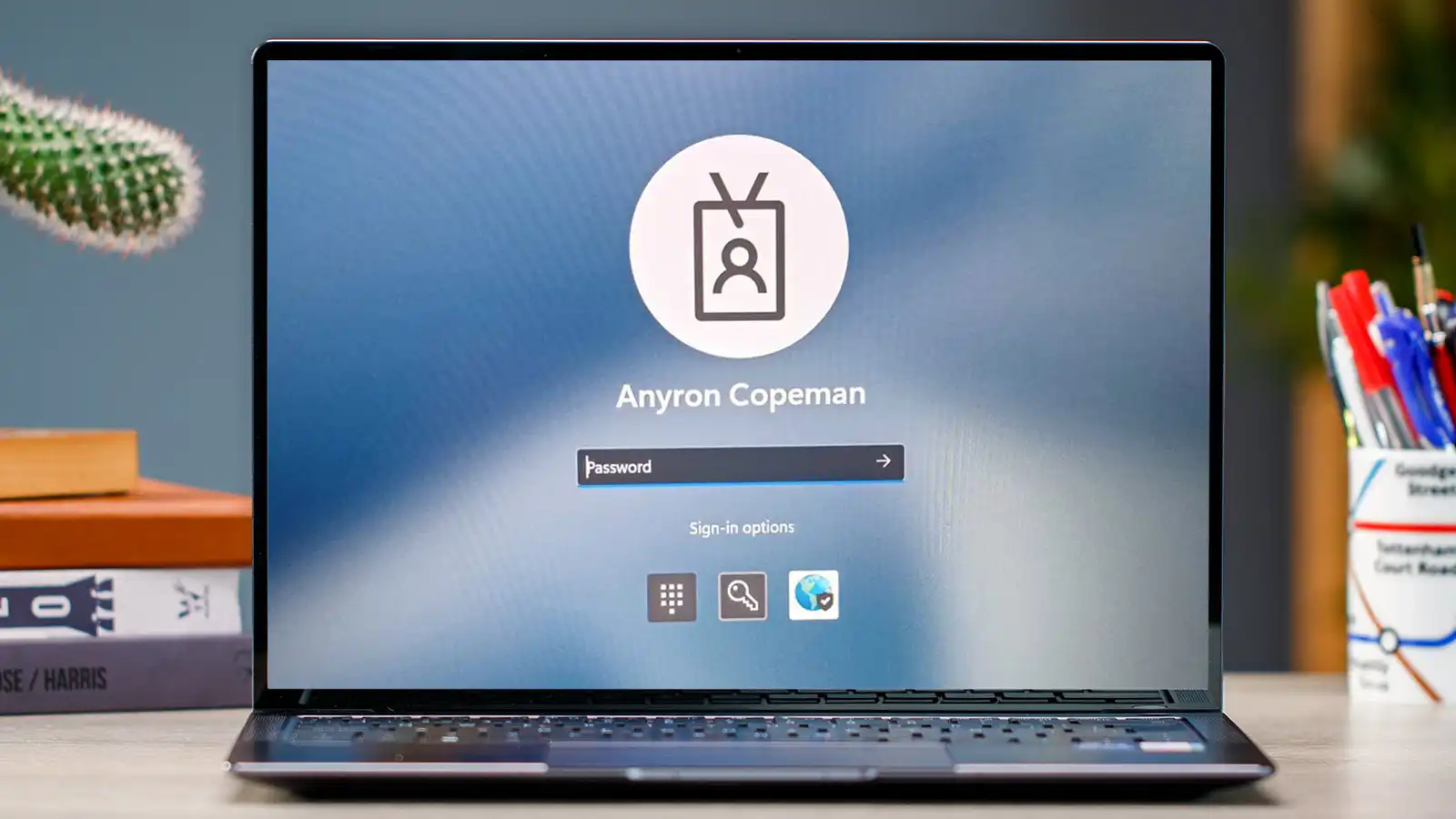
How to Remove The Password From Windows: A Step-by-step Guide
Are you tired of entering your password every time you start your Windows computer? Look no further! In this article, we will guide you through the process of removing the password from Windows on all leading versions of the operating system.
Why Remove The Password?
Before we dive into the steps, it’s essential to understand why you might want to remove the password. While passwords provide an additional layer of security, they can also be a hassle when trying to access your computer quickly. Removing the password will allow you to start your computer with just one click, making it ideal for busy users.
Windows 11: How to Remove The Password
If you’re using Windows 11, removing the password is a straightforward process. Here’s how:
- Click on Start: Press the Start button (the icon of the blue circle) and select your profile picture with your name (or the Windows logo if you don’t have a profile picture).
- Select Modify Settings Account: Click on “Modify settings account” in the menu that appears.
- Choose Account Settings: In the window that opens, click on “Account” in the left-hand sidebar and select “Create PIN” under the “PIN to login to Windows Hello” section.
- Configure Your Pin: Follow the prompts to create a PIN numerical password.
- Add Letters And Symbols (optional): If you want to add letters or other characters to your PIN, check the box next to “Include letters and symbols.”
Alternative Methods
If you prefer not to use a PIN, you can also remove the password by creating a local user account.
- Convert Your Account: Click on Start, select your profile picture with your name (or the Windows logo), and click on “Modify settings account.”
- Select Convert to Local Account: In the window that opens, click on “Access with a local account” and follow the prompts to create a new local user account.
- Disable Password Requirement: Go back to the panel of account management (netplwiz) and remove the checkmark from the box next to “Require users to enter a username and password.”
Removing Password on Other Windows Versions
The process is similar for other Windows versions, including:
- Windows 10: Follow the same steps as above.
- Windows 8: Access the Settings app (Search for “Settings” in the Start menu), click on “Account,” then select “Options for access.” Choose “Add a PIN to configure a PIN numerical password” or “Add graphic Password” to create a graphical password.
- Windows 7: Go to the Control Panel, click on User Accounts and Family Safety, and then select Change password. Select “Remove password” and follow the prompts.
Troubleshooting
If you’re experiencing issues with removing your password, consider using the software KON-BOOT (available for Windows 11, 10, 8, and 7). This tool allows you to access your computer without entering a password.
Conclusion
Removing the password from Windows is a simple process that can be completed in just a few steps. Whether you’re using Windows 11, 10, 8, or 7, following these instructions will help you get started quickly and easily. Remember to always exercise caution when removing passwords, as this may compromise your system’s security.
Faqs
- Q: Why Should I Remove my Password?
A: Removing the password can make it easier for others to access your computer if they have physical access. - Q: Is it Safe to Use a Pin or Graphical Password Instead of a Traditional Password?
A: Yes, using a PIN or graphical password provides an additional layer of security and is often more convenient than entering a long password. - Q: Can I Remove The Password on All Windows Versions?
A: Yes, the process for removing passwords is similar across all Windows versions (Windows 11, 10, 8, and 7). - Q: What if I Forget my Password?
A: If you’ve removed your password, you may not be able to access your computer without using a recovery tool or resetting your account. - Q: Can I Use Kon-boot to Remove The Password?
A: Yes, KON-BOOT is a software that allows you to bypass passwords and access your computer without entering a password. - Q: Are There Any Risks Associated With Removing my Password?
A: Removing the password may compromise your system’s security if others have physical access to your computer. - Q: Can I Use a Local User Account Instead of an Online Microsoft Account?
A: Yes, you can create a local user account and remove the password requirement for this specific account. - Q: How do I Recover my Password if I’ve Removed It?
A: If you’ve removed your password, try using the recovery tool or resetting your account to regain access to your computer.
Hope you found it helpful


