
How to Forward Emails From Outlook: A Step-by-step Guide
Are you looking for a way to forward emails from Outlook without having to manually select each message? Look no further! In this article, we will guide you through the process of setting up email forwarding on Outlook, both on the web and on your desktop application.
Why Forward Emails From Outlook?
Forwarding emails from Outlook can be useful in a variety of situations. For example, if you have multiple email accounts and want to keep all your messages in one place, or if you want to forward specific emails to a colleague or manager. Whatever the reason, we will show you how to do it easily and efficiently.
Forwarding Emails From Outlook on The Web
To forward emails from Outlook on the web, follow these steps:
- Log in to your Outlook account on the web.
- Click on the “New Email” button to compose a new email.
- In the “To” field, enter the email address of the person you want to forward the message to.
- In the “Subject” field, enter the subject line of the email you want to forward.
- In the body of the email, click on the “Forward” button.
- Select the email you want to forward from your inbox or sent folder.
- Click on the “Forward” button again to confirm.
Forwarding Emails From Outlook Desktop Application
To forward emails from the desktop application, follow these steps:
- Open Outlook and navigate to the message you want to forward.
- Right-click on the message and select “Forward”.
- Enter the email address of the person you want to forward the message to in the “To” field.
- Click on the “Send” button to confirm.
How to Set Up Automatic Email Forwarding on Outlook
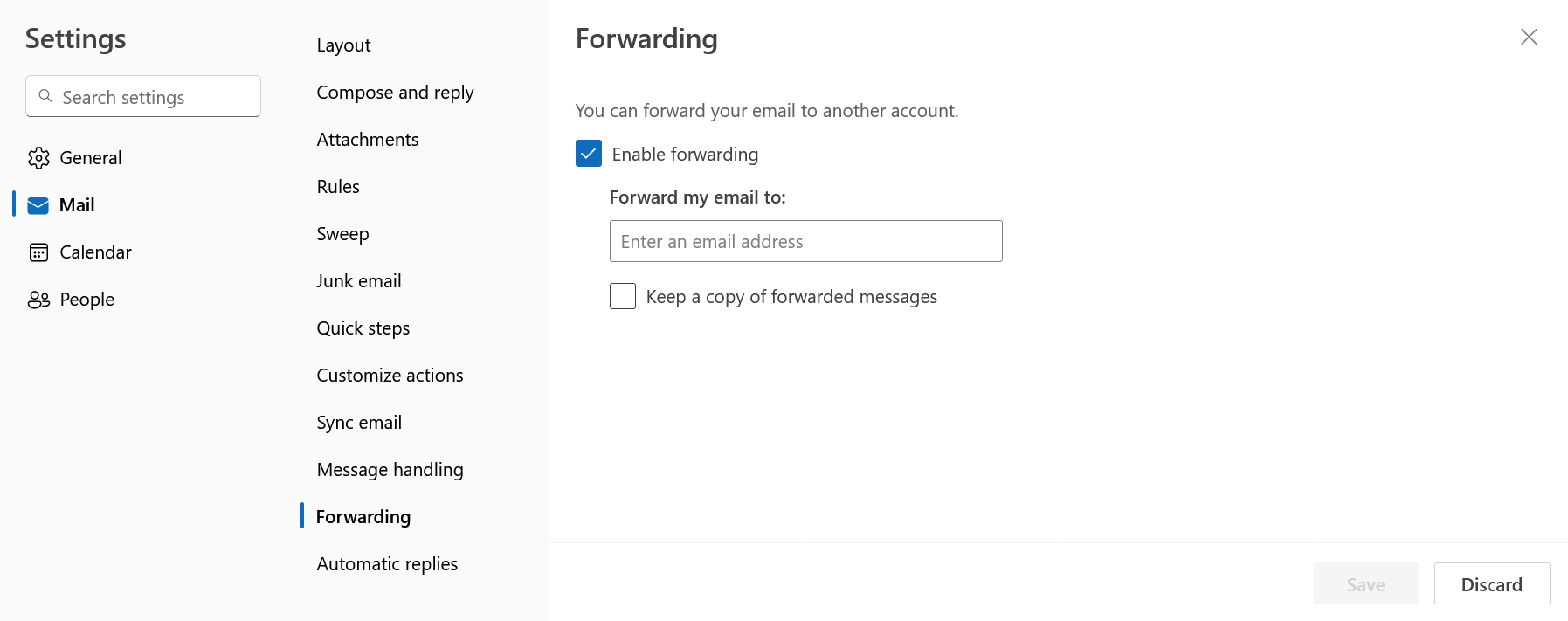
If you want to set up automatic email forwarding on Outlook, follow these steps:
- Log in to your Outlook account on the web.
- Click on the gear icon in the top right corner and select “Settings”.
- Click on “Mail” and then click on “Filters and Automatic Forwarding”.
- Click on the “Add Filter” button.
- Select “Forward messages automatically” as the filter type.
- Enter the email address of the person you want to forward the message to in the “To” field.
- Click on the “Save” button to confirm.
How to Forward Emails From Outlook to Gmail
If you want to forward emails from Outlook to Gmail, follow these steps:
- Log in to your Outlook account on the web.
- Click on the “New Email” button to compose a new email.
- In the “To” field, enter the email address of the person you want to forward the message to (in this case, your Gmail address).
- In the body of the email, click on the “Forward” button.
- Select the email you want to forward from your inbox or sent folder.
- Click on the “Forward” button again to confirm.
How to Forward All Emails From Outlook
If you want to forward all emails from Outlook to another address, follow these steps:
- Log in to your Outlook account on the web.
- Click on the gear icon in the top right corner and select “Settings”.
- Click on “Mail” and then click on “Filters and Automatic Forwarding”.
- Click on the “Add Filter” button.
- Select “Forward messages automatically” as the filter type.
- Enter the email address of the person you want to forward the message to in the “To” field.
- Check the box next to “Keep a copy of forwarded messages” if you want to keep a copy of the emails that are forwarded.
- Click on the “Save” button to confirm.
Using a Client to Forward Emails From Outlook
If you want to forward all emails from Outlook using a client, follow these steps:
- Download and install a client such as Thunderbird or Microsoft Outlook.
- Log in to your Outlook account using the client.
- Select the email folder that contains the messages you want to forward.
- Click on the “Forward” button to start the forwarding process.
Conclusion
In this article, we have shown you how to forward emails from Outlook both on the web and on your desktop application. We have also explained how to set up automatic email forwarding on Outlook and how to use a client to forward all emails from Outlook. By following these steps, you can easily forward emails from Outlook without having to manually select each message.
Faqs
- How do I Forward an Email From Outlook?
To forward an email from Outlook, follow the steps outlined in this article. - Can I Set up Automatic Email Forwarding on Outlook?
Yes, you can set up automatic email forwarding on Outlook by following the steps outlined in this article. - How do I Forward All Emails From Outlook?
To forward all emails from Outlook, follow the steps outlined in this article and select “Forward messages automatically” as the filter type. - Can I Forward Emails From Outlook to Gmail?
Yes, you can forward emails from Outlook to Gmail by following the steps outlined in this article. - How do I Use a Client to Forward Emails From Outlook?
To use a client to forward emails from Outlook, follow the steps outlined in this article and download and install a client such as Thunderbird or Microsoft Outlook. - Can I Keep a Copy of Forwarded Messages on Outlook?
Yes, you can keep a copy of forwarded messages on Outlook by checking the box next to “Keep a copy of forwarded messages” when setting up automatic email forwarding. - How do I Cancel Automatic Email Forwarding on Outlook?
To cancel automatic email forwarding on Outlook, follow the steps outlined in this article and click on the “Cancel Filter” button. - Can I Forward Emails From Outlook to Another Address?
Yes, you can forward emails from Outlook to another address by following the steps outlined in this article and entering the email address of the person you want to forward the message to in the “To” field.


