
Actuating Bluetooth on Windows 8: A Comprehensive Guide
As we navigate the world of computer science, Bluetooth technology has become an essential tool for exchanging data between devices. If you’re wondering how to activate Bluetooth on your Windows 8 PC, you’ve come to the right place! In this article, we’ll guide you through a step-by-step process to ensure seamless connectivity.
Understanding Bluetooth Support on Your PC
Before diving into the activation process, it’s essential to verify if your PC supports Bluetooth technology. If you’re unsure, don’t worry; we’ve got you covered!
To check, follow these simple steps:
- Identify The Bluetooth Icon: Look for a yellow folder icon in the system tray (usually located at the bottom right corner of your screen).
- Check Device Properties: Right-click on the icon and select “Device properties.”
- Verify Bluetooth Support: In the device properties window, check if there’s an option called “Bluetooth” or “Radio Bluetooth.” If it exists, your PC supports Bluetooth.
Acquiring a Bluetooth Adapter (If Necessary)
If your PC doesn’t have native Bluetooth support, you can acquire an adapter USB. This device is similar to a USB stick and can be purchased at electronic stores or online marketplaces like Amazon or eBay.
Activating Bluetooth on Windows 8
Now that we’ve covered the basics, let’s move on to activating Bluetooth on your Windows 8 PC:
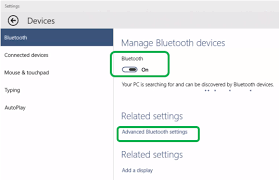
- Open Settings: Press the Windows key + I to open the Settings app.
- Click on Devices: In the Settings window, click on “Devices.”
- Select Bluetooth & Other Devices: Click on “Bluetooth & other devices” from the list of options.
- Toggle ON Bluetooth: Switch the toggle next to “Bluetooth” to the ON position.
Associating a Device With Your PC
To associate your device with your PC, follow these steps:
- Click on Start: Press the Windows key + X or click on the Start button.
- Type “bluetooth” in The Search Bar: In the Start menu, type “bluetooth” and press Enter.
- Select Bluetooth & Other Devices: Click on “Bluetooth & other devices” from the list of options.
- Click on Add a Device: Select the option to add a new device.
Configuring Your Device
To configure your device, follow these steps:
- Search For Nearby Devices: In the “Add a device” window, search for nearby Bluetooth devices.
- Select The Device You Want to Associate With Your PC: Choose the device you want to connect to your PC.
- Follow On-screen Instructions: Follow the on-screen instructions to complete the configuration process.
Tips And Precautions
Remember to keep your device within range of your PC, as excessive distance may cause interference. Additionally, ensure that no other devices are using Bluetooth in close proximity to yours.
Conclusion
Actuating Bluetooth on Windows 8 is a straightforward process that requires minimal technical expertise. By following the steps outlined in this article, you’ll be able to enjoy seamless connectivity between devices and explore the many possibilities of Bluetooth technology.
Frequently Asked Questions (FAQs)
- Q: What is Bluetooth?
A: Bluetooth is a wireless personal area network technology that allows devices to communicate with each other. - Q: How do I Check if my PC Supports Bluetooth?
A: Check the system tray for a yellow folder icon representing the Bluetooth device properties window. - Q: Can I Acquire a Bluetooth Adapter if my PC Doesn’t Support it Natively?
A: Yes, you can purchase a USB Bluetooth adapter from electronic stores or online marketplaces. - Q: How do I Associate a Device With my PC Using Bluetooth?
A: Follow the steps outlined in this article to add a new device using the “Add a device” option. - Q: What Precautions Should I Take When Using Bluetooth?
A: Ensure that your device is within range of your PC, and avoid interference from other devices. - Q: Can I Use Bluetooth For File Transfer Between Devices?
A: Yes, Bluetooth allows you to share files between devices using the “Bluetooth & other devices” feature. - Q: How do I Configure my Device For Seamless Connectivity?
A: Follow the on-screen instructions provided by your device or consult its user manual.


