
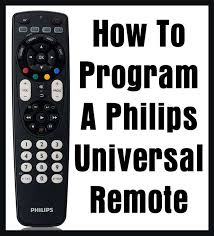
How to Program a Universal Remote Control: A Step-by-step Guide
Are you tired of juggling multiple remote controls for your TV, soundbar, and other devices? Do you wish there was a way to simplify the process of controlling all your electronic devices with one universal remote control? Look no further! In this article, we will guide you through the step-by-step process of programming a universal remote control.
What is a Universal Remote Control?
A universal remote control is a device that can be programmed to control multiple electronic devices, such as TVs, soundbars, DVD players, and more. It’s like having one remote control for all your devices, making it easy to navigate through channels, adjust volume levels, and play movies with just the touch of a button.
Why Do I Need to Program My Universal Remote Control?
Programming your universal remote control is essential to ensure that it works correctly with your devices. Without programming, the remote may not be able to send commands to your devices, leading to frustration and wasted time trying to figure out what’s going wrong.
Step 1: Choose Your Programming Method
There are two ways to program a universal remote control:
- Manual Programming: This method involves entering specific codes for each device into the remote. This is a good option if you know the exact code for your device.
- Automatic Programming: This method uses an automatic search feature to find the correct code for your device. This is a good option if you’re not sure what code to use.
Step 2: Activate The Learning Mode
To program your universal remote control, you’ll need to activate its learning mode. This will allow it to learn the commands from your device.
- For most universal remote controls, this involves pressing and holding down the “SET” or “LEARN” button for a few seconds until the LED light starts flashing.
- Once the learning mode is activated, press and hold down the “OK” or “SELECT” button on the remote while pointing it at your device.
Step 3: Enter The Code
Using either manual programming or automatic programming method:
- Manual Programming: If you’re using manual programming, enter the code for your device by pressing the corresponding buttons on the remote. Make sure to press and hold down each button for a few seconds before releasing it.
- Automatic Programming: If you’re using automatic programming, let the remote search for the correct code. This may take a few minutes.
Step 4: Test Your Remote
Once the programming is complete, test your remote by pressing some buttons to see if they work correctly.
Programming Specific Universal Remotes
Here are specific instructions for popular universal remotes:
- Meliconi Universal Remote: Follow the steps above for manual programming. You can also use the app on your phone to search for the correct code.
- Bravo Universal Remote: Use either manual or automatic programming method. If you’re using automatic programming, press and hold down the “SET” button while pointing it at your device.
- Chunghop Universal Remote: Follow the steps above for manual programming. You can also use the app on your phone to search for the correct code.
Programming a Universal Remote Control For an Erase Device
If you’re trying to program a universal remote control for an erase device, follow these additional steps:
- The frequency of transmission must match that of the original remote control.
- The telephone exchange must be configured with the same code as the remote control being duplicated.
Frequently Asked Questions (FAQs)
Q: What if I’m not sure what code to use?
A: You can try using the automatic programming method or search online for the correct code.
Q: Can I program a universal remote control myself, or do I need professional help?
A: In most cases, you can program a universal remote control yourself. However, if you’re unsure about any part of the process, it’s always best to consult with a professional.
Q: How long does the programming process take?
A: The time it takes to complete the programming process will depend on whether you choose manual or automatic programming method and your level of familiarity with the remote control.
Q: Can I use a universal remote control for other devices, such as my PC or smartphone?
A: Yes, some universal remotes come equipped with features that allow you to connect them to your PC or smartphone using an aux cable.
Conclusion
Programming a universal remote control is a straightforward process that can save you time and frustration in the long run. By following these step-by-step instructions, you’ll be able to program your universal remote control for all your devices with ease. Remember to choose the right programming method for your needs, test your remote after completing the programming process, and consult professional help if needed.


