
Unlocking The Secrets of Your Telecom Modem: A Step-by-step Guide
Are you struggling to access your Telecom modem, or perhaps wondering how to reset it? Look no further! In this comprehensive guide, we’ll walk you through the process of configuring and managing your Telecom modem, ensuring a seamless internet experience.
Understanding Your Telecom Modem
Before diving into the nitty-gritty, let’s take a moment to understand what your Telecom modem is capable of. This device serves as a gateway between your home network and the wider internet, providing a secure connection for all your devices.
Configuring Your Telecom Modem
To access your modem’s panel of administration, follow these simple steps:
- Open Your Browser: Launch your preferred web browser (e.G., Chrome, Edge, Firefox, or Safari) and type in one of the following addresses:
- Http://Modemtelecom
- Http://Alicegate
- 192.168.1.1
- 192.168.0.1
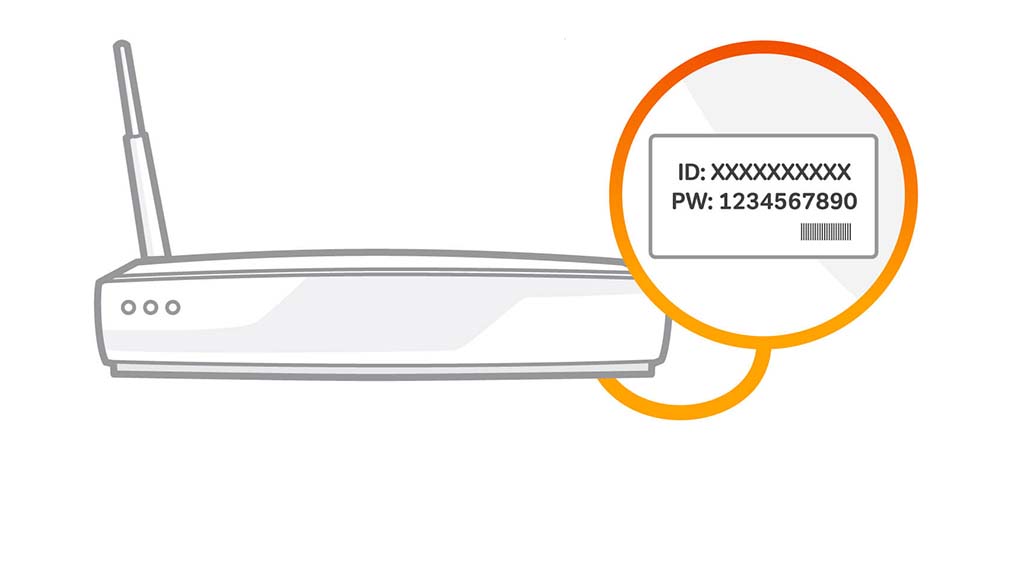
- Enter Your Credentials: Log in using your modem’s default username and password (usually “admin” for both). If you’ve previously changed the password, use that instead.
- Access The Panel: Click on the login button to access the modem’s administration panel.
Resetting Your Telecom Modem Password
If you’re having trouble remembering your modem password or need to reset it, follow these steps:
- Download The Tim Modem App: For Android devices, download the TIM Modem app from the Google Play Store, and for iOS devices, find it in the App Store.
- Launch The App: Open the app and tap on the “Access with MyTIM” option or use your credentials to log in directly.
- Reset Your Password: Tap on the “Reset password” button to restore the default settings.
Managing Your Telecom Modem
Now that you’ve accessed your modem’s panel, let’s explore some of its key features:
- Wi-fi Settings: Adjust your Wi-Fi network’s name and password, as well as change the frequency channel for better performance.
- Devices Connected: View a list of devices connected to your home network and configure any settings as needed.
- Usb Devices: Manage USB-connected devices and configure their settings.
Tim Hub And Tim Hub+
The interfaces of these modems’ administration panels are nearly identical, with options for:
- Gateway: Configure gateway settings
- Wide Band: Adjust wide band settings
- Firewall: Manage firewall settings
- Diagnostic: Run diagnostic tests
Tim Fibra
If you have a TIM Fibra modem, the panel of administration will display information about your connection state and devices connected.
Tim Smart
The TIM Smart modem’s administration panel offers features such as:
- Wi-fi Settings: Adjust Wi-Fi settings
- Ethernet Ports: Manage Ethernet ports
- Usb Devices: Configure USB device settings
Conclusion
Configuring and managing your Telecom modem is a straightforward process, ensuring you can enjoy a seamless internet experience. By following the steps outlined in this guide, you’ll be able to access your modem’s panel, reset passwords, and adjust various settings to suit your needs.
Frequently Asked Questions (FAQs)
- Q: How do I Reset my Telecom Modem Password?
A: You can reset your password by downloading the TIM Modem app, launching it, and tapping on the “Reset password” button. - Q: What is The Default Username And Password For my Telecom Modem?
A: The default username and password are usually both “admin.” - Q: How do I Configure my Wi-fi Settings on my Telecom Modem?
A: Access your modem’s administration panel, select the “Wi-Fi” option, and adjust the name, password, and frequency channel as needed. - Q: Can I Manage Devices Connected to my Home Network Via my Telecom Modem?
A: Yes, you can view a list of connected devices and configure their settings through your modem’s administration panel. - Q: What is The Difference Between Tim Hub And Tim Hub+ Modems?
A: The interfaces of these modems’ administration panels are nearly identical, with some minor variations in features and options. - Q: How do I Reset my Telecom Modem to Its Factory Settings?
A: You can reset your modem by accessing the “Info modem” section, selecting the “Reset password” option, and following the on-screen instructions. - Q: Can I Configure Advanced Options on my Tim Fibra Modem?
A: Yes, you can access the “Configure” section and manage advanced options like port mapping. - Q: How do I Restart my Telecom Modem?
A: You can restart your modem by accessing the “Status and support” option and selecting the “Restart” button.
By understanding how to configure and manage your Telecom modem, you’ll be able to enjoy a stable and secure internet connection for all your devices.


