
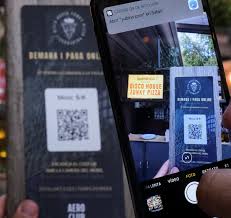
How to Read QR Codes With Huawei Phones: A Step-by-step Guide
Are you struggling to read QR codes with your Huawei phone? Look no further! In this article, we’ll show you how to use the built-in camera app and search bar to scan QR codes quickly and easily.
Table 1: Using The Camera App
| Step | Action |
|---|---|
| 1. Open the Camera app | Find the Camera icon on your home screen or in the app drawer |
| 2. Tap on the ring icon | Look for the ring-shaped icon in the top right corner of the camera viewfinder |
| 3. Configure To The Lens | Tap on the To The Lens option to enable QR code scanning |
The Easiest Way to Read QR Codes With Huawei Phones
Using the Camera app is the most straightforward way to read QR codes with your Huawei phone. Simply open the app, tap on the ring icon, and configure To The Lens to enable QR code scanning.
Table 2: Using The Search Bar
| Step | Action |
|---|---|
| 1. Swipe down from the top of the screen | Access the search bar on your home screen or lock screen |
| 2. Tap on the magnifying glass icon | Look for the magnifying glass icon in the search bar |
| 3. Type “QR code” and tap on the result | Search for QR codes using the built-in search bar |
Alternative Methods: Using Third-party Apps
If you’re having trouble finding the QR code scanning feature on your Huawei phone, don’t worry! You can use third-party apps to scan QR codes quickly and easily.
Table 3: Popular Third-party Apps
| App Name | Features |
|---|---|
| Binary Eye | Free download, no ads or permissions required, supports LED flash and camera zoom |
| QR & Barcode Scan | Ad-free, feature-rich app with LED flash support and a built-in history section |
How to Use Third-party Apps
To use third-party apps, simply download and install one from the Play Store or alternative store. Open the app, grant it permission to access your camera, and tap on the QR code scanning button. You’ll be redirected to the corresponding webpage, app, or service.
What is a QR Code?
A QR code (Quick Response code) is a type of barcode that can store information such as text, URLs, phone numbers, and more. They’re widely used in various industries, including retail, marketing, and healthcare.
Benefits of Using QR Codes
QR codes offer several benefits, including:
- Increased Convenience: QR codes can be easily scanned using a smartphone or tablet.
- Improved Accessibility: QR codes provide an alternative to traditional barcodes for visually impaired users.
- Enhanced User Experience: QR codes can link to relevant content, such as product information or online reviews.
Troubleshooting Tips
If you’re experiencing issues with scanning QR codes on your Huawei phone, try the following:
- Restart Your Device: Sometimes, a simple reboot can resolve connectivity issues.
- Update Your App: Make sure your Camera and search bar apps are up-to-date.
- Use a Third-party App: If built-in features aren’t working for you, consider using a third-party app.
Conclusion
Reading QR codes with Huawei phones is easier than ever! By following the steps outlined in this article, you can use the built-in camera app and search bar to scan QR codes quickly and easily. If you’re experiencing issues, don’t worry – there are alternative methods available using third-party apps. Happy scanning!


