
How to File Your Free Mail on Pc, Smartphone, And Tablet: A Step-by-step Guide
As a user of the popular email service, Free Mail, you likely receive a multitude of messages every day. While it’s essential to keep your inbox organized, you might not know how to file your emails effectively. In this article, we’ll show you how to file your Free Mail on PC, smartphone, and tablet using various methods.
What is Email Filing?
Email filing refers to the process of moving or saving specific emails into designated folders or categories for future reference. This technique helps keep your inbox clutter-free and makes it easier to find specific messages when needed.
Filing Free Mail on Pc: A Step-by-step Guide
To file your Free Mail on PC, follow these steps:
- Access Your Free Web Mail Account: Log in to your Free Mail account using the web version of the service.
- Select The Folder: Choose the folder where you want to save the email by selecting it from the left-hand menu bar.
- Open The Email: Open the email you wish to file by clicking on its title or subject line.
- Click on “Another”: Click on the “Another” option at the top of the screen, followed by “File.”
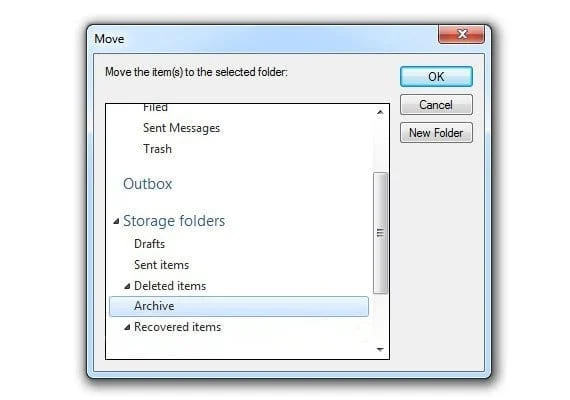
- Select The Folder: Select the folder where you want to save the email from the dropdown menu.
Filing Free Mail on Smartphone And Tablet: A Step-by-step Guide
To file your Free Mail on smartphone and tablet, follow these steps:
- Open The App: Open the Free Mail app on your device (available for both Android and iOS).
- Select The Folder: Tap on the folder icon in the bottom left corner to select the folder where you want to save the email.
- Open The Email: Tap on the email you wish to file, which will open it in a new screen.
- Tap on “Another”: Tap on the “Another” option at the top of the screen, followed by “File.”
- Select The Folder: Select the folder where you want to save the email from the dropdown menu.
How to Save Free Mail as Pdf on PC And Smartphone/ Tablet
If you want to save your Free Mail emails as a PDF file, follow these steps:
- Open The Email: Open the email you wish to save as a PDF.
- Click or Tap on “Print”: Click or tap on the print icon at the top of the screen (for PC) or in the bottom right corner (for smartphone/tablet).
- Select The Printer: Select the virtual printer option (usually labeled as “Save as PDF”) and choose a location to save the file.
- Save The File: Save the email as a PDF file on your device.
Understanding Email Filing: Key Concepts
Before we proceed, it’s essential to understand some key concepts related to email filing:
- Inbox: The default folder where all incoming emails are stored.
- Folders: Organizational categories used to store and manage emails.
- Tags: Keywords or labels assigned to specific emails for easier identification.
Filing Free Mail: Tips And Tricks
To maximize your email filing experience, consider the following tips:
- Create a Filing System: Establish a consistent filing system using folders and tags to keep your inbox organized.
- Use Search: Utilize the search function to quickly locate specific emails or keywords.
- Prioritize Emails: Prioritize emails by moving them to designated folders based on their importance.
Frequently Asked Questions (FAQs)
Here are some frequently asked questions related to email filing:
Q: What is the purpose of email filing?
A: Email filing helps keep your inbox organized and makes it easier to find specific messages when needed.
Q: How do I file an email on PC?
A: To file an email on PC, access your Free Web Mail account, select a folder, open the email, click on “Another,” and then select the folder where you want to save the email.
Q: Can I file emails on smartphone and tablet?
A: Yes, you can file emails on smartphone and tablet using the Free Mail app (available for both Android and iOS).
Q: How do I save a Free Mail email as PDF?
A: To save a Free Mail email as PDF, open the email, click or tap on “Print,” select the virtual printer option, choose a location to save the file, and then save the email.
By following these steps and understanding the key concepts related to email filing, you can effectively manage your Free Mail inbox and stay organized.


