
Blocking a Friend on Facebook: A Step-by-step Guide
Are you tired of seeing unwanted posts or messages from a friend on Facebook? Or maybe you just want to take a break from their activity on your newsfeed? Whatever the reason, blocking someone on Facebook can be a simple yet effective way to manage your online relationships. In this article, we will guide you through the process of blocking a friend on Facebook using both smartphones and computers.
Why Block a Friend on Facebook?
Before we dive into the how-to section, let’s quickly discuss why you might want to block someone on Facebook in the first place. Perhaps they are sending you unwanted messages or posts that are disrupting your online experience. Maybe you’re just feeling overwhelmed by their activity on your newsfeed and need some space. Whatever the reason, blocking a friend on Facebook can be a helpful way to take control of your online relationships.
Blocking a Friend on Smartphone And Tablet
To block a friend on Facebook using your smartphone or tablet, follow these steps:
- Open The Facebook App: Open the Facebook app on your device. Make sure you’re logged in to your account.
- Search For The Person’s Name: Tap on the search bar at the top of the screen and type in the name of the person you want to block.
- Go to Their Profile: Once you’ve found their profile, tap on it to open it.
- Tap on The Three Dots: On the top right corner of the screen, you’ll see three dots. Tap on them.
- Select Block: From the menu that appears, select “Block.”
- Confirm The Block: You’ll be asked to confirm the block. Tap “Block” again to finalize the action.
Blocking a Friend on Computer
If you’re using a computer to block someone on Facebook, follow these steps:
- Open Facebook: Open Facebook in your web browser.
- Search For The Person’s Name: Type in the name of the person you want to block in the search bar at the top of the page.
- Go to Their Profile: Once you’ve found their profile, click on it to open it.
- Click on The Three Dots: On the top right corner of the screen, you’ll see three dots. Click on them.
- Select Block: From the menu that appears, select “Block.”
- Confirm The Block: You’ll be asked to confirm the block. Click “Block” again to finalize the action.
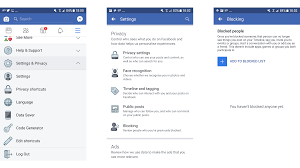
Blocking a Friend Without Deleting Them
If you want to block someone on Facebook without deleting them from your friends list, follow these steps:
- Open The Facebook App: Open the Facebook app on your device.
- Go to Settings: Tap on the menu icon (three horizontal lines) and select “Settings.”
- Select Block: From the settings menu, select “Block.”
- Add The Person’s Name: Type in the name of the person you want to block.
- Confirm The Block: You’ll be asked to confirm the block. Tap “Block” again to finalize the action.
Blocking Posts And Messages
If you only want to block someone’s posts or messages without blocking them entirely, follow these steps:
- Open The Facebook App: Open the Facebook app on your device.
- Go to Their Profile: Tap on the person’s profile to open it.
- Tap on The Three Dots: On the top right corner of the screen, you’ll see three dots. Tap on them.
- Select “Not Following”: From the menu that appears, select “Not Following.”
- Confirm The Action: You’ll be asked to confirm the action. Tap “Not Following” again to finalize it.
Blocking Messages
If you only want to block someone’s messages without blocking their posts or entirely, follow these steps:
- Open The Messenger App: Open the Messenger app on your device.
- Go to The Conversation: Find the conversation with the person you want to block.
- Tap on The Three Dots: On the top right corner of the screen, you’ll see three dots. Tap on them.
- Select “Block”: From the menu that appears, select “Block.”
- Confirm The Block: You’ll be asked to confirm the block. Tap “Block” again to finalize the action.
Temporarily Blocking a Friend
If you want to temporarily block someone’s posts or messages without blocking them entirely, follow these steps:
- Open The Facebook App: Open the Facebook app on your device.
- Go to Their Profile: Tap on the person’s profile to open it.
- Tap on The Three Dots: On the top right corner of the screen, you’ll see three dots. Tap on them.
- Select “Pause”: From the menu that appears, select “Pause.”
- Confirm The Pause: You’ll be asked to confirm the pause. Tap “Pause” again to finalize it.
Blocking a Person Who’s Not Your Friend
If you want to block someone who’s not your friend on Facebook, follow these steps:
- Open The Facebook App: Open the Facebook app on your device.
- Go to Their Profile: Tap on the person’s profile to open it.
- Tap on The Three Dots: On the top right corner of the screen, you’ll see three dots. Tap on them.
- Select “Block”: From the menu that appears, select “Block.”
- Confirm The Block: You’ll be asked to confirm the block. Tap “Block” again to finalize it.
Conclusion
Blocking someone on Facebook can be a helpful way to manage your online relationships and take control of your newsfeed. Whether you’re blocking someone’s posts or messages entirely, temporarily, or just want to take a break from their activity, we hope this guide has been helpful in showing you how to do so using both smartphones and computers.


