
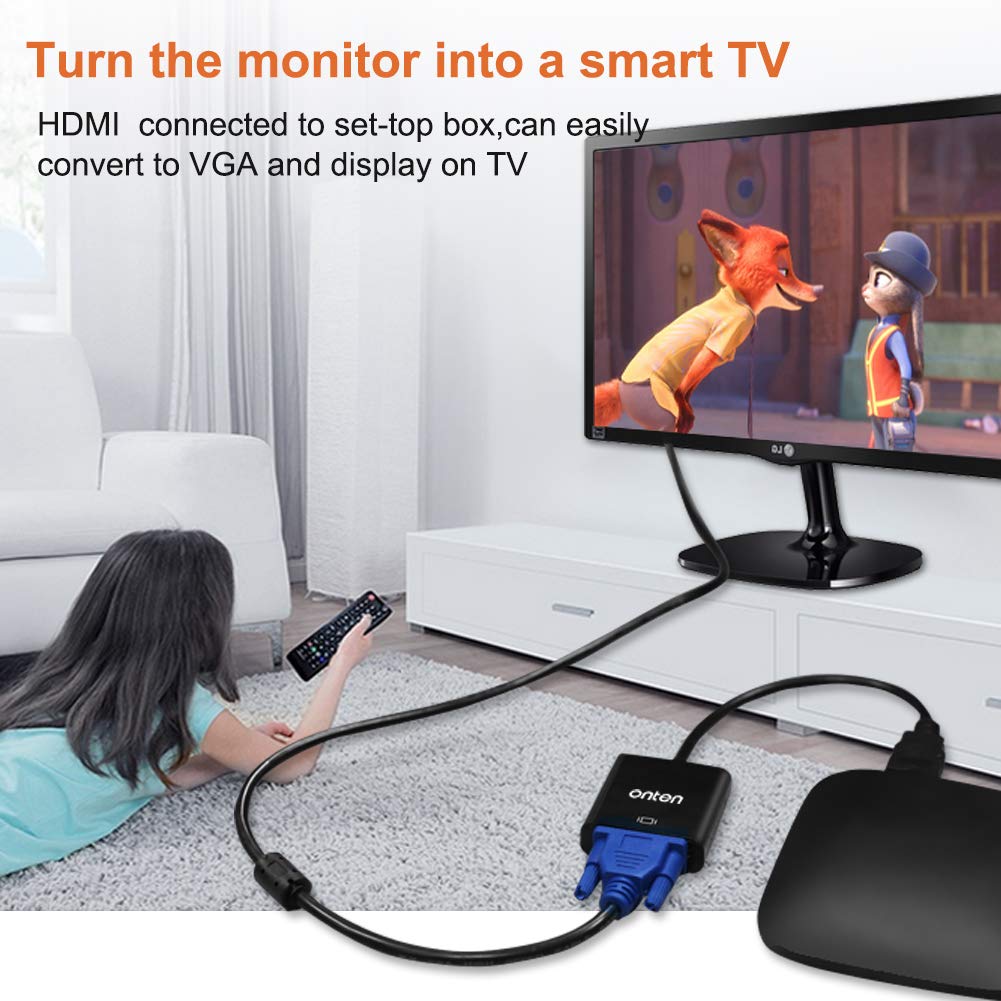
Transforming a Monitor Into a Tv: A Guide to Unlocking Your Digital Experience
Are you tired of using your computer monitor as just that – a monitor? Do you want to transform it into a full-fledged TV, complete with channels from the digital terrestrial or satellite platforms? Look no further! In this article, we’ll guide you through the process of turning your monitor into a TV, using various devices and technologies.
What You Need: A Monitor And a Decoder
To start, you’ll need a computer monitor that’s endowed with an HDMI input. If your monitor doesn’t have one, don’t worry – there are adapters available to transform the VGA connection into an HDMI port. However, keep in mind that VGA technology only transmits video signals and not audio.
Choosing The Right Decoder
Once you’ve got your monitor set up with an HDMI input, it’s time to choose a decoder that suits your needs. There are various decoders available for digital terrestrial and satellite platforms. Some popular options include:
- Digiquest Dvb-t2 G9: A compact decoder with full HD capabilities and double tuner technology.
- Edision Proton S2: A digital satellite receiver with HD capabilities and support for the Tivùsat Smart Card.
- Diguest Tivùsat Combo 4K Q90: A combo device that supports both digital terrestrial and satellite platforms, with 4K resolution and HbbTV capabilities.
Setting Up Your Decoder
To set up your decoder, simply connect it to your monitor via an HDMI cable. Make sure the decoder is placed in a well-ventilated area, as it can get quite hot during operation. Once connected, follow the on-screen instructions to configure the device and select your preferred channels.
Other Devices to Consider: Google Chromecast, Amazon Fire Tv, And Apple TV
If you’re looking for more options to transform your monitor into a TV, consider the following devices:
- Google Chromecast: A streaming device that allows you to cast content from your phone or tablet directly to your TV.
- Amazon Fire TV: A streaming device with a built-in voice remote and access to various apps and services.
- Apple TV: A streaming device with a user-friendly interface and seamless integration with Apple devices.
Conclusion
Transforming your monitor into a TV is easier than you think. With the right decoder or streaming device, you can enjoy channels from digital terrestrial and satellite platforms, as well as on-demand content from various services. Remember to choose the right equipment for your needs and follow the manufacturer’s instructions for setup and configuration.
Frequently Asked Questions
- Q: What do I need to transform my monitor into a TV?
A: You’ll need a computer monitor with an HDMI input, a decoder or streaming device, and a power source. - Q: Can I use any decoder or streaming device?
A: While there are various options available, it’s essential to choose a device that suits your specific needs and preferences. - Q: How do I set up my decoder or streaming device?
A: Follow the manufacturer’s instructions for setup and configuration. This typically involves connecting the device to your monitor and following on-screen prompts.
Disclaimer
The information provided in this article is intended for general informational purposes only. It’s essential to consult the manufacturer’s instructions and local laws before using any decoder or streaming device.


