
Installing Windows 11 Without Requirements: A Step-by-step Guide
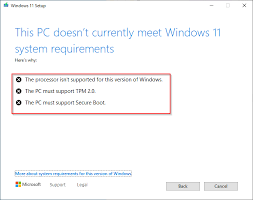
Are you looking to install Windows 11 without meeting the minimum requirements? While Microsoft strongly advises against this, we’ll guide you through a step-by-step process on how to do it safely and successfully.
Why Install Windows 11 Without Requirements?
Before we dive into the installation process, let’s understand why someone might want to install Windows 11 without meeting the minimum requirements. Perhaps your computer doesn’t meet the specs, or you’re looking for a temporary solution before upgrading to a more powerful machine.
Whatever the reason, it’s essential to note that installing Windows 11 without requirements can lead to stability and security issues. Microsoft won’t provide updates or support for such installations.
Step 1: Acquire a Product Key For Windows 11
To install Windows 11, you’ll need a valid product key. If you’re upgrading from Windows 10, you might be eligible for a free upgrade. Otherwise, you can purchase a license key from Microsoft’s official store or other authorized retailers.
Step 2: Prepare Your Computer
Before installing Windows 11, ensure your computer meets the minimum requirements:
- CPU: 64-Bit, 1 GHz or faster
- RAM: 4 GB or more
- Storage: 64 GB or more
If your computer doesn’t meet these specs, you can still proceed with caution.
Step 3: Download The Media Creation Tool
To create a USB drive or DVD for installing Windows 11, download the Media Creation Tool from Microsoft’s official website. Follow the instructions to create a bootable media.
Step 4: Install Windows 11 Without Requirements (CPU)
If your CPU doesn’t meet the minimum requirements but other components do, you can install Windows 11 without requiring a clean installation. Use the USB drive or DVD created in Step 3 and follow these steps:
- Boot from the media
- Select the language and keyboard layout
- Accept the license terms
- Choose “Upgrade” instead of “Clean Install”
- Follow the on-screen instructions to complete the installation
Step 5: Bypass Tpm And Secure Boot Checks
If you’re installing Windows 11 without meeting the minimum requirements, you’ll need to bypass TPM and Secure Boot checks. You can use third-party software like Rufus or Universal Media Creation Tool (UMCT) to create a bootable media that ignores these checks.
Step 6: Apply Modifications to System Registry
To bypass TPM and Secure Boot checks, you’ll need to make modifications to your system registry. This involves creating new DWORD values in the HKEY_LOCAL_MACHINE\SYSTEM\Setup\ key. Follow the instructions provided by Microsoft or third-party software documentation to do this safely.
Step 7: Install Windows 11
With the necessary modifications applied, you can now install Windows 11 without requiring a clean installation.
Important Considerations
Remember that installing Windows 11 without meeting the minimum requirements can lead to stability and security issues. You might encounter errors or experience performance problems.
Conclusion
Installing Windows 11 without requirements is possible but comes with risks. We’ve provided you with a step-by-step guide to help you achieve this, but please be aware of the potential consequences.
Frequently Asked Questions (FAQs)
Q: Can I install Windows 11 without meeting the minimum requirements?
A: Yes, but Microsoft strongly advises against it due to stability and security concerns.
Q: What are the minimum requirements for installing Windows 11?
A: CPU: 64-Bit, 1 GHz or faster; RAM: 4 GB or more; Storage: 64 GB or more
Q: Can I use third-party software to bypass TPM and Secure Boot checks?
A: Yes, but be cautious when using unofficial tools.
Q: Will Microsoft provide updates or support for Windows 11 installations without requirements?
A: No, Microsoft will not provide updates or support for such installations.


