
Troubleshooting Your Ps5 Dualsense Controller: A Step-by-step Guide
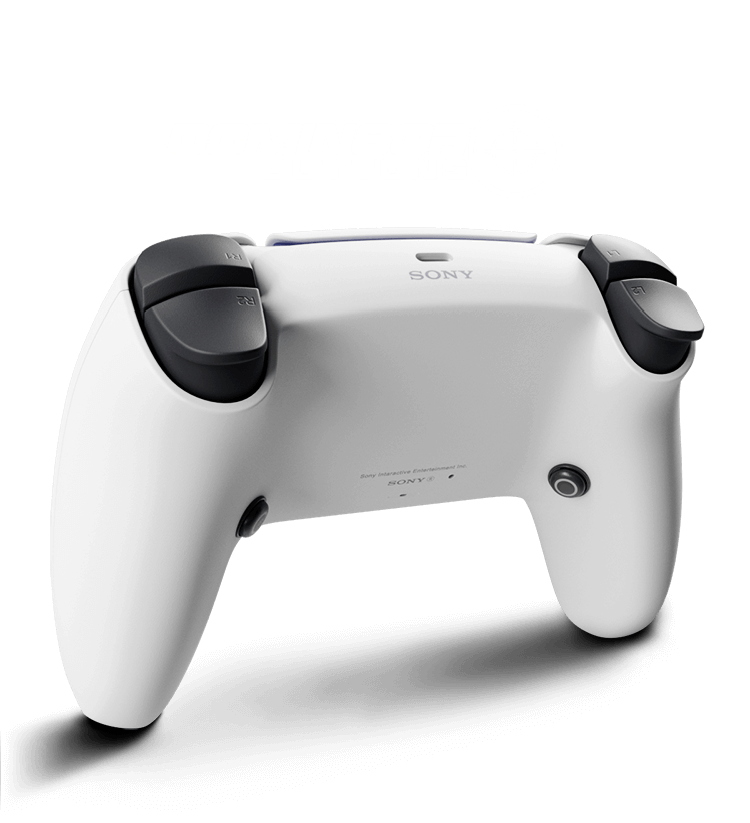
Are you experiencing issues with your PS5 DualSense controller? Don’t worry, we’ve got you covered! In this article, we’ll take you through a comprehensive guide on how to troubleshoot and repair your controller.
Introduction
The PS5 DualSense controller is an incredible piece of technology that offers immersive gaming experiences. However, like any electronic device, it can experience issues from time to time. Whether you’re experiencing problems with the controller’s charging, connectivity, or overall functionality, we’ll walk you through each step to resolve these issues.
Common Problems And Solutions
Before diving into the troubleshooting process, let’s cover some common problems and their solutions:
Problem: Controller Won’t Turn On
Solution: Check if the controller is properly charged. If it still doesn’t turn on, try restarting your PS5 console.
Problem: Controller Won’t Connect to Ps5
Solution: Restart both the controller and the PS5 console. Ensure that the controller’s batteries are fully charged.
Problem: Controller Charging Issues
Solution: Try using a different USB cable or charger. Make sure the controller is properly seated on the charging dock.
Step-by-step Guide to Troubleshooting Your Dualsense Controller
Now, let’s dive into the step-by-step guide:
Step 1: Check For Common Issues
Before contacting Sony support, ensure that you’ve checked the following common issues:
- The controller is properly charged.
- The PS5 console is turned on and functioning correctly.
- The controller is not frozen or stuck.
Step 2: Restart Your Controller And Console
Restarting both devices can resolve many connectivity issues. To restart your DualSense controller:
- Press the PS button to turn off the controller.
- Wait for 10 seconds.
- Press the PS button again to turn it back on.
To restart your PS5 console:
- Press and hold the Power button until the console turns off.
- Release the Power button and wait for 30 seconds.
- Press the Power button again to turn it back on.
Step 3: Update Your Controller Firmware
Ensure that your controller’s firmware is up-to-date:
- Connect your DualSense controller to your PS5 console using a USB cable.
- Go to Settings > Accessories > Controllers.
- Select the “Controller” option and choose “Firmware Update.”
- Follow the on-screen instructions to update your controller.
Step 4: Contact Sony Support
If you’ve tried the above steps and still experience issues, it’s time to contact Sony support:
- Go to the PlayStation website and click on the “Support” tab.
- Select your region and country from the dropdown menus.
- Choose a support topic that best describes your issue (e.G., “Controller Won’t Turn On”).
- Follow the prompts to create a support ticket or chat with a Sony representative.
Additional Tips And Resources
- Always handle your controller with care to avoid physical damage.
- Use the official PS5 charging dock to prevent overcharging and ensure safe charging practices.
- For more information on troubleshooting and maintenance, visit the PlayStation website’s “Support” section.
Conclusion
Troubleshooting your PS5 DualSense controller can be a straightforward process if you follow these steps. By checking for common issues, restarting your devices, updating firmware, and contacting Sony support, you’ll be back to gaming in no time!


