
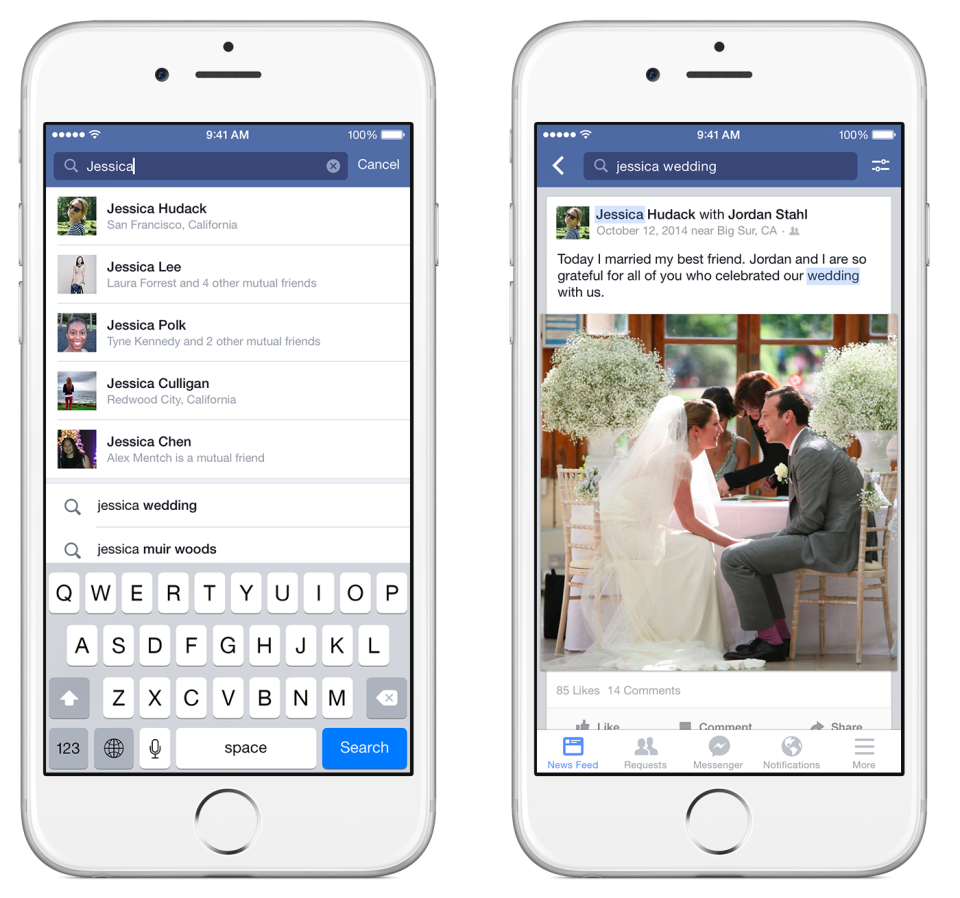
How to Find a Saved Post on Facebook
Are you tired of searching for a specific post on Facebook that you had saved earlier, but can’t seem to find it anymore? You’re not alone! Many users face this issue, especially when they’ve accumulated a large number of posts over time. In this article, we’ll guide you through the process of finding a saved post on Facebook, using both smartphones and computers.
Finding Saved Posts on Smartphone And Tablet
If you’re accessing Facebook on your smartphone or tablet, follow these steps to find a saved post:
- Access Facebook: Open the Facebook app on your device.
- Go to Saved Posts: Tap on the “≡” icon at the top right corner of the screen.
- Find Your Saved Post: Select the “Elements saved” option from the menu. You’ll see a list of all your saved posts, ordered chronologically.
- Search For Specific Posts: If you can’t find the post directly, tap on the “Display #all” button to view all your saved posts at once.
Finding Saved Posts on Computer
If you’re accessing Facebook on your computer, follow these steps to find a saved post:
- Access Facebook: Log in to your Facebook account using the website.
- Go to Saved Posts: Click on the “≡” icon at the top right corner of the screen.
- Find Your Saved Post: Select the “Elements saved” option from the menu. You’ll see a list of all your saved posts, ordered chronologically.
Finding Hidden or Concealed Posts
Unfortunately, Facebook’s algorithm has changed in recent years, making it more difficult to find hidden or concealed posts using specific URLs. As of 2019, Facebook has disabled the use of certain URLs and browser extensions that were previously used to access these posts. If you’re looking for a specific post that was hidden or concealed, we recommend checking with Facebook’s support team directly.
Finding Sponsored Posts
To find sponsored posts on Facebook, follow these steps:
- Access Facebook: Open the Facebook app on your device or log in to the website.
- Go to The Page’s Transparency Section: For sponsored posts from other pages, go to the page’s transparency section and click on “Display #everything.”
- Find Sponsored Posts: In the new window that opens, you’ll see a list of all sponsored posts for that page.
Finding Sponsored Posts From Your Own Page
To find sponsored posts from your own page:
- Access Facebook: Log in to your Facebook account using the website or app.
- Go to Your Advertising Profile: Access your advertising profile and select the campaign, ad set, or ad you want to view.
- Find Sponsored Posts: In the new window that opens, click on “Modify” and then select “Chronology” to filter the posts by date.
Searching For a Post in a Facebook Group
If you’re looking for a specific post within a Facebook group:
- Access Facebook: Open the Facebook app or log in to the website.
- Join The Group: Join the group where the post was published.
- Search For The Post: Use the search bar at the top of the screen to find the post by keyword, hashtag, or date.
Conclusion
Finding a saved post on Facebook can be a challenging task, but with these steps, you should be able to locate it easily using both smartphones and computers. Remember that Facebook’s algorithm changes frequently, so we’ll keep this article updated with any new information.
Frequently Asked Questions (FAQs)
- Q: How do I Find a Saved Post on Facebook?
A: To find a saved post on Facebook, access the app or website and tap/click on the “≡” icon at the top right corner. Select “Elements saved” to view all your saved posts. - Q: Can I Still Use Specific Urls to Find Hidden or Concealed Posts?
A: Unfortunately, no. As of 2019, Facebook has disabled the use of certain URLs and browser extensions that were previously used to access these posts. - Q: How do I Find Sponsored Posts on Facebook?
A: To find sponsored posts from other pages, go to the page’s transparency section and click on “Display #everything.” For sponsored posts from your own page, access your advertising profile and select the campaign or ad set you want to view. - Q: Can I Search For a Post in a Facebook Group?
A: Yes! To search for a post within a Facebook group, join the group and use the search bar at the top of the screen to find the post by keyword, hashtag, or date.


