
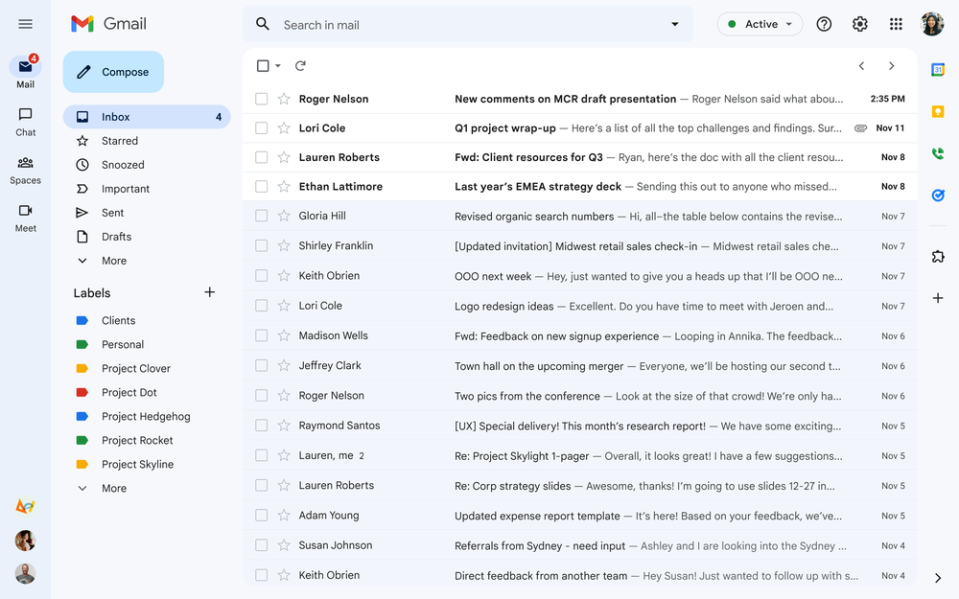
How to Switch From Free Mail to Gmail: A Step-by-step Guide
Are you tired of using Free Mail as your primary email service? Do you want to switch to a more reliable and feature-rich platform like Gmail? If so, this guide is for you! We’ll walk you through the process of transferring your emails, contacts, and other settings from Free Mail to Gmail.
Why Switch to Gmail?
Before we dive into the step-by-step instructions, let’s quickly discuss why switching to Gmail might be a good idea. Here are just a few benefits:
- Reliability: Gmail is a widely-used email service that’s known for its reliability and uptime.
- Features: Gmail offers a range of features that Free Mail doesn’t, including advanced spam filtering, custom labels, and integrations with other Google services like Google Drive and Google Calendar.
- Security: Gmail takes security seriously, with two-factor authentication, encryption, and regular security updates to protect your account.
Step 1: Create a Google Account
To switch to Gmail, you’ll first need to create a Google account if you don’t already have one. Here’s how:
- Go to the Google website (www.Google.Com) and click on “Create an account.”
- Fill out the registration form with your name, email address (which will be your new Gmail address), password, and other details.
- Follow the prompts to verify your account through a text message or phone call.
Step 2: Transfer Your Emails
Now that you have a Google account, it’s time to transfer your emails from Free Mail to Gmail. Here’s how:
- Go to your Free Mail account and click on “Settings” (the gear icon).
- Click on “Account settings.”
- Scroll down to the “Forwarding and POP/IMAP” section.
- Select “Add a mail account” and enter your Google account information (email address and password).
- Choose the protocol you want to use: POP or IMAP. We recommend using IMAP, as it allows for bi-directional communication between your email client and Gmail.
Step 3: Transfer Your Contacts
To transfer your contacts from Free Mail to Gmail, follow these steps:
- Go to your Free Mail account and click on “Contacts.”
- Click on “Export” (the three dots icon).
- Choose the format you want to export in (e.G., CSV or VCF).
- Save the file to your computer.
- Go to your Gmail account and click on “Contacts” (the gray contacts icon).
- Click on “Import” (the three dots icon).
- Select the file you exported earlier.
Step 4: Set Up Forwarding
To ensure that emails sent to your old Free Mail address are forwarded to your new Gmail address, follow these steps:
- Go to your Free Mail account and click on “Settings” (the gear icon).
- Click on “Account settings.”
- Scroll down to the “Forwarding and POP/IMAP” section.
- Select “Forward it to me” and enter your Gmail address.
Step 5: Configure Your Email Client
Finally, you’ll need to configure your email client (e.G., Microsoft Outlook or Mozilla Thunderbird) to use your new Gmail account. Here’s how:
- Open your email client and click on the gear icon.
- Select “Account settings” or “Mail settings.”
- Click on “Add a mail account” or “New account.”
- Enter your Gmail address and password.
Step 6: Verify Your Account
Once you’ve completed all these steps, it’s essential to verify that everything is working correctly:
- Check your email client to see if emails are being forwarded from Free Mail to Gmail.
- Log in to your Gmail account and verify that your contacts have been transferred successfully.
Conclusion
Switching from Free Mail to Gmail can seem daunting, but with this step-by-step guide, you should be able to make the transition smoothly. Remember to always follow best practices for email security and take advantage of Gmail’s advanced features to stay organized and productive.
Frequently Asked Questions (FAQs)
- Q: Will my Emails be Deleted From Free Mail?
A: No, your emails will not be deleted from Free Mail. They will be transferred to Gmail. - Q: Can I Keep Using Both Accounts Simultaneously?
A: Yes, you can keep using both accounts, but we recommend setting up forwarding so that emails sent to your old account are automatically forwarded to your new Gmail address. - Q: Will my Contacts be Deleted From Free Mail?
A: No, your contacts will not be deleted from Free Mail. They will be transferred to Gmail. - Q: Can I Use a Different Email Client With Gmail?
A: Yes, you can use any email client that supports IMAP or POP protocols with Gmail. - Q: Will my Google Account be Affected if I Switch From Free Mail?
A: No, your Google account will not be affected by switching from Free Mail. - Q: Can I Transfer Emails From Multiple Accounts to Gmail at Once?
A: Yes, you can transfer emails from multiple accounts to Gmail using the “Import” feature in Gmail. - Q: What if I Encounter Issues During The Transfer Process?
A: If you encounter any issues during the transfer process, please contact Google support for assistance.
Bonus Tips
- Make sure to update your email client to use IMAP or POP protocols with your new Gmail account.
- Consider setting up two-factor authentication (2FA) on your Google account for added security.
- Take advantage of Gmail’s advanced features, such as custom labels and integrations with other Google services.
We hope this guide has been helpful in transitioning you from Free Mail to Gmail!


