
How to Download Videos From Microsoft Stream
Are you tired of watching videos on Microsoft Stream without being able to download them? Do you want to access your favorite video lessons offline or share them with colleagues? Look no further! In this article, we’ll guide you through the process of downloading videos from Microsoft Stream on both PC and Mac, as well as on smartphones and tablets.
Understanding Microsoft Stream
Before we dive into the steps, let’s quickly understand how Microsoft Stream works. Microsoft Stream is a video-sharing service that allows users to upload, share, and view videos within their organization. It’s part of the Microsoft 365 suite and is designed for business use cases. While it’s not possible to download videos from other users directly, you can request permission from the owner or assign roles to allow others to access the content.
Downloading Videos on PC And Mac
To download a video from Microsoft Stream on your PC or Mac, follow these steps:
- Access Microsoft Stream: Go to the Microsoft Stream website and sign in with your corporate account.
- Select The Video: Find the video you want to download and click on it.
- Click The Three Dots: Click on the three dots under the video player and select “Download video” from the dropdown menu.
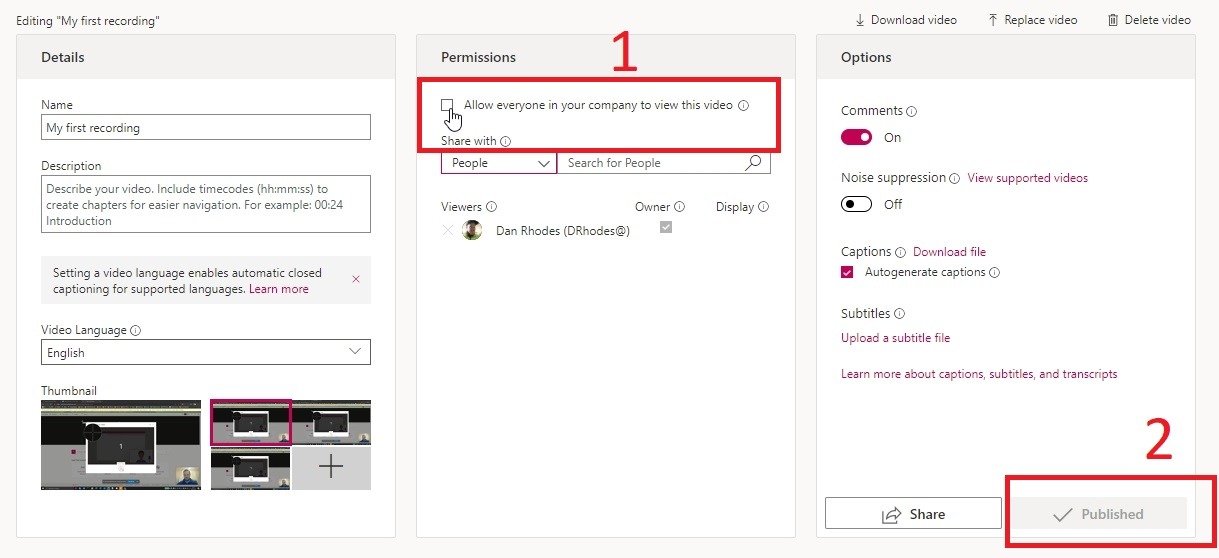
- Assign Roles (Optional): If you’re not the owner of the video, but have been assigned a role that allows you to download content, follow these steps:
- Go to the video’s settings by clicking on the three dots under the video player and selecting “Update details.”
- In the “Authorizations” section, select “Persons” from the dropdown menu.
- Add the person you want to grant permission to download the video and assign them a role that allows downloading.
- Download The Video: Once you’ve assigned roles or are the owner of the video, click on the three dots under the video player and select “Download video” again.
Downloading Videos on Smartphones And Tablets
To download videos from Microsoft Stream on your smartphone or tablet, follow these steps:
- Install The Microsoft Stream App: Download and install the Microsoft Stream app from the App Store (for iOS devices) or Google Play Store (for Android devices).
- Sign In: Sign in with your corporate account.
- Select The Video: Find the video you want to download and click on it.
- Tap The Three Dots: Tap on the three dots under the video player and select “Make available offline” from the dropdown menu.
- Download The Video: The video will start downloading, and once it’s complete, you can access it in the app’s offline section.
Additional Tips
- Make sure you have the necessary permissions or roles assigned to download videos from Microsoft Stream.
- If a video is deleted from Microsoft Stream, it will also be removed from your device.
- To delete downloaded videos on your device, go to the “Offline” section of the app and tap on the three dots under each video.
Conclusion
Downloading videos from Microsoft Stream is a straightforward process that can be completed on both PC and Mac, as well as on smartphones and tablets. By following these steps, you’ll be able to access your favorite video lessons offline or share them with colleagues. Remember to always check if you have the necessary permissions or roles assigned before attempting to download content.
Frequently Asked Questions (FAQs)
- Q: Can I Download Videos From Microsoft Stream on my Smartphone or Tablet?
A: Yes, you can download videos from Microsoft Stream using the app on your iOS or Android device. - Q: Do I Need a Specific Role to Download Videos?
A: Yes, you’ll need to have been assigned a role that allows downloading content or be the owner of the video. - Q: What Happens if a Video is Deleted From Microsoft Stream?
A: If a video is deleted from Microsoft Stream, it will also be removed from your device. - Q: Can I Delete Downloaded Videos on my Device?
A: Yes, you can delete downloaded videos on your device by going to the “Offline” section of the app and tapping on the three dots under each video. - Q: How do I Assign Roles to Allow Others to Download Content?
A: To assign roles, go to the video’s settings and select “Authorizations.” Add the person you want to grant permission to download the video and assign them a role that allows downloading. - Q: Can I Use Microsoft Stream on my Device if I Don’t Have an Account?
A: No, you’ll need to sign in with your corporate account to access Microsoft Stream on your device. - Q: What is The Purpose of Making Videos Available Offline?
A: Making videos available offline allows you to access them without an internet connection. - Q: Can I Download All my Favorite Videos From Microsoft Stream at Once?
A: Yes, you can download multiple videos at once by selecting them and tapping on “Make available offline” in the app.


