
How to Delete a Gmail Account on Your Mobile Phone
Are you tired of using your old Gmail account on your mobile phone? Do you want to delete it and free up some space on your device? Look no further! In this article, we will guide you through the simple steps of deleting a Gmail account on both Android and iOS devices.
Why Delete a Gmail Account?
Before we dive into the instructions, let’s take a look at why you might want to delete a Gmail account. Maybe you’ve created a new account for personal or professional use, and you don’t need the old one anymore. Perhaps you’re experiencing issues with your current account, such as spam messages or password problems.
Whatever the reason, deleting an unwanted Gmail account can help declutter your device and make it easier to manage your online presence.
Deleting a Gmail Account on Android
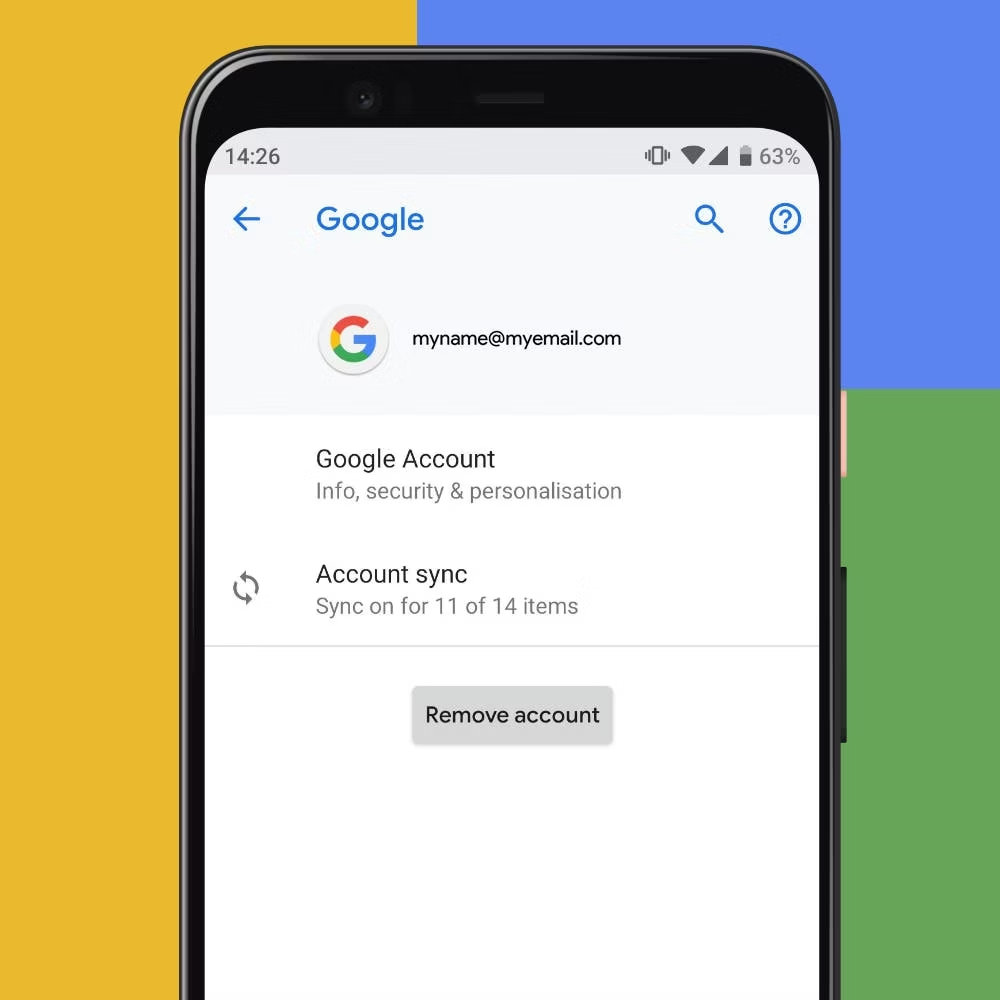
To delete a Gmail account on your Android device, follow these steps:
- Go to Settings: Open the settings app on your device.
- Account And Synchronization: Scroll down and tap on “Account and synchronization” or “Accounts.”
- Google Account: Select the Google account you want to delete from the list of available accounts.
- Delete Account: Tap on the three vertical dots next to the account name, then select “Delete account.”
- Confirm Deletion: Follow the prompts to confirm that you want to delete the account.
That’s it! The account will be deleted, and you’ll no longer see it in your device settings.
Deleting a Gmail Account on Ios
If you’re using an iPhone or iPad, deleting a Gmail account is just as easy:
- Go to Settings: Open the settings app on your device.
- Mail, Contacts, Calendars: Tap on “Mail, Contacts, Calendars.”
- Accounts: Select the account you want to delete from the list of available accounts.
- Delete Account: Tap on the red minus (-) icon next to the account name, then select “Delete from my iPhone/iPad.”
- Confirm Deletion: Follow the prompts to confirm that you want to delete the account.
Deleting a Gmail Account Definitively
If you’re looking to delete your Gmail account definitively and permanently, follow these additional steps:
- Go to Google Account Settings: Open the Google account settings page on a desktop computer or mobile device.
- Security And Privacy: Scroll down and tap on “Security and privacy.”
- Delete Your Account: Select “Delete your account” from the dropdown menu.
- Confirm Deletion: Follow the prompts to confirm that you want to delete your account permanently.
Important Notes
Before deleting a Gmail account, make sure to:
- Backup Your Data: Export any important data from the account, such as contacts or emails.
- Verify Account Ownership: Make sure you’re the owner of the account and have control over its deletion.
- Check For Any Outstanding Payments: Ensure that there are no outstanding payments associated with the account.
Frequently Asked Questions (FAQs)
Here are some additional questions and answers to help you better understand how to delete a Gmail account on your mobile phone:
- Q: Can I Recover my Deleted Gmail Account?
A: No, once you’ve deleted a Gmail account, it cannot be recovered. - Q: Will Deleting a Gmail Account Affect Other Google Services?
A: Yes, deleting a Gmail account may affect access to other Google services, such as Google Drive or YouTube. - Q: Can I Delete my Gmail Account Without Logging In?
A: No, you’ll need to log in to your Gmail account before deleting it.
Conclusion
Deleting a Gmail account on your mobile phone is a straightforward process that can help declutter your device and make it easier to manage your online presence. Whether you’re using an Android or iOS device, follow the steps outlined above to delete your unwanted Gmail account.


