
The Cycles of Iphone Battery Life: A Comprehensive Guide
Introduction
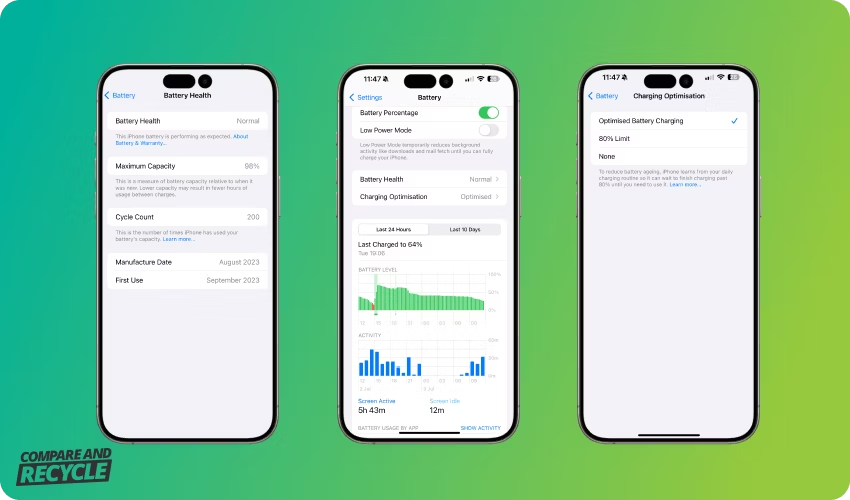
Are you tired of your iPhone’s battery life suddenly dropping? Do you want to know how many cycles of charging your device has undergone? Look no further! In this article, we will guide you through the process of checking the cycles of charging on your iPhone and provide you with some tips on how to extend its battery life.
Understanding Battery Cycles
A cycle of charging refers to a complete discharge and recharge of the battery. In other words, when your iPhone’s battery is completely drained and then fully recharged, it counts as one cycle. The more cycles of charging your device undergoes, the less efficient the battery becomes, leading to reduced autonomy.
Method 1: Checking Battery Cycles Through Ios Settings
To check the number of battery cycles on your iPhone, follow these steps:
Step 1: Access Your Iphone’s Settings
Open the Settings app on your iPhone and navigate to the “Privacy” section.
Step 2: Scroll Down And Select “Analysis & Improvements”
Scroll down and select the option labeled “Analysis & Improvements.”
Ensure that the options for sharing analysis data with Apple, developers, and enhancing Siri & Dictation are enabled. If not, toggle them on.
Step 4: Wait at Least 24 Hours For Data Collection
Wait at least 24 hours for your iPhone to collect data on battery cycles.
Step 5: Access The “Analytics” Section
Access the Analytics section and search for the log file with the keyword “BatteryCycleCount.”
Step 6: Export The Log File
Export the log file to view the details, including the total number of battery cycles.
Method 2: Using Third-party Apps
If you’re not comfortable using the method above or want an alternative solution, consider using third-party apps specifically designed for tracking iPhone battery cycles. One such app is iMazing.
Installing Imazing on Your Computer
Download and install iMazing on your computer (Windows or macOS). This app will allow you to connect your iPhone to your computer and access detailed information about your device’s battery cycles.
Step 1: Authorize Imazing Access to Your Iphone
Connect your iPhone to your computer using a USB cable, then authorize iMazing access to your device by entering the code displayed on your iPhone.
Step 2: Open Imazing And Select “Details”
Open iMazing and select the “Details” tab. You will see various options for managing your iPhone.
Step 3: Scroll Down And Find The Battery Cycle Count
Scroll down and find the “Battery Cycle Count” option. This will display the total number of battery cycles your device has undergone.
Conclusion
Checking your iPhone’s battery cycles is a straightforward process that can be accomplished through iOS settings or using third-party apps like iMazing. By understanding how many cycles of charging your device has undergone, you can take steps to extend its battery life and maintain optimal performance. Remember to export the log file from iMazing to view detailed information about your iPhone’s battery health.
Frequently Asked Questions (FAQs)
- What is a Cycle of Charging?
A cycle of charging refers to a complete discharge and recharge of the battery.
- How Can I Check my Iphone’s Battery Cycles?
You can check your iPhone’s battery cycles through iOS settings or using third-party apps like iMazing.
- Do I Need to Wait 24 Hours For Data Collection When Using The Method in Ios Settings?
Yes, it is recommended to wait at least 24 hours for data collection before accessing the Analytics section.
- What Information Can I Expect to Find in The Log File From Imazing?
The log file will display detailed information about your iPhone’s battery health, including the total number of battery cycles.
- Can I Use Imazing on a Windows Computer?
Yes, iMazing is compatible with both macOS and Windows operating systems.
- Will Using Third-party Apps Like Imazing Compromise my Iphone’s Security?
No, reputable third-party apps like iMazing are designed to work seamlessly with your iPhone and will not compromise its security.


