
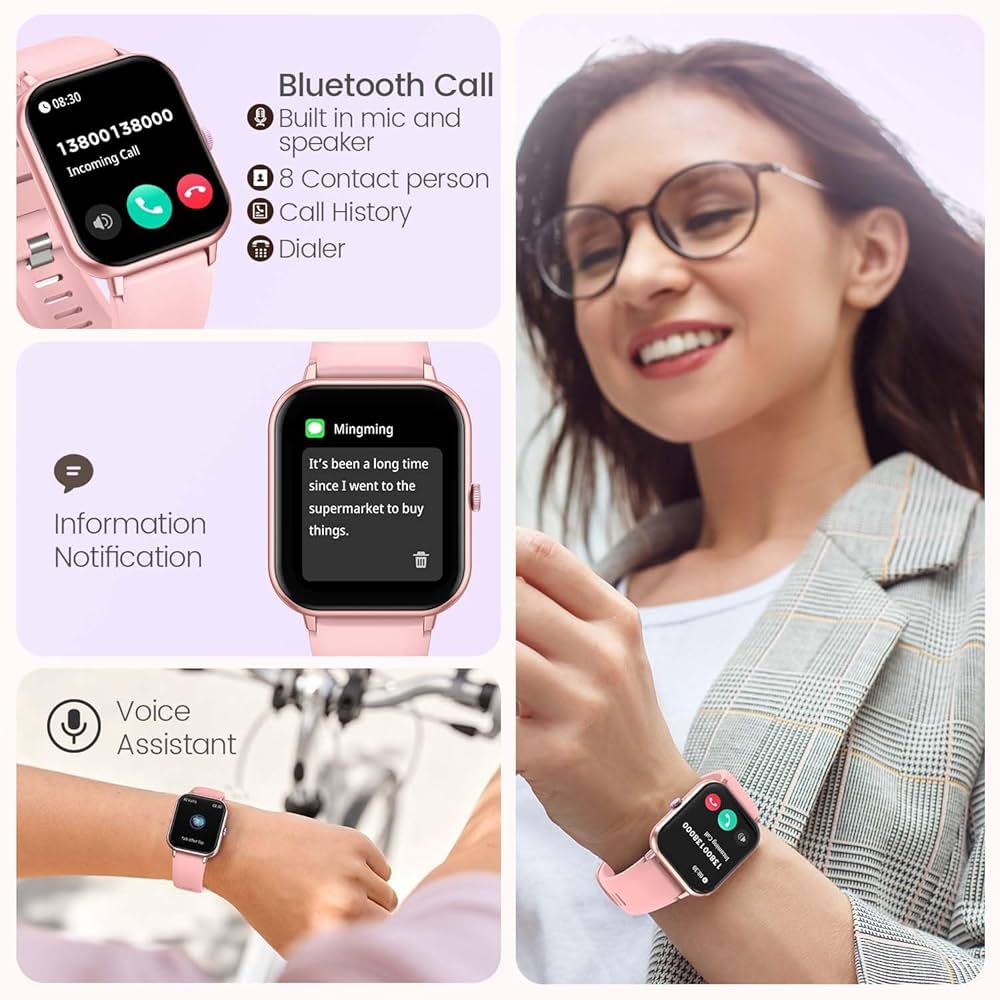
Transferring Contacts on Smartwatches: A Step-by-step Guide
Are you looking for a way to transfer your contacts from your smartphone to your smartwatch? Look no further! In this article, we will guide you through the process of transferring contacts on various types of smartwatches, including Apple Watch, Xiaomi Watch, OPPO Watch, and Wear OS.
Why Transfer Contacts on Smartwatches?
Transferring contacts on smartwatches is a convenient way to access your contacts directly from your wrist. Imagine being able to receive calls, texts, and notifications without having to reach for your smartphone. It’s not only convenient but also saves time and reduces distractions.
Transfer Contacts on Apple Watch
If you have an Apple Watch and an iPhone, transferring contacts is a breeze. Here’s how:
- Enable Bluetooth: Ensure that Bluetooth is enabled on your iPhone.
- Open The Watch App: Open the Watch app on your iPhone.
- Tap on Contacts: Tap on the “Contacts” tab.
- Duplicate Iphone Contacts: Select the option to duplicate iPhone contacts.
- Synchronize Contacts: Wait for the synchronization process to complete.
Transfer Contacts on Xiaomi Watch
If you have a Xiaomi Watch and are experiencing difficulties in transferring contacts, follow these steps:
- Open Zepp App: Open the Zepp app (for Android or iOS).
- Tap on Devices/device: Tap on the device icon.
- Select Your Smartwatch: Select your smartwatch from the list.
- Call in Arrival: Tap on “Call in arrival”.
- Enable Notifications: Enable notifications for incoming calls.
Transfer Contacts on Oppo Watch
If you have an OPPO Watch and are struggling to view contacts on the watch, follow these steps:
- Open Ohealth App: Open the OHealth app on your Android device.
- Tap on Display All Apps: Tap on “Display all apps”.
- Select Contacts: Select the “Contacts” option.
- Authorize Access: Authorize access to contacts.
Transfer Contacts on Wear OS
If you have a smartwatch with Wear OS, follow these steps:
- Open Contacts App: Open the Contacts app on your watch.
- Sync Contacts: Wait for the synchronization process to complete.
- Check Contacts: Check that all contacts are displayed correctly.
Common Issues And Solutions
- Problem: Contacts Not Syncing:
- Solution: Ensure Bluetooth is enabled, restart both devices, and retry synchronization.
- Problem: No Contacts on Watch:
- Solution: Ensure contacts are synced to your Google account, check the contacts list, and authorize access to contacts.
Conclusion
Transferring contacts on smartwatches is a straightforward process that can save you time and reduce distractions. By following these step-by-step guides for Apple Watch, Xiaomi Watch, OPPO Watch, and Wear OS, you’ll be able to enjoy seamless connectivity between your smartphone and smartwatch. Remember to troubleshoot common issues and solutions to ensure a smooth experience.
Frequently Asked Questions
- Q: Can I Transfer Contacts From Android to Iphone?
A: Yes, but you’ll need to use a third-party app or service to sync your contacts. - Q: How do I Check if my Smartwatch Has The Latest Software Update?
A: Check for updates on the manufacturer’s website or through the watch itself. - Q: Can I Transfer Contacts From Iphone to Android?
A: Yes, but you’ll need to use a third-party app or service to sync your contacts. - Q: Why Are my Contacts Not Syncing Between Devices?
A: Ensure Bluetooth is enabled, restart both devices, and retry synchronization. - Q: How do I Add New Contacts on my Smartwatch?
A: Open the Contacts app on your watch, tap on “Add contact”, and fill in the details.


