
Recovering Overwritten Excel Rows: A Step-by-step Guide
Are you struggling to recover overwritten rows in Excel? Look no further! In this article, we will guide you through the process of recovering your lost data with ease.
Understanding The Problem
Have you ever experienced the frustration of losing important data due to an accidental overwrite in Excel? It’s a common problem that can happen to anyone. But don’t worry, there are ways to recover your lost data.
The Power of Backups
Before we dive into the recovery process, it’s essential to understand the importance of backups. Regularly backing up your files can save you from losing valuable data in case of an accident or software malfunction. In this article, we will explore various methods for recovering overwritten rows in Excel, including using backups and cloud storage services.
Method 1: Using Onedrive
OneDrive is a cloud storage service provided by Microsoft that allows you to access your files from anywhere, at any time. If you have already shared your file on OneDrive, you can easily recover the previous version of your document.
To do this:
- Open the OneDrive website and sign in with your Microsoft account.
- Click on the “Open” button to view your recently accessed files.
- Find the Excel file that contains the overwritten rows.
- Click on the three dots next to the file name and select “Versions” from the dropdown menu.
- Choose the version of the file you want to recover and click on it.
- The file will be opened in a new window, where you can review and edit your recovered data.
Method 2: Using Excel’s Built-in Backup Feature
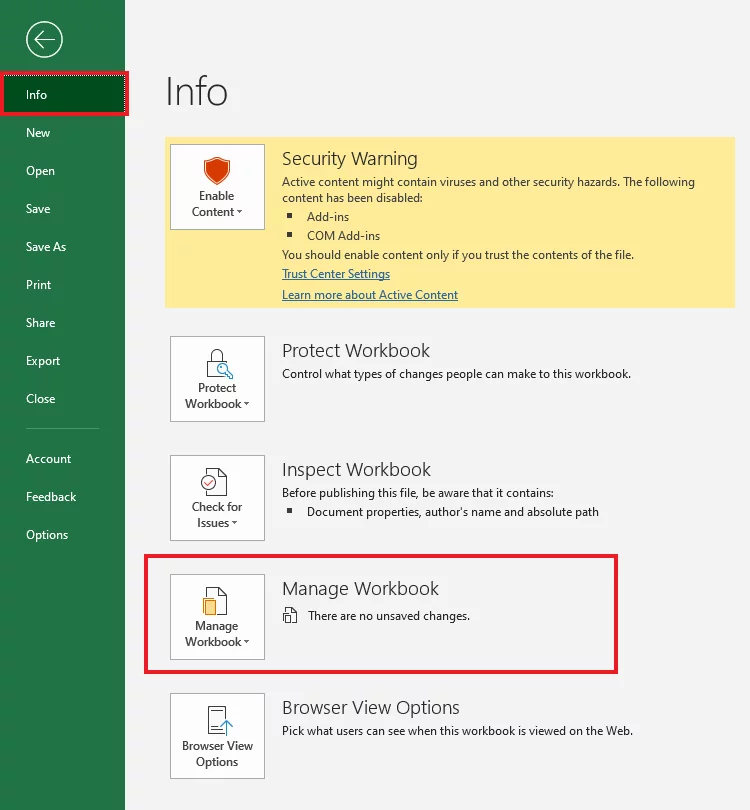
Excel has an built-in backup feature that allows you to create automatic backups of your files at regular intervals. If you have enabled this feature, you can recover the previous version of your file using the following steps:
- Open the Excel file that contains the overwritten rows.
- Go to the “File” menu and select “Info.”
- Click on the “Manage Versions” button.
- Choose the version of the file you want to recover and click on it.
- The file will be opened in a new window, where you can review and edit your recovered data.
Method 3: Using The Windows Backup Feature
If you have enabled the Windows backup feature, you can use it to recover overwritten rows in Excel.
To do this:
- Open the “File Explorer” and navigate to the folder containing the Excel file.
- Right-click on the file and select “Properties.”
- Click on the “Previous versions” tab.
- Choose the version of the file you want to recover and click on it.
- The file will be opened in a new window, where you can review and edit your recovered data.
Method 4: Using Third-party Software
If none of the above methods work for you, there are third-party software available that can help you recover overwritten rows in Excel. Some popular options include:
- EaseUS Data Recovery Wizard
- Recuva
- Disk Drill
These programs can scan your computer and recover lost data from deleted or corrupted files.
Conclusion
Recovering overwritten rows in Excel doesn’t have to be a daunting task. With the methods outlined above, you can easily retrieve your lost data and continue working on your spreadsheet with confidence.
Remember to regularly back up your files to prevent losing valuable data in case of an accident or software malfunction.
Frequently Asked Questions (FAQs)
- Q: What Happens if I Overwrite a File Without Backing it Up?
A: If you overwrite a file without backing it up, there is no way to recover the original version of the file. - Q: Can I Recover Overwritten Rows in Excel Using Onedrive?
A: Yes, if you have already shared your file on OneDrive, you can easily recover the previous version of your document using OneDrive’s built-in backup feature. - Q: How do I Enable Automatic Backups in Excel?
A: To enable automatic backups in Excel, go to the “File” menu and select “Options.” Then, click on the “Save” tab and check the box next to “Automatically save a copy of this workbook every [X] minutes.” - Q: Can I Recover Overwritten Rows in Excel Using Windows Backup Feature?
A: Yes, if you have enabled the Windows backup feature, you can use it to recover overwritten rows in Excel. - Q: What is The Difference Between Onedrive And Cloud Storage Services Like Google Drive or Dropbox?
A: OneDrive is a cloud storage service provided by Microsoft that allows you to access your files from anywhere, at any time. While other cloud storage services like Google Drive or Dropbox offer similar features, OneDrive is specifically designed for use with Microsoft Office applications. - Q: Can I Recover Overwritten Rows in Excel Using Third-party Software?
A: Yes, there are third-party software available that can help you recover overwritten rows in Excel. Some popular options include EaseUS Data Recovery Wizard, Recuva, and Disk Drill.
Recommended Resources
- Microsoft OneDrive
- Windows Backup Feature
- EaseUS Data Recovery Wizard
- Recuva
- Disk Drill


