
How to Extract Video From a Dvd on Mac: A Step-by-step Guide
Are you tired of watching videos on your TV or computer screen, only to have them disappear after the disc is ejected? Do you want to preserve your favorite movies and shows for posterity? If so, extracting video from a DVD on your Mac can be a lifesaver. In this article, we’ll show you how to do just that using various software programs.
Why Extract Video From a Dvd?
Extracting video from a DVD allows you to:
- Preserve your favorite movies and shows in digital format
- Share them with friends and family via email or social media
- Watch them on your Mac, iPad, or other devices without the need for physical media
The Best Software Programs For Extracting Video From a Dvd
Here are some top-notch software programs to help you extract video from a DVD on your Mac:
Handbrake: A Free And Open-source Solution
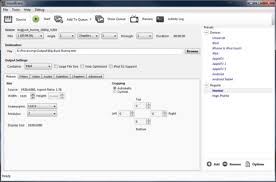
HandBrake is a free and open-source program that can extract video from DVDs in various formats, including MP4 and MKV. It’s easy to use and includes many settings to customize the output file.
Step-by-step Instructions For Using Handbrake
- Download HandBrake from its official website.
- Install it on your Mac.
- Insert the DVD into your Mac’s disc drive (or connect an external DVD drive).
- Launch HandBrake and select the DVD as the source device.
- Choose the video format you want to extract (e.G., MP4 or MKV).
- Adjust any settings as needed (e.G., Resolution, quality, etc.).
- Click “Rip” to start the extraction process.
Vlc: A Powerful Media Player And Converter
VLC is a well-known media player that can also extract video from DVDs in various formats. It’s free and open-source, making it an excellent choice for Mac users.
Step-by-step Instructions For Using Vlc
- Download VLC from its official website.
- Install it on your Mac.
- Insert the DVD into your Mac’s disc drive (or connect an external DVD drive).
- Launch VLC and select the DVD as the source device.
- Choose the video format you want to extract (e.G., MP4 or MKV).
- Adjust any settings as needed (e.G., Resolution, quality, etc.).
- Click “Convert” to start the extraction process.
Other Solutions For Extracting Video From a Dvd on Mac
There are other software programs available that can help you extract video from DVDs on your Mac. Some popular options include:
- Mobile Media Converter
- MacX DVD Ripper Pro
- Movavi Video Converter
Each of these programs has its own strengths and weaknesses, so be sure to research them thoroughly before choosing the one that suits your needs.
Tips For Extracting Video From a Protected Dvd
If you’re trying to extract video from a protected DVD, you may need to use software specifically designed to bypass copy protection. Some examples include:
- MakeMKV
- AnyDVD Cloner Platinum
- DVDFab DVD Ripper
Keep in mind that using these programs may require additional steps and settings.
Conclusion
Extracting video from a DVD on your Mac can be a simple process with the right software programs. Whether you choose HandBrake, VLC, or another solution, make sure to follow the step-by-step instructions carefully to ensure success. Remember to always check the compatibility of the extracted file with your desired device.
Frequently Asked Questions (FAQs)
- What is The Best Software Program For Extracting Video From a Dvd on Mac?
- HandBrake and VLC are top choices, but other programs like Mobile Media Converter, MacX DVD Ripper Pro, and Movavi Video Converter also work well.
- How do I Extract Video From a Protected Dvd?
- Use software specifically designed to bypass copy protection, such as MakeMKV, AnyDVD Cloner Platinum, or DVDFab DVD Ripper.
- What File Formats Can I Use For Extracting Video From a Dvd on Mac?
- MP4, MKV, MOV, FLV, WMV, and others are supported by various software programs.
- Can I Share The Extracted Video With Friends And Family Via Email or Social Media?
- Yes, you can share the extracted video in digital format with anyone using your preferred sharing method.
Additional Resources
For more information on extracting video from DVDs on Mac, check out these resources:


