
How to Reset Iphone 5: A Step-by-step Guide
Are you tired of using an old iPhone 5? Do you want to sell it or give it a fresh new look? Before doing so, it’s essential to reset your device to its factory settings. This process will erase all data, settings, and apps from your iPhone, returning it to its original state.
Why Reset Your Iphone 5?
Resetting your iPhone 5 can be beneficial in several ways:
- It helps you sell or give away the device without any personal data on it.
- It resolves potential issues with your iPhone’s performance.
- It gives you a clean slate to install a new operating system or restore your data from a backup.
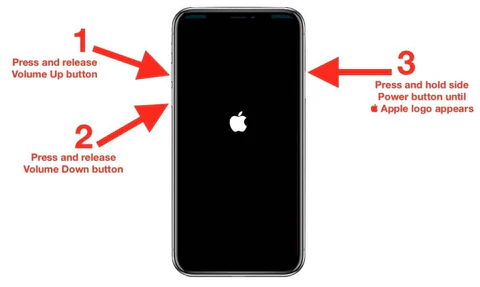
How to Reset Iphone 5 Using Settings
To reset your iPhone 5 using the Settings app, follow these steps:
- Open the Settings app on your iPhone 5.
- Scroll down and tap on General.
- Tap on Reset at the bottom of the screen.
- Choose Erase All Content And Settings.
- Enter your Apple ID password to confirm the reset process.
How to Reset Iphone 5 Using Itunes
Alternatively, you can reset your iPhone 5 using iTunes:
- Connect your iPhone 5 to your computer using a USB cable.
- Open Itunes on your computer and select your iPhone from the top left corner of the screen.
- Click on Summary, then click on Restore Iphone…
- Choose Erase All Content And Settings.
What Happens During The Reset Process?
During the reset process, all data, settings, and apps will be deleted from your iPhone. This includes:
- Photos and videos
- Messages and contacts
- Apps and their associated data
- Settings and preferences
How to Recover Data After Resetting Your Iphone 5
If you have a backup of your data, you can restore it after resetting your iPhone 5. Follow these steps:
- Connect your iPhone 5 to your computer using a USB cable.
- Open Itunes on your computer and select your iPhone from the top left corner of the screen.
- Click on Summary, then click on Restore Backup…
- Select the backup you want to restore.
What If I Encounter Issues During The Reset Process?
If you encounter any issues during the reset process, don’t panic! You can try contacting Apple Support or visiting an authorized Apple Service Provider for assistance.
Conclusion
Resetting your iPhone 5 is a straightforward process that can be completed using either the Settings app or iTunes. By following these steps, you can erase all data, settings, and apps from your device, returning it to its original state. Remember to back up your data before resetting your iPhone 5 to ensure that you don’t lose any important information.
Frequently Asked Questions (FAQs)
- Q: What Happens During The Reset Process?
A: During the reset process, all data, settings, and apps will be deleted from your iPhone. - Q: How do I Recover my Data After Resetting my Iphone 5?
A: You can restore your data by selecting a backup in iTunes or restoring it manually on your iPhone. - Q: What if I Encounter Issues During The Reset Process?
A: If you encounter any issues, contact Apple Support or visit an authorized Apple Service Provider for assistance. - Q: Can I Still Use my Iphone 5 After Resetting It?
A: Yes, you can still use your iPhone 5 after resetting it, but all data and settings will be erased. - Q: How Long Does The Reset Process Take?
A: The reset process typically takes a few minutes to complete. - Q: Will I Lose Any Important Information During The Reset Process?
A: Yes, you will lose all data, settings, and apps from your iPhone during the reset process.


