
How to Rip a Dvd: A Step-by-step Guide
Are you tired of watching your favorite movies on a small screen? Do you want to enjoy them on your tablet or smartphone, but don’t know how to rip the DVD? Don’t worry, we’ve got you covered!
In this article, we’ll show you how to rip a DVD using various software solutions. We’ll also discuss the importance of backing up your DVDs and provide tips on how to choose the right software for your needs.
Why Rip a Dvd?
Ripping a DVD allows you to transfer its contents to another device or storage medium, such as a computer, tablet, smartphone, or external hard drive. This is useful if you want to:
- Watch movies on multiple devices
- Free up space on your physical media collection
- Share content with friends and family
Preliminary Operations
Before we dive into the software solutions, let’s cover some preliminary operations that are essential for ripping a DVD.
- Get a Master Drive: Many modern computers come without a built-in CD or DVD drive. In this case, you’ll need to invest in an external master drive.
- Choose The Right Software: Select a software solution that suits your needs and operating system (Windows, macOS, or Linux).
Software Solutions
Now, let’s explore the various software solutions available for ripping DVDs.
Vlc (Windows, Macos, Linux)
- Download And Install Vlc: Visit the official website and follow the installation instructions.
- Insert The Dvd: Place the DVD in your master drive and launch VLC.
- Convert / Save: Select the “Media” tab, then choose “Convert / Save.” Choose the profile you want to use (e.G., MP4 or MKV).
- Save The File: Choose a destination for the ripped file and initiate the conversion process.
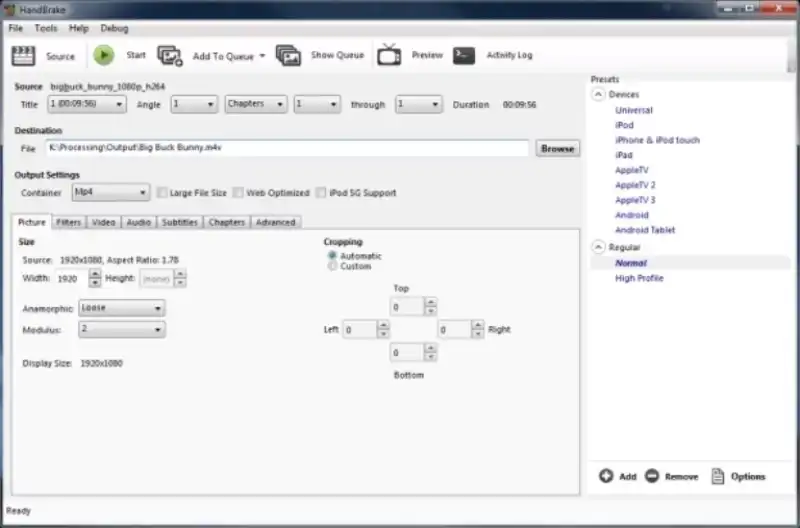
Handbrake (Windows, Macos, Linux)
- Download And Install Handbrake: Visit the official website and follow the installation instructions.
- Insert The Dvd: Place the DVD in your master drive and launch HandBrake.
- Select Profile: Choose a profile or device to output the file to (e.G., MP4, MKV).
- Save The File: Select a destination for the ripped file and initiate the conversion process.
Other Solutions
If you’re looking for alternative software solutions, consider:
- Mobile Media Converter (Windows, Linux)
- ImgBurn (Windows)
- Burn (macOS)
Ripping a Protected Dvd
If you have a protected DVD, some software solutions may not be able to rip it. In this case, consider using specialized software like:
- MakeMKV (Windows, macOS)
- DVDFab DVD Ripper (Windows, macOS)
- AnyDVD (Windows)
- AnyDVD Platinum (Windows, macOS)
Ripping a Dvd on a Usb Drive
If you want to rip a DVD onto a USB drive, use the following steps:
- Insert The Dvd: Place the DVD in your master drive.
- Use Software Like Handbrake or Vlc: Follow the steps above to rip the DVD and save it as an MP4 or MKV file on the USB drive.
Conclusion
Ripping a DVD is a simple process that allows you to transfer its contents to another device or storage medium. With the right software solutions, you can easily back up your DVDs and enjoy them on multiple devices. Remember to always choose software that suits your needs and operating system.
Frequently Asked Questions (FAQs)
- Q: Can I Rip a Dvd Without Special Software?
A: No, ripping a DVD requires specialized software. - Q: Will I Lose Quality When Ripping a Dvd?
A: Yes, the ripped file may have some loss of quality due to compression. - Q: How do I Choose The Right Software For my Needs?
A: Research and read reviews to find the best software solution for your operating system and requirements. - Q: Can I Rip a Protected Dvd?
A: Some software solutions can, but not all; use specialized software like MakeMKV or DVDFab. - Q: How do I Rip a Dvd Onto a Usb Drive?
A: Use software like HandBrake or VLC to rip the DVD and save it as an MP4 or MKV file on the USB drive. - Q: Will Ripping a Dvd Void Its Warranty?
A: Check your DVD’s warranty policy, but generally, ripping a DVD does not affect its warranty. - Q: Can I Share Ripped Dvds With Others?
A: Yes, you can share ripped DVDs with friends and family for personal use only. - Q: How do I Know Which Software to Choose?
A: Read reviews and research the best software solution for your operating system and requirements.
Remember, always follow copyright laws when sharing or distributing content.


