
How to Reset Iphone 14: A Step-by-step Guide
Are you tired of your old iPhone 14 but don’t know how to reset it? Look no further! In this article, we’ll guide you through the process of resetting your iPhone 14, whether it’s due to a technical issue or simply because you want to give it away.
Why Reset Your Iphone 14?
Before we dive into the steps, let’s talk about why you might want to reset your iPhone 14. Perhaps you’re selling it or giving it away, and you want to restore it to its factory settings. Or maybe you’ve encountered a technical issue that needs to be resolved.
Step 1: Back Up Your Data
Before resetting your iPhone 14, make sure to back up all your data to iCloud or iTunes. This will ensure that none of your important files and settings are lost during the reset process.
How to Reset Iphone 14 From Ios
To reset your iPhone 14 from its operating system, follow these steps:
- Go to Settings > General.
- Tap on Transfer or Reset Iphone.
- Select Erase All Content And Settings.
- If prompted, enter the password for your Apple ID.
- Confirm that you want to erase all content and settings.
How to Reset Iphone 14 From a Computer
If you prefer to reset your iPhone 14 from a computer, follow these steps:
- Connect your iPhone 14 to your computer using a USB cable.
- Open Itunes (if you’re on a Windows PC) or Finder (if you’re on a Mac).
- Select the device icon in iTunes or Finder.
- Click on Restore Iphone.
- If prompted, enter the password for your Apple ID.
How to Reset Iphone 14 of Spento
If your iPhone 14 is turned off and you want to reset it, follow these steps:
- Go to the Apple Support Website.
- Sign in with your Apple ID.
- Click on Find My (if this feature is enabled on your device).
- Select the option to Erase Iphone.
- Confirm that you want to erase the device.
How to Reset Iphone 14 Blocked
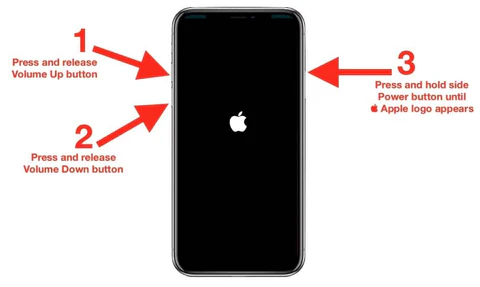
If your iPhone 14 is blocked and won’t turn off, try a soft reset by pressing and holding the Volume Up button, then the Volume Down button, and finally the Sleep/Wake button. This will force the device to restart.
If this doesn’t work, you can try a more advanced method using iTunes or Finder:
- Connect your iPhone 14 to your computer.
- Open Itunes (if you’re on a Windows PC) or Finder (if you’re on a Mac).
- Select the device icon in iTunes or Finder.
- Click on Restore Iphone.
Conclusion
Resetting your iPhone 14 is a relatively simple process that can help resolve technical issues or prepare your device for sale or giveaway. Remember to back up all your data before resetting your device, and always follow the manufacturer’s instructions for the most effective results.
Frequently Asked Questions (FAQs)
Q: What happens to my data when I reset my iPhone 14?
A: Your data will be erased from the device. Make sure to back it up to iCloud or iTunes before resetting your iPhone 14.
Q: Can I reset my iPhone 14 if it’s turned off?
A: Yes, you can try a soft reset by pressing and holding the Volume Up button, then the Volume Down button, and finally the Sleep/Wake button. If this doesn’t work, you can use iTunes or Finder to restore your device.
Q: How do I back up my data on iPhone 14?
A: You can back up your data to iCloud or iTunes. Go to Settings > Icloud > Backup or connect your iPhone 14 to your computer using a USB cable and open Itunes (if you’re on a Windows PC) or Finder (if you’re on a Mac).
Q: What if my iPhone 14 is blocked?
A: Try a soft reset by pressing and holding the Volume Up button, then the Volume Down button, and finally the Sleep/Wake button. If this doesn’t work, use iTunes or Finder to restore your device.
Q: Can I reset my iPhone 14 from a computer without using iTunes?
A: Yes, you can use Finder on a Mac to restore your iPhone 14.


