
How to Reset Your Samsung Galaxy Smartphone: A Step-by-step Guide
Are you tired of your Samsung Galaxy smartphone slowing down or experiencing software issues? Do you want to sell your device but don’t know how to erase all the data on it? Look no further! In this article, we’ll guide you through the process of resetting your Samsung Galaxy smartphone, including erasing all the present data on the memory of the phone.
Why Reset Your Samsung Galaxy Smartphone?
Resetting your Samsung Galaxy smartphone can help resolve software issues, improve performance, and make it easier to sell or give away. However, before you start, it’s essential to back up your important data, such as photos, contacts, and messages.
Backing Up Your Data: A Step-by-step Guide
Before resetting your device, it’s crucial to backup your data to prevent losing any important information. Here’s how:
- Open The Settings App: Tap on the gear icon in your home screen or drawer.
- Select Account And Backup: Choose this option from the menu.
- Select Data Backup: This will show you a list of all the data that can be backed up, including contacts, messages, and more.
- Choose What to Backup: Select the items you want to backup, such as your photos or contacts.
- Tap Backup: This will start the backup process.
Resetting Your Samsung Galaxy Smartphone: A Step-by-step Guide
Now that you’ve backed up your data, it’s time to reset your device. Here’s how:
- Select Settings: Open the settings app on your smartphone.
- Choose General Management: Select this option from the menu.
- Tap Reset Options: Choose this option from the list of available choices.
- Select Factory Data Reset: This will erase all the data on your device, so make sure you’ve backed up everything first!
- Confirm The Reset: Tap “Reset” to confirm that you want to erase all the data on your device.
What Happens When You Reset Your Samsung Galaxy Smartphone?
When you reset your Samsung Galaxy smartphone, it will revert back to its factory settings, which means all the data on the device will be erased. This includes:
- All contacts and phonebook entries
- Messages and conversation history
- Photos and videos in the gallery
- Apps and their data
Resetting Your Samsung Galaxy Smartphone: An Alternative Method
If you’re unable to reset your device using the standard method, there’s an alternative way to do so. Here’s how:
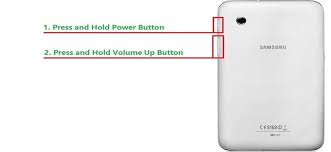
- Press And Hold The Power Button: Long press the power button until the phone turns off.
- Long Press The Volume Down Button: Hold the volume down button for 10 seconds until you see the Android Recovery screen.
- Select Wipe Data/factory Reset: Choose this option from the menu.
- Confirm The Reset: Tap “Wipe data/factory reset” to confirm that you want to erase all the data on your device.
Resetting Your Samsung Galaxy Smartphone in Case of Theft or Loss
If your phone has been stolen or lost, there’s a way to remotely reset it using the Find My Device service. Here’s how:
- Sign in to Your Google Account: Go to the Find My Device website and sign in with your Google account.
- Select The Device You Want to Reset: Choose the Samsung Galaxy smartphone you want to reset from the list of devices associated with your account.
- Tap Erase Device: Confirm that you want to erase all the data on your device.
Conclusion
Resetting your Samsung Galaxy smartphone can be a bit daunting, but with this step-by-step guide, you should be able to do it easily and efficiently. Remember to backup your important data before proceeding, and if you’re unable to reset your device using the standard method, don’t worry – there’s an alternative way to do so.
Frequently Asked Questions (FAQs)
- Q: How Long Does The Reset Process Take?
A: The reset process can take anywhere from 10-30 minutes, depending on the speed of your internet connection and the amount of data on your device. - Q: Will Resetting my Samsung Galaxy Smartphone Delete All my Contacts And Messages?
A: Yes, resetting your Samsung Galaxy smartphone will erase all the data on your device, including contacts and messages. - Q: Can I Reset my Samsung Galaxy Smartphone Remotely if It’s Been Stolen or Lost?
A: Yes, you can use the Find My Device service to remotely reset your Samsung Galaxy smartphone if it’s been stolen or lost. -
Q: Will Resetting my Samsung Galaxy Smartphone Affect Any of my Installed Apps?
A: Yes, resetting your Samsung Galaxy smartphone will erase all the data on your device, including any apps and their associated data. -
Q: Can I Reset my Samsung Galaxy Smartphone if It’s Been Blocked by a Password or Fingerprint Lock?
A: Yes, you can use the Recovery mode to reset your Samsung Galaxy smartphone even if it’s been blocked by a password or fingerprint lock. -
Q: Will Resetting my Samsung Galaxy Smartphone Affect Any of my Google Account Data?
A: No, resetting your Samsung Galaxy smartphone will not affect any of your Google account data, including your contacts and messages. -
Q: Can I Reset my Samsung Galaxy Smartphone if It’s Been Damaged or Waterlogged?
A: No, you should not attempt to reset a damaged or waterlogged Samsung Galaxy smartphone, as this may further damage the device. -
Q: Will Resetting my Samsung Galaxy Smartphone Erase Any of my Downloaded Music or Videos?
A: Yes, resetting your Samsung Galaxy smartphone will erase all the data on your device, including any downloaded music or videos.


