
How to Remove Google Synchronization on Various Devices
Are you tired of having your data automatically synchronized across different Google services? Do you want more control over what’s being synced and when? Look no further! In this article, we’ll guide you through the process of removing Google synchronization on various devices, including smartphones, tablets, computers, and more.
Why Remove Google Synchronization?
Before we dive into the instructions, let’s quickly discuss why you might want to remove Google synchronization. While it can be convenient to have your data automatically synced across different services, it also means that Google has access to a lot of sensitive information about you. By removing synchronization, you’ll have more control over what’s being shared and when.
Removing Synchronization on Android Devices
If you’re using an Android device, here’s how to remove synchronization:
- Open the Google account settings by going to Settings > Accounts.
- Select the account that you want to remove synchronization for.
- Go to the “Sync” section and toggle off the switch next to “Gmail.”
- Repeat this process for any other services that you want to remove synchronization from, such as Google Photos or Google Drive.
Removing Synchronization on Ios Devices
If you’re using an iOS device, here’s how to remove synchronization:
- Open the Settings app.
- Select “Accounts & Passwords.”
- Choose the account that you want to remove synchronization for.
- Go to the “Sync” section and toggle off the switch next to “Gmail.”
Removing Synchronization on Desktop Computers
If you’re using a desktop computer, here’s how to remove synchronization:
- Open the Google Account settings by going to Google.Com > My Account.
- Select the account that you want to remove synchronization for.
- Go to the “Sync” section and toggle off the switch next to “Gmail.”
- Repeat this process for any other services that you want to remove synchronization from.
Removing Synchronization on Chrome
If you’re using Google Chrome as your browser, here’s how to remove synchronization:
- Open the Chrome settings by going to Chrome://Settings.
- Select the account that you want to remove synchronization for.
- Go to the “Sync” section and toggle off the switch next to “Google Account.”
- Repeat this process for any other services that you want to remove synchronization from.
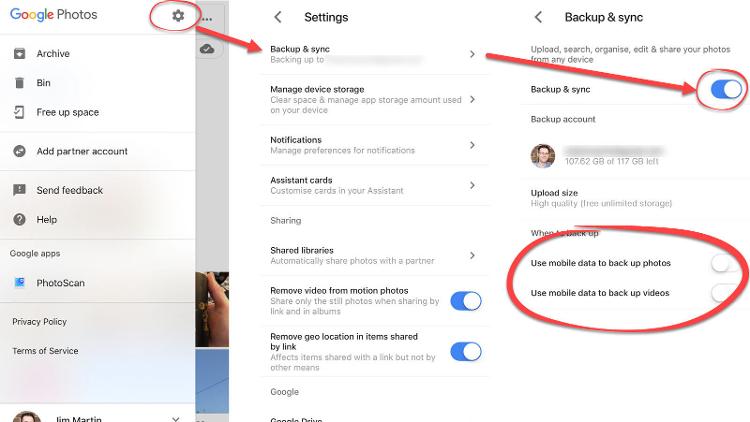
Removing Synchronization on Google Photos
If you’re using Google Photos, here’s how to remove synchronization:
- Open the Google Photos app.
- Go to the settings by tapping on the three dots in the top right corner.
- Select “Sync” and toggle off the switch next to “Backup & Sync.”
Removing Synchronization on Google Drive
If you’re using Google Drive, here’s how to remove synchronization:
- Open the Google Drive app.
- Go to the settings by tapping on the three dots in the top right corner.
- Select “Sync” and toggle off the switch next to “Backup & Sync.”
Removing Synchronization on Chrome OS
If you’re using a Chromebook, here’s how to remove synchronization:
- Open the Chrome OS settings by going to Settings > Accounts.
- Select the account that you want to remove synchronization for.
- Go to the “Sync” section and toggle off the switch next to “Google Account.”
Conclusion
Removing Google synchronization on various devices is a relatively simple process, and we’ve outlined the steps above. By following these instructions, you’ll have more control over what’s being synced and when, which can be especially important if you’re concerned about data security and privacy.
Frequently Asked Questions (FAQs)
- Q: Why Would I Want to Remove Google Synchronization?
A: You might want to remove Google synchronization if you’re concerned about data security and privacy, or if you simply prefer to have more control over what’s being synced. - Q: How do I Know if my Device is Synchronized With Google?
A: If your device is synchronized with Google, you should see a switch next to “Sync” in the settings for each service (e.G., Gmail, Google Photos, etc.) That indicates whether synchronization is enabled or not. - Q: Will Removing Google Synchronization Affect my Ability to Access my Data?
A: No, removing Google synchronization will not affect your ability to access your data. You’ll still be able to access your data on the devices and services where it’s stored. - Q: Can I Remove Google Synchronization For Only Certain Services?
A: Yes, you can remove Google synchronization for individual services by toggling off the switch next to “Sync” in the settings for that service. - Q: How do I Re-enable Google Synchronization if I Change my Mind?
A: To re-enable Google synchronization, simply toggle on the switch next to “Sync” in the settings for each service that you want to enable again. - Q: Will Removing Google Synchronization Affect my Ability to Use Google Services?
A: No, removing Google synchronization will not affect your ability to use Google services. You’ll still be able to access and use all of Google’s services as normal.
Removing The Synchronization of Google on Various Devices
In this article, we’ve provided step-by-step instructions for removing Google synchronization on various devices, including smartphones, tablets, computers, and more. By following these steps, you can have more control over what’s being synced and when, which is especially important if you’re concerned about data security and privacy.
How to Remove The Synchronization of Gmail
Removing the synchronization of Gmail is a straightforward process that involves toggling off the switch next to “Sync” in the settings for your account. This will prevent your device from automatically syncing with your Gmail account.
How to Remove The Synchronization of Google Photos
If you’re using Google Photos, you can remove the synchronization by going into the app’s settings and toggling off the switch next to “Backup & Sync.” This will prevent your device from automatically backing up photos and videos to Google Photos.
How to Remove The Synchronization of Google Drive
To remove the synchronization of Google Drive, go into the app’s settings and toggle off the switch next to “Sync.” This will prevent your device from automatically syncing with your Google Drive account.
How to Remove The Synchronization of Chrome
If you’re using Google Chrome as your browser, you can remove the synchronization by going into the browser’s settings and toggling off the switch next to “Google Account.” This will prevent your browsing history and other data from being synced across devices.
Removing The Synchronization of Google on a PC
To remove the synchronization of Google on a PC, go into the Google account settings and toggle off the switch next to “Sync” for each service that you want to disable. This will prevent your device from automatically syncing with your Google accounts.
Removing The Synchronization of Google on a Mac
If you’re using a Mac, you can remove the synchronization of Google by going into the system preferences and toggling off the switch next to “Sync” for each service that you want to disable.


